
Getting Started
What is AI Voice Widget?
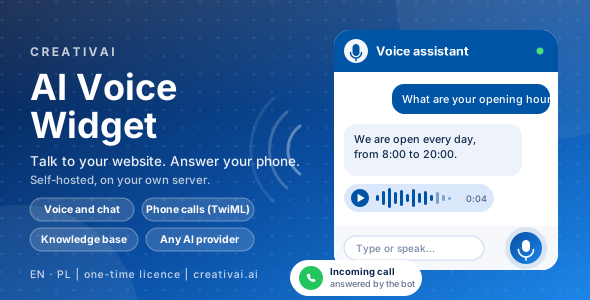
AI Voice Widget is an assistant you run on your own server. It talks to the visitors of your website by voice or by typing, and it can answer a telephone number. It answers from facts you give it, collects contact requests and hands the caller to a person when needed.
Everything lives on your hosting: the admin panel, the conversations, the knowledge and your provider keys. Nothing is sent to us. The only outside traffic is between your server and the AI and speech services you choose, between the visitor's browser and your server, and between your telephone operator and your server.
What you can do with it
- Put a chat and voice widget on any website with one line of code (or a WordPress plugin). Visitors type, or tap the microphone and hear the answer.
- Let a bot answer a telephone number through Twilio, Telnyx or any operator that speaks TwiML, with a call simulator so you can try it first.
- Hold live voice calls in the browser with a realtime model that the visitor can interrupt.
- Connect any AI provider, and separate providers for speech recognition, speech synthesis and realtime voice. Add your own provider in a few fields.
- Teach each bot from bot knowledge: text, question-and-answer lists, files, PDF and Word documents and web pages, with translations in every language you use.
- Run a bot without any AI provider: it answers straight from your question-and-answer list, at no cost.
- Collect contact requests from the chat and from phone calls, and get an e-mail about each one.
- Read conversations, rate answers, see what the bots could not answer, and watch statistics with an estimate of the cost.
- Give your team a help center inside the panel, with roles that decide who sees what.
What it does not do
It does not make outgoing calls, it does not run telephone menus ("press 1 for..."), and it does not record audio. A telephone call is turn-based: after each sentence the caller waits two to four seconds for the answer, and the bot cannot be interrupted by voice on the telephone (live calls in the browser can). Bots answer only from the knowledge you give them and from the AI model you connect; you pay the AI, speech and telephone providers directly. This software does not charge per minute.
What you need
A normal web hosting is enough. There is nothing to install on the server besides the files.
On the server
- PHP 8.1 or newer with the extensions
pdo_mysql,opensslandmbstring. Recommended:sodium(checks the licence key),curl(talks to the providers) andzip(builds the WordPress plugin). - MySQL 5.7+ or MariaDB 10.3+. One database is enough: table names get a prefix (default
avw_), so the database can be shared with other applications. - HTTPS for the website that shows the widget (browsers allow the microphone only on secure pages) and for the application itself when a telephone operator calls it.
- No Composer, no Node, no background process, no WebSocket server.
Accounts you may want
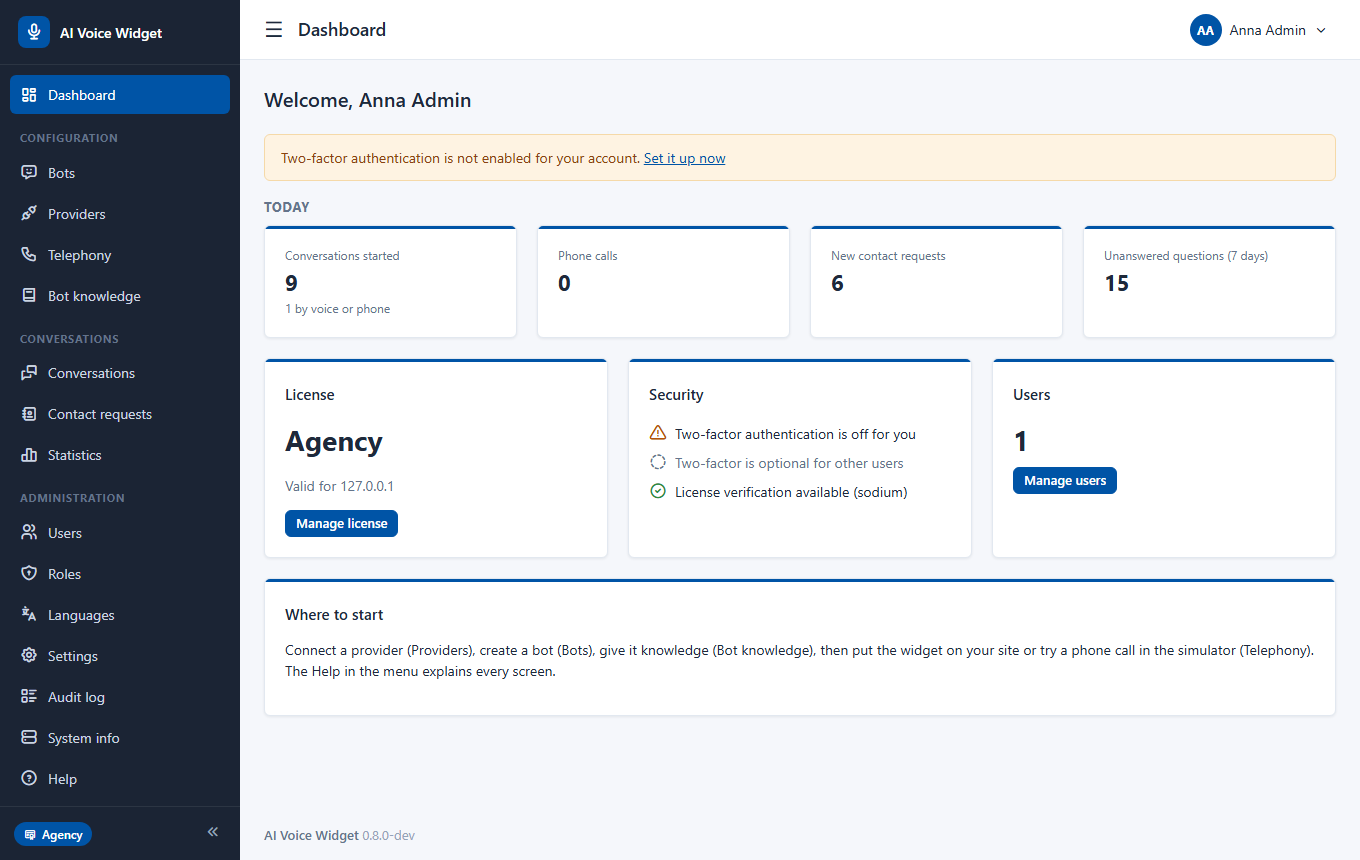
You can try the whole panel without any account, using the demo data and the "Without AI" bot. To make bots answer with AI, or to speak and listen with better voices, create an account at the provider you prefer and paste its key under Providers. To answer a real telephone number you also need an account at a telephone operator. See the chapter on providers and the chapter on telephony.
Installation
Copy the files, open the installer, answer a few questions. Five minutes.
- 1Copy the whole folder to your web root (any sub-folder works; the address of the application is detected automatically).
- 2Create an empty MySQL database. On a local XAMPP the installer can create it for you.
- 3Open
install/in the browser. Fill in the database details and the first administrator (name, e-mail, a long password) and submit. - 4When the installer says it is finished, **delete the
install/folder**. - 5Sign in. The dashboard tells you what to do next.
config/ and storage/. If a folder is not writable the installer says which one.Updating
Copy the new files over the old ones (keep config/config.php, config/installed.lock and storage/). Then open System info: if the new version needs database changes you see them listed as pending, and one button applies them in order. The dashboard also warns you when something is pending. Do not skip this step: a new version may rely on the new tables.
Moving to another server
Copy the files and the database, then edit config/config.php (database details). A licence key is bound to a domain, so a new domain needs a new key.
Quick start: your first voice bot
Ten minutes from an empty panel to a bot that talks. This path costs nothing: it uses no provider.
- 1Create the bot. Open Bots and press Add a bot. Give it a name and a short description. On the Topic and prompt tab say what it is for and how it should sound.
- 2Switch off the AI. On the Topic and prompt tab set the knowledge mode to Without AI: answer straight from the knowledge base. The model fields are then not needed.
- 3Give it knowledge. Open Bot knowledge, press Questions and answers, pick your bot and write a few pairs, for example the opening hours and the price list. Keep every answer to one to three sentences: it will be spoken.
- 4Switch voice on. In the bot, open the Voice tab, tick Voice, choose the visitor's browser for listening and for speaking. Save.
- 5Allow your website. On the Security tab list the website addresses that may show the bot, for example
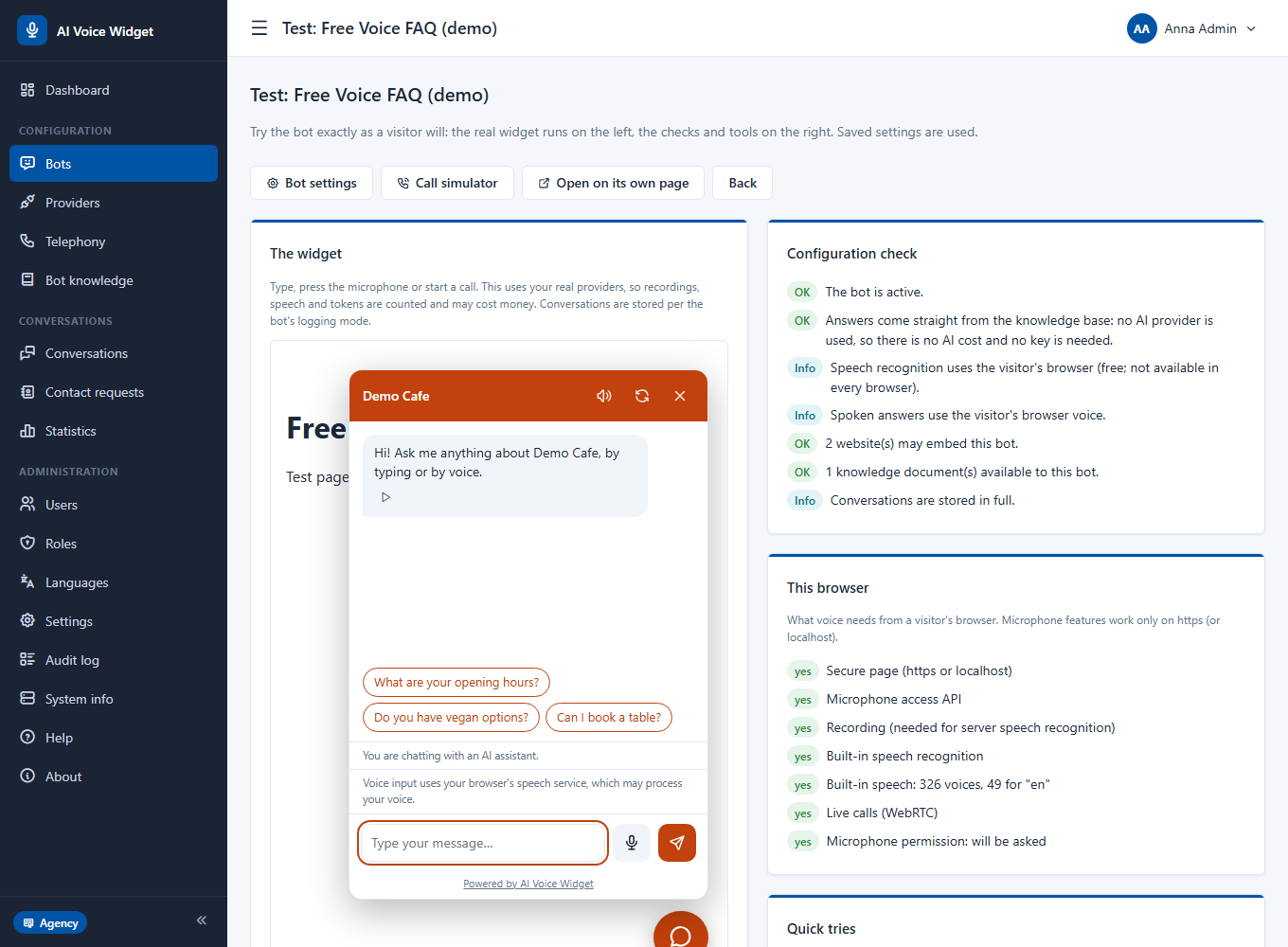
https://example.com. - 6Try it. Open Bots, press Test next to the bot. The page shows the real widget next to a checklist that tells you what is still missing. Type a question, or tap the microphone and speak.
- 7Embed it. On the Embed tab copy the code into your website, just before
</body>.
What next
- Connect an AI provider to let the bot answer questions your list does not cover (chapter Providers).
- Choose better voices (chapter Voice).
- Let the bot answer a telephone number (chapter Telephony). The call simulator works without any number.
User Guide
A tour of the panel
The menu on the left has four groups. Hover over any question-mark icon in a form for a short explanation of that field.
| Menu | What it is for |
|---|---|
| Dashboard | Today at a glance: conversations (and how many by voice or phone), phone calls, new contact requests, questions the bots could not answer. |
| Bots | Create and tune bots; the test page of each bot. |
| Providers | AI, speech and realtime voice services, with your keys, and a test console for each. |
| Telephony | Phone numbers, the call log and the call simulator. |
| Bot knowledge | What the bots answer from; unanswered questions. |
| Conversations | What visitors and callers said, by channel. |
| Contact requests | People who left their details, from the chat and from the telephone. |
| Statistics | Use per day, voice and phone, and the cost estimate. |
| Users and Roles | Who may do what. |
| Languages | The languages of the panel and the widget, and your own. |
| Settings | General, appearance, e-mail, conversations (clearing), voice, licence, branding, demo data. |
| Audit log | Who changed what. |
| System info | Versions, requirements, database updates. |
| Help | Articles for your team, written inside the application. |
Providers: AI, speech and your own
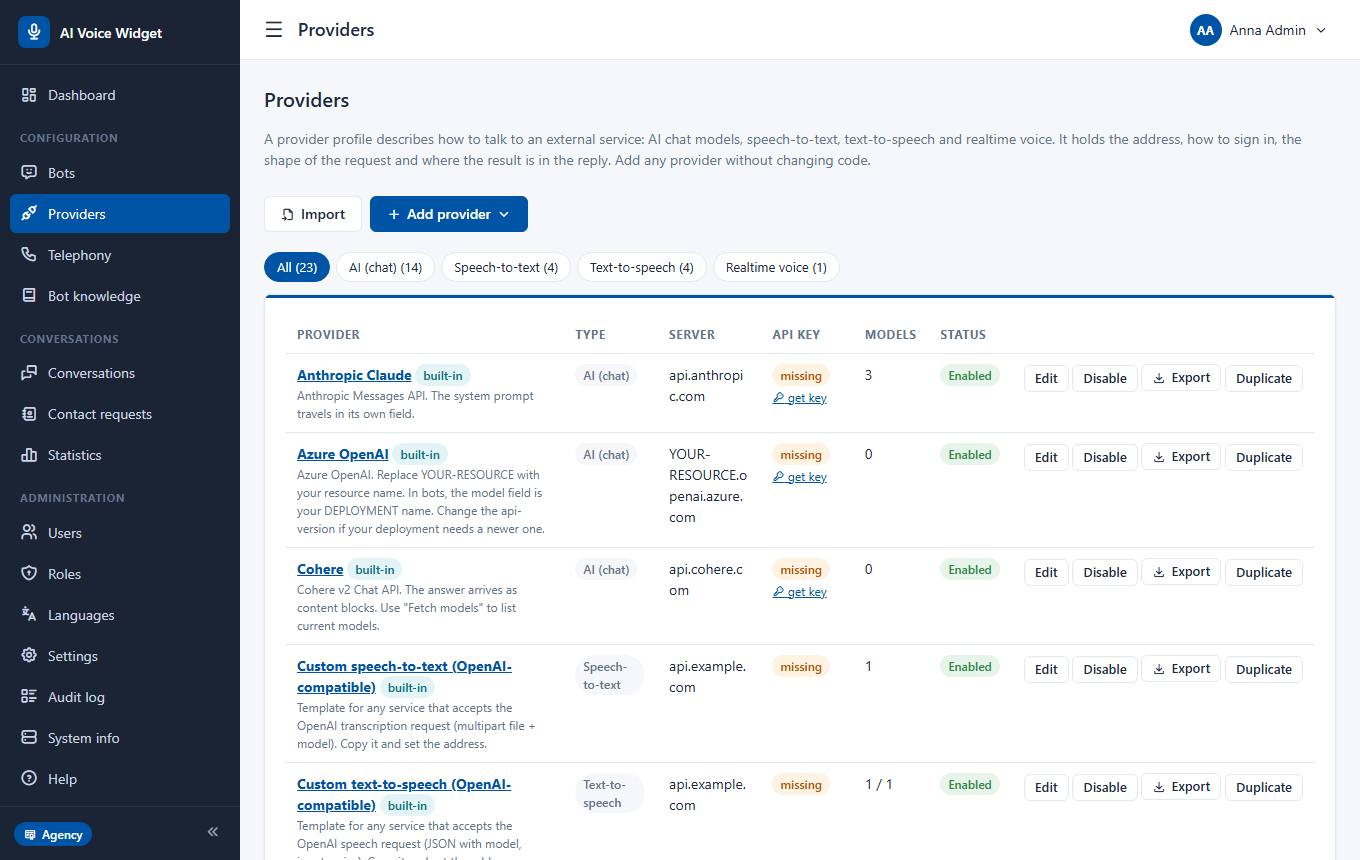
A provider is an outside service that does the thinking or the speaking. You give the application its key; the key is stored encrypted and never reaches the browser.
Four kinds
| Kind | What it does | Examples built in |
|---|---|---|
| AI (chat) | Writes the answers | OpenAI, Anthropic, Google Gemini, Mistral, Groq, Perplexity, OpenRouter, xAI, Together, Azure OpenAI, Cohere, LM Studio, Ollama |
| Speech-to-text | Turns the visitor's recording into text | OpenAI, Groq, Deepgram |
| Text-to-speech | Reads the answer aloud | OpenAI, ElevenLabs, any OpenAI-compatible service |
| Realtime voice | Live conversation in the browser | OpenAI Realtime |
Adding a key
- 1Open Providers and choose the provider.
- 2Paste the key. Where to get it is shown next to the field.
- 3Press the test button. The console shows what was sent and what came back, so you can see at once whether the key works.
- 4Save.
Your own provider
Any service with a similar interface can be described in a profile: its address, headers, how a request and an answer look, and the list of models or voices. Use Add a provider and start from the closest built-in profile. Profiles can be exported and imported. A profile that you have not tried with a real key is untested: test it before you rely on it.
Cost
You pay each provider directly, by its own price list. Settings, Voice lets you enter those prices once so that Statistics can show an estimate of what a period cost.
Bots
A bot is one assistant with its own wording, rules, look and limits. One installation can run many bots, each for a different website, language or purpose.
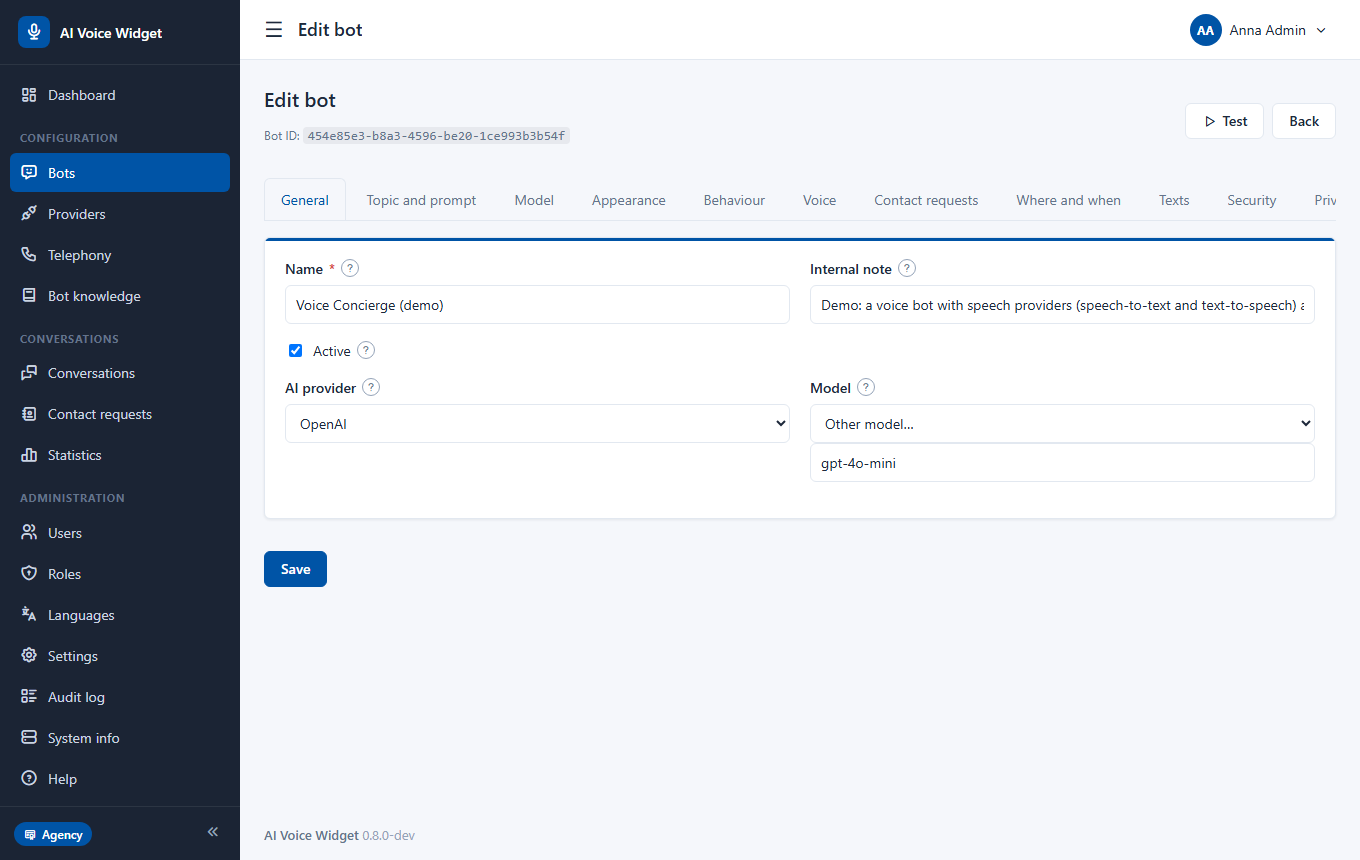
The tabs of the editor
Knowledge modes
| Mode | What the bot does |
|---|---|
| Use it, and fall back on general knowledge | The best excerpts of your knowledge are added to the question; the model may still use what it knows. |
| Answer only from the knowledge base | When nothing matches, the bot does not ask the AI at all and says your "when it cannot answer" text. Saves cost and prevents invented answers. |
| Without AI | No provider is called. The bot returns the matching entry of your knowledge itself. Free, needs no key, works best with question-and-answer lists. |
| Do not use it | The knowledge base is ignored. |
Limits that protect you
The limits on the Security tab (per minute and per conversation, a daily token budget and the list of allowed websites) stop a bot from being used by strangers or running up your provider bill. When the budget is used up the widget says so politely and nothing more is sent to the AI.
Putting the widget on your website
One line of code. The widget loads asynchronously and does not slow the page.
- 1Open the bot and go to the Embed tab.
- 2Copy the code: a
scripttag with the bot's identifier. - 3Paste it into your pages just before
</body>, or into the footer template of your site or theme. - 4Make sure the address of your website is on the bot's list of allowed websites (Security tab). Otherwise the widget stays hidden.
For WordPress, the Embed tab can build a small plugin that only adds the script tag: install it like any plugin, nothing else is stored in WordPress.
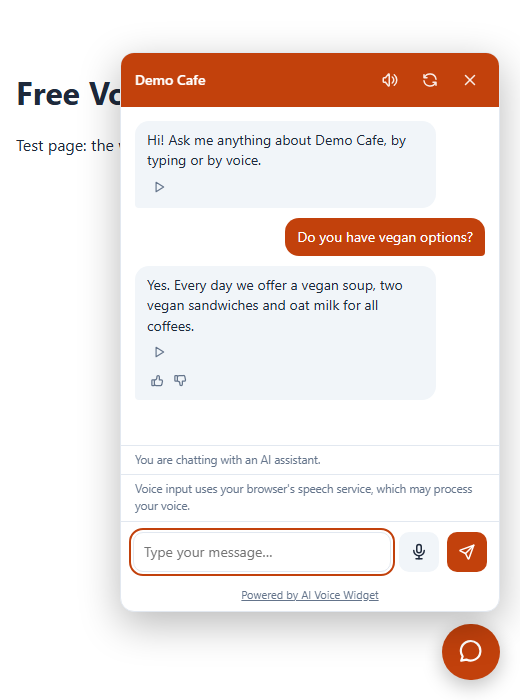
Language
The widget takes the language of the page and shows its texts in it. When the bot's knowledge has a translation in that language the bot answers from the translation.
Voice: microphone, spoken answers and live calls
Typing always works. Voice is added on top, per bot, in the Voice tab.
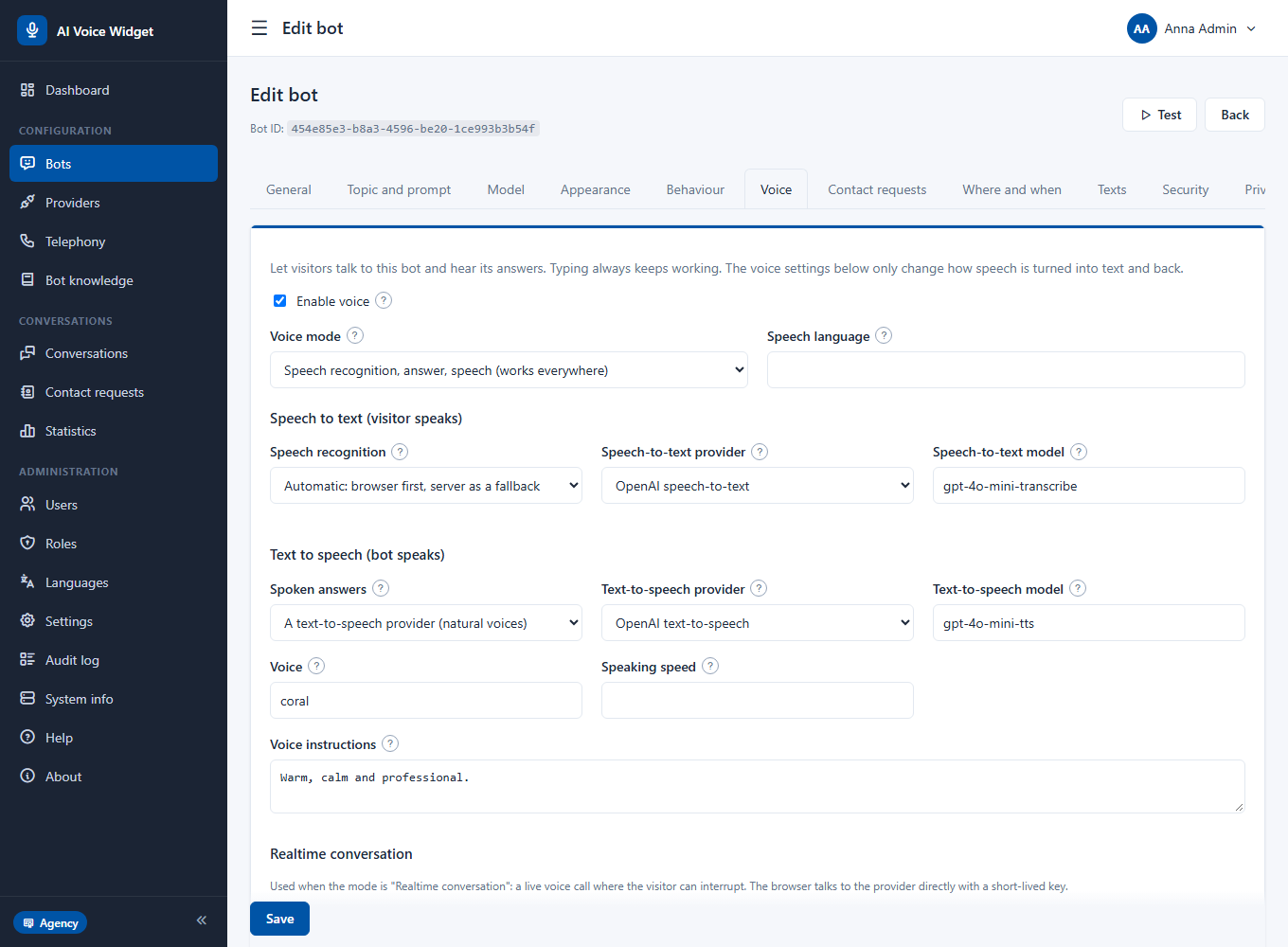
Two ways to talk
| Mode | How it works | Good for |
|---|---|---|
| Speech recognition, answer, speech | The visitor speaks, the speech becomes text, the bot answers, the answer is read aloud | Every browser and device; the cheapest; the default |
| Realtime conversation | A continuous live conversation through a realtime model; the visitor may interrupt | The most natural talk; needs a realtime provider and costs more |
Listening and speaking
- Listening: the visitor's browser (free; missing in some browsers, and the browser's speech service may send audio to its maker), a speech-to-text provider (works everywhere), or both: automatic uses the browser first and the provider as a fallback.
- Speaking: the visitor's browser voice (free) or a text-to-speech provider (natural voices). Answers are cut into sentences and the next one is fetched while the current one plays. Every spoken sentence is kept in a cache on your server, so repeated sentences cost nothing.
- Read answers aloud: only when the visitor spoke, always, or never (a play button stays on every answer).
- Hands-free listens again after each answer. Interrupting: tapping the microphone or typing stops the bot.
- Limits per day for recordings, spoken characters and live calls, so a busy day cannot become an expensive one.
Privacy
Audio is never stored. The text of a conversation is stored according to the bot's privacy setting. The widget shows a short note that speech is processed by the visitor's browser or by the provider you chose.
Bot knowledge
Bot knowledge is the collection of facts your bots answer from: prices, rules, opening hours, product details. It belongs to your bots and your customers. (Do not confuse it with the Help, which is written for your own team.)
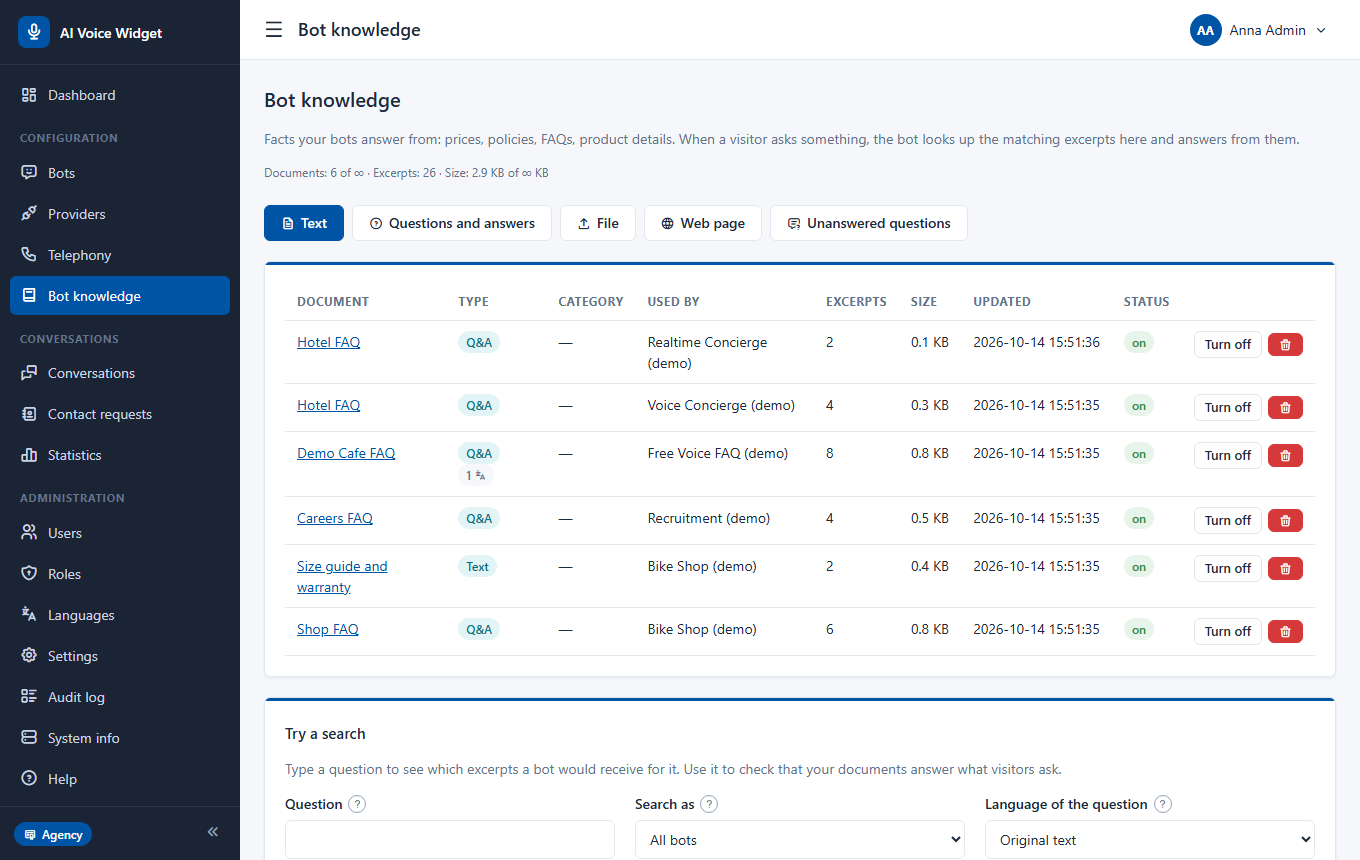
Four ways to add knowledge
- Text: paste anything. Long texts are cut into passages automatically.
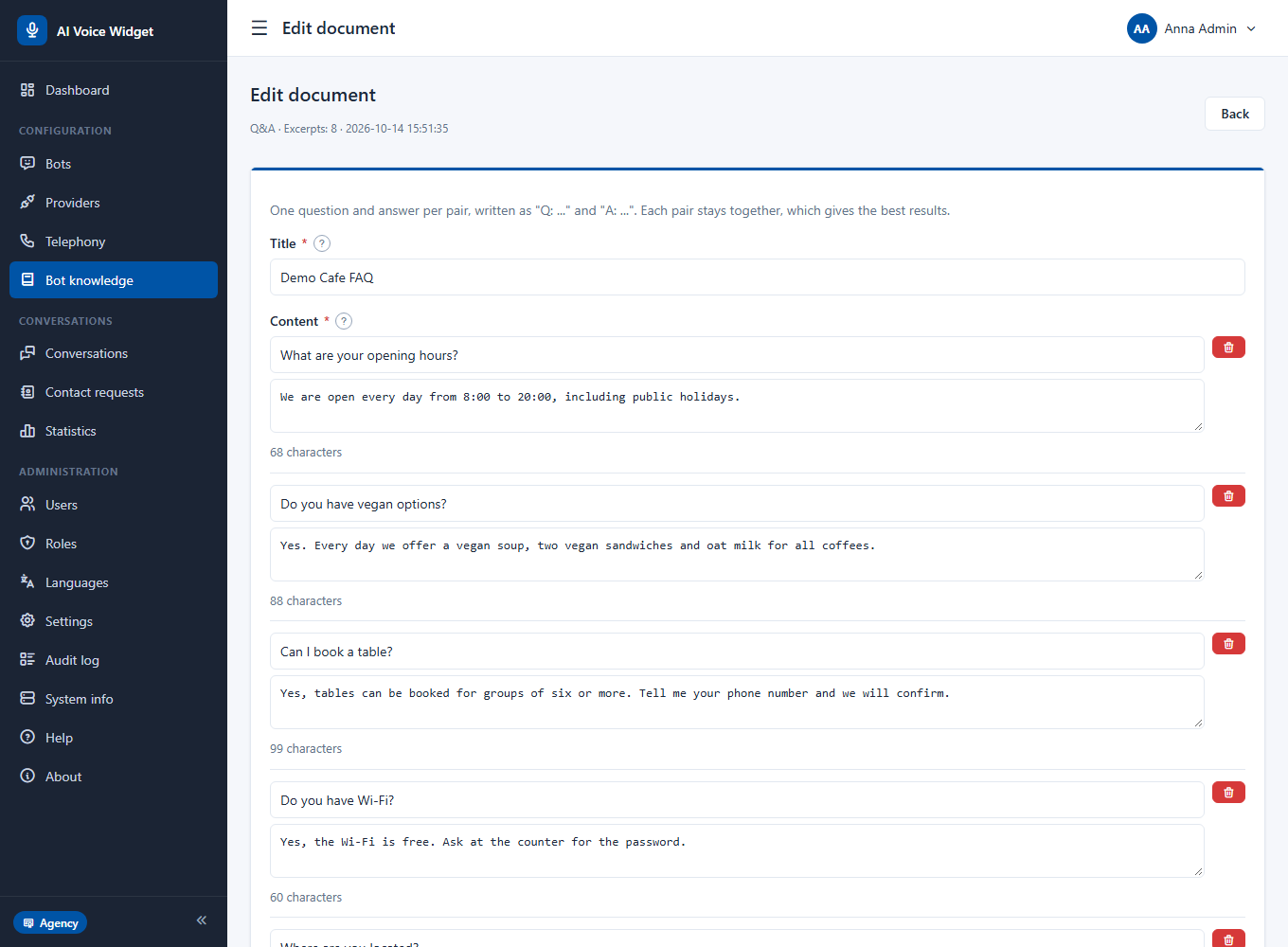
- Questions and answers: a list of pairs, edited as a list or as text. The best result for a FAQ.
- File: TXT, Markdown, HTML, CSV, PDF and Word. In a CSV the first column is the question and the second the answer.
- Web page or sitemap: the page is read once; refresh it when the page changes.
Writing for the ear
Answers that will be spoken should be short: one to three sentences, plain words, no tables. The Q&A editor warns when an answer is long for speech.
Organising
- A document belongs to one bot or to all bots (good for company-wide facts).
- Categories and an order number keep a long list tidy.
- Translations: each document can have a version in every installed language. A bot uses the version that matches the language of the visitor or caller and falls back to the original.
- Search tester: type a question, choose a bot and a language, and see which excerpts it would find.
Unanswered questions
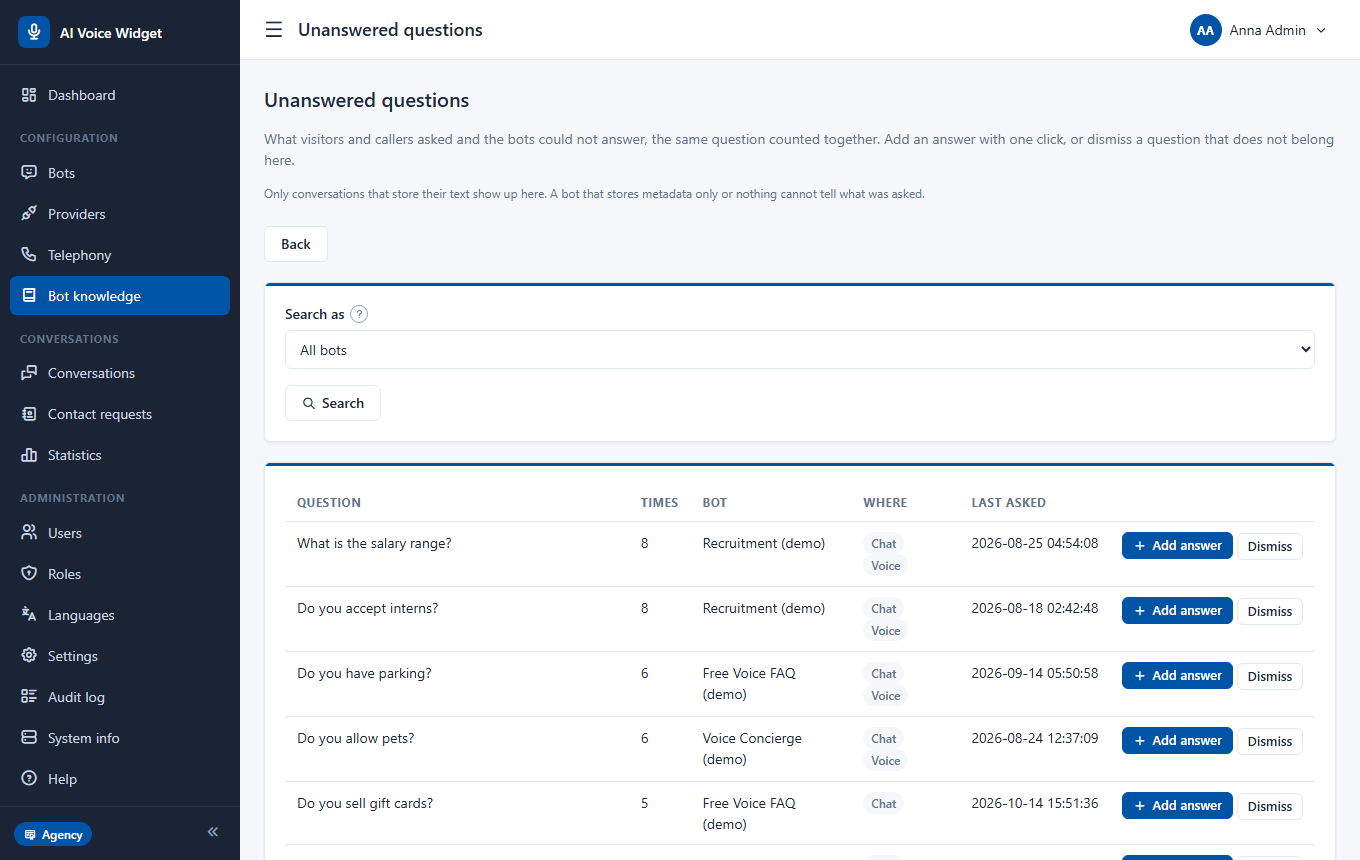
Bot knowledge, Unanswered questions lists what visitors and callers asked and the bots could not answer, the same question counted together, the most frequent first. Add answer opens a prefilled entry for that bot; Dismiss hides a question that does not belong. This is the quickest way to make a bot better every week.
Export and import
The whole knowledge base (documents, categories, translations) can be exported to one JSON file and imported on another installation. Importing never overwrites: a document with the same title, type and bot is skipped. This is part of the Single plan and above.
Telephone calls
A bot can answer a telephone number. A telephone operator carries the call and asks this application, again and again, what to say next.
What you need
- A virtual number at a telephone operator, or your existing number forwarded to one. An ordinary phone or SIM card cannot do it on its own, because only an operator can turn a call into requests to a server.
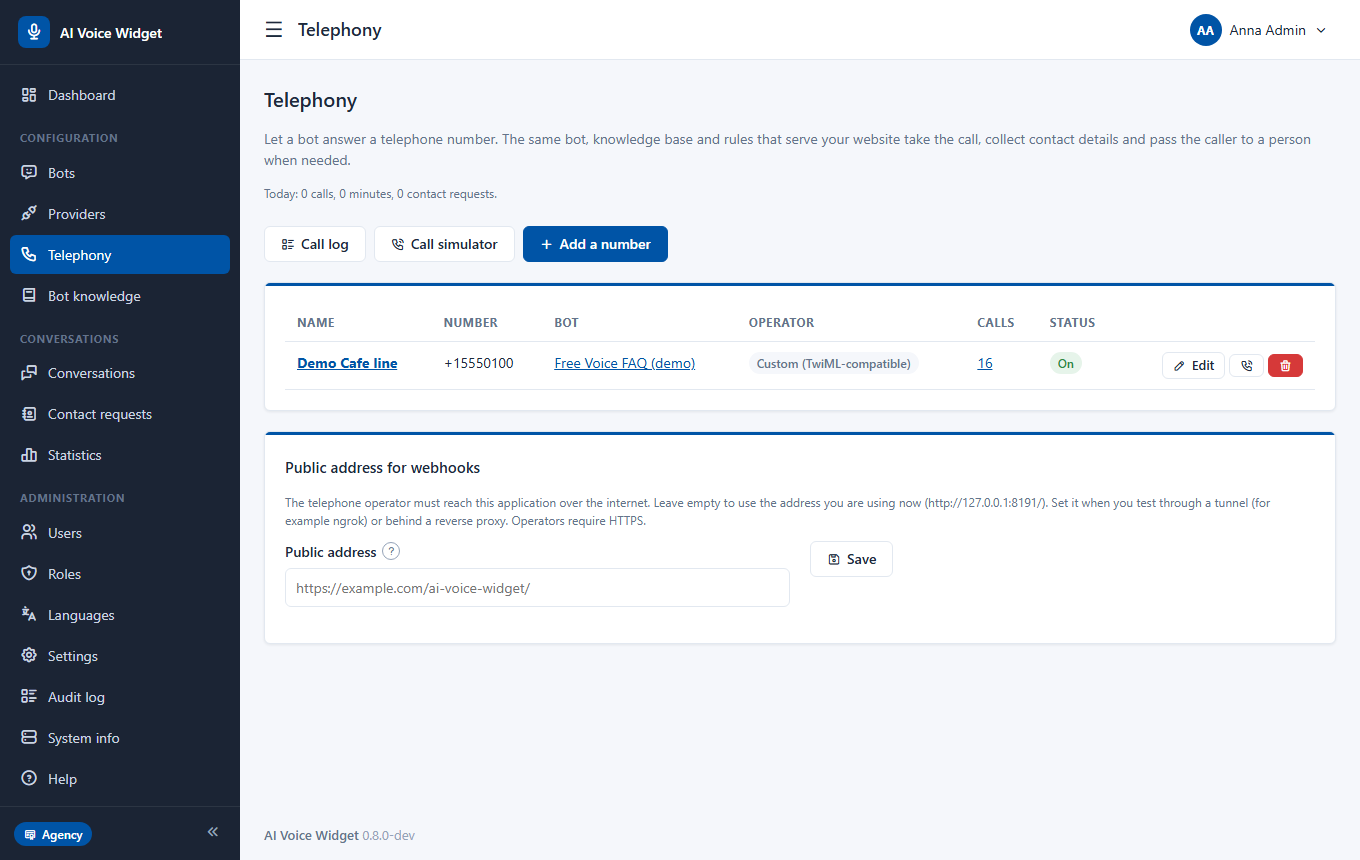
- This application reachable from the internet over HTTPS. For a test from your own computer you can use a tunnel and set its address under Telephony ("Public address for webhooks").
- No number yet? The call simulator runs the same call flow with typed speech and shows what the operator would be told to do.
Setting up a number
- 1Open Telephony and press Add a number.
- 2Choose the bot, the operator (Twilio, Telnyx or custom) and enter the number in international form, for example
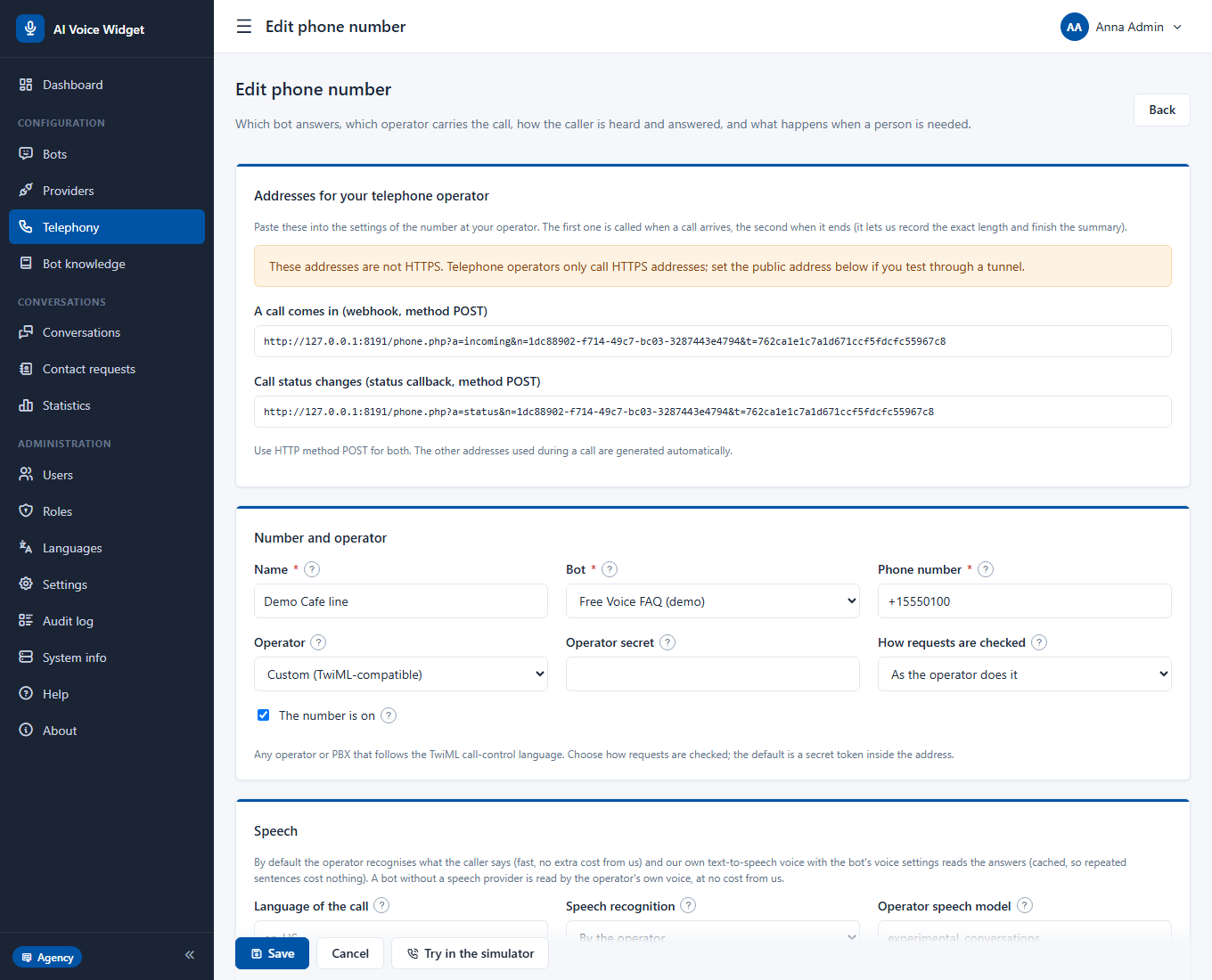
+48221234567, and the operator's secret. - 3Save. The number's page now shows two addresses: a call comes in and call status changes. Paste them into the settings of the number at your operator, with the method POST.
- 4Call the number.
How a call goes
- 1The caller hears a short notice that an automated assistant answers (you can change or switch it off), then the greeting.
- 2The caller speaks. The operator turns the speech into text (or the call is recorded and your own speech provider does it); the bot answers from its knowledge; the answer is read by your text-to-speech or by the operator's own voice.
- 3The caller may say goodbye, ask for a person, or press 0 for a person. Silence, a long call or too many exchanges end the call politely.
- 4After the call, the application writes a summary, finds the name, number and reason, and creates a contact request with the usual e-mail.
| Setting | What it does |
|---|---|
| Speech recognition | By the operator (fast, no cost from us) or record and use your speech provider (often better Polish, slower) |
| Voice of the bot | Your text-to-speech with the bot's voice settings (cached), or the operator's own voice at no cost to you |
| Hours of the bot | Outside them callers hear a closed message and can leave a message |
| Transfer | Connects the caller to a person at a number you give, in the hours you give; otherwise the bot takes a message |
| Limits | Exchanges, seconds, minutes per day, calls per hour from one number |
| Caller number | Kept masked in the log; the full number is held encrypted only until the call ends |
The call log
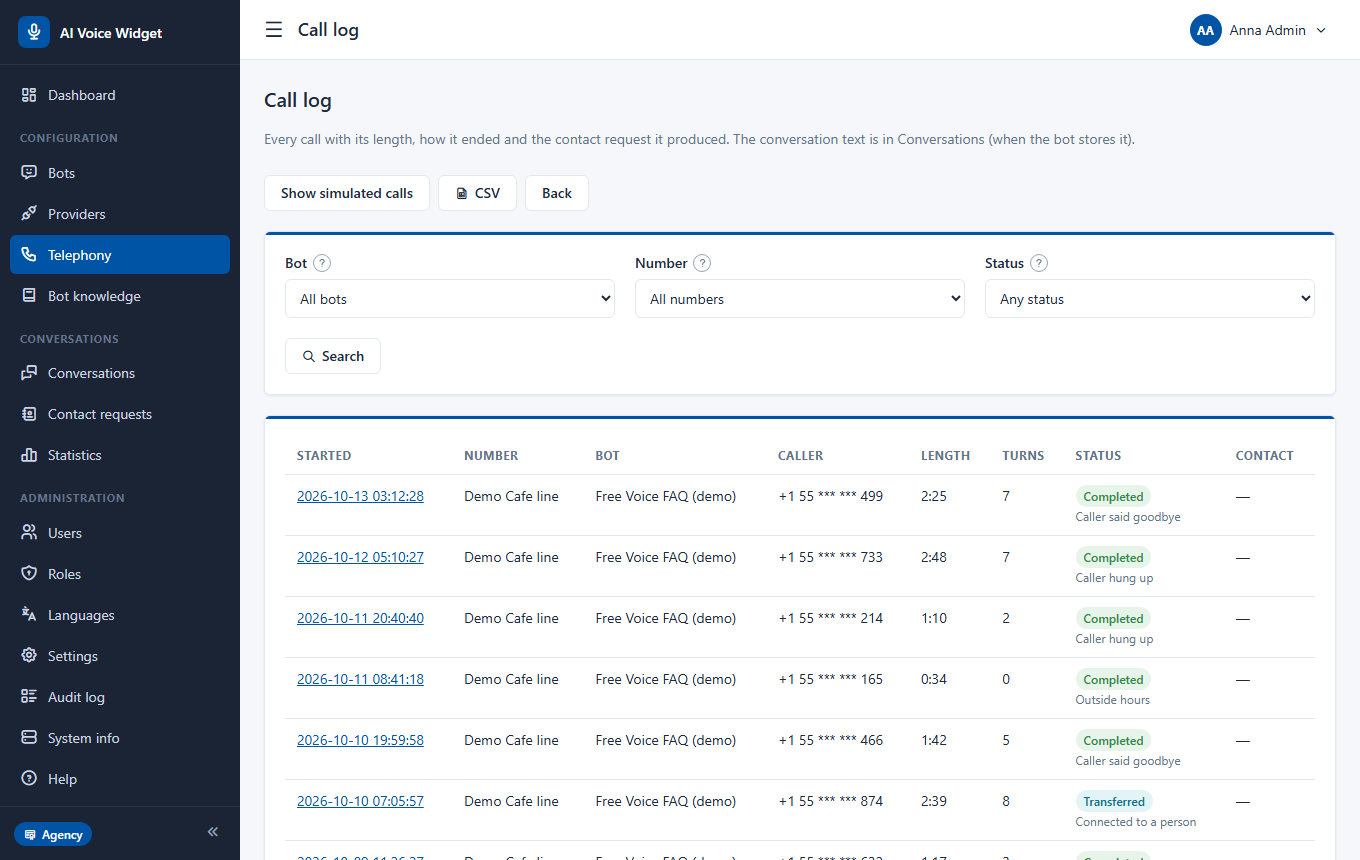
Telephony, Call log lists every call with its length, how it ended and whether it produced a contact request. A call opens with its summary and a link to the transcript. The log can be exported to CSV on paid plans, and you can choose how many days it is kept.
The call simulator
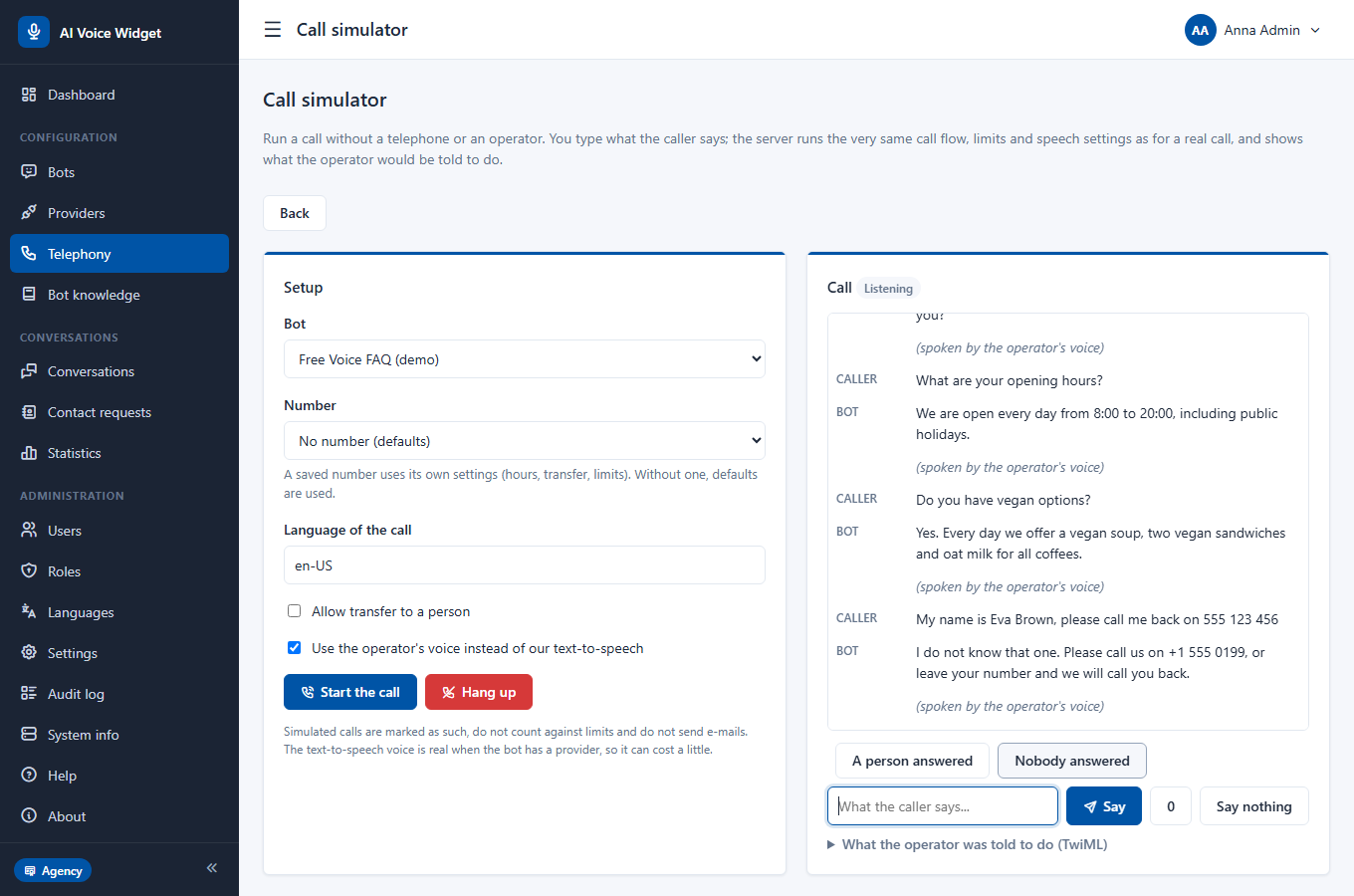
Choose a bot (and optionally a saved number to use its hours and limits), press Start the call, and type. Press 0, Say nothing, and the answers to a transfer (A person answered, Nobody answered) are buttons. At the end the summary and the contact request are shown. Simulated calls are marked, do not count against limits and send no e-mail.
Conversations
Conversations lists what visitors and callers said to your bots, with the channel (chat, voice, live call, phone), the number of messages and any rating.
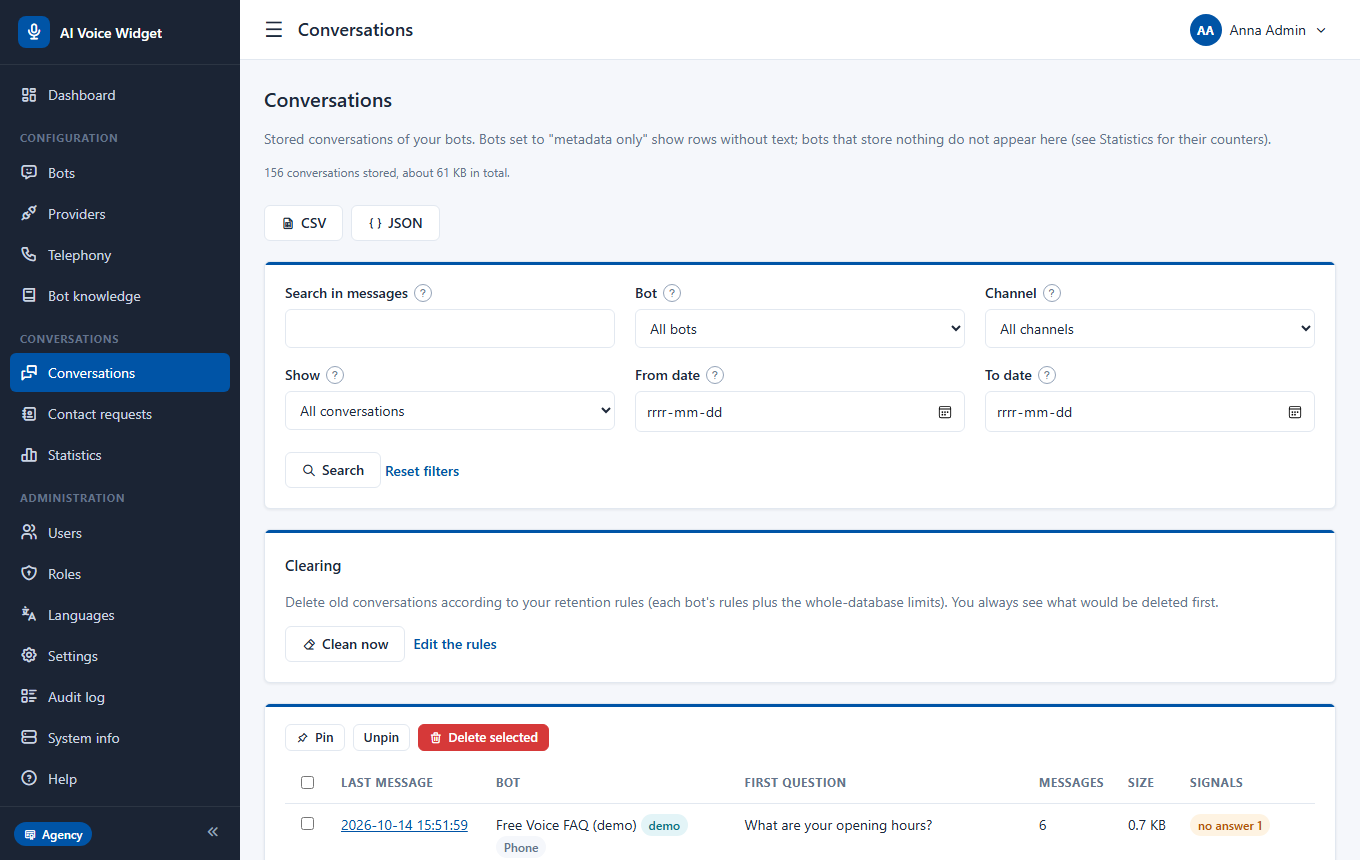
- Filter by bot, channel, date, text, pinned, unanswered, thumbs-down or errors.
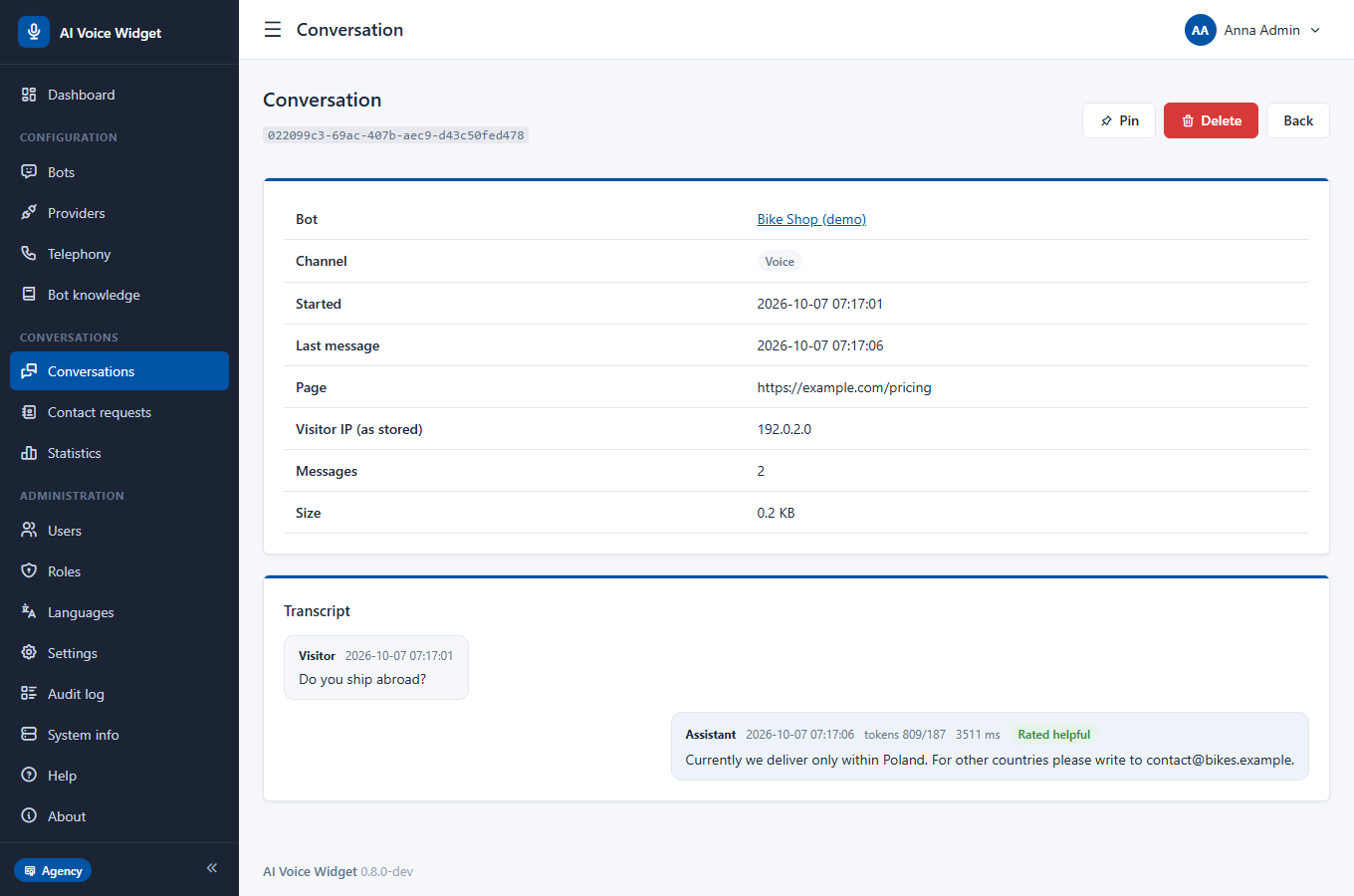
- Open a conversation to read it. A phone conversation links to its call; a conversation links to the contact request it produced.
- Pin a conversation so that automatic clearing keeps it.
- Export to CSV or JSON on paid plans.
- How much is stored depends on the bot: full text, counters only, or nothing. Settings, Conversations sets when old conversations are removed (by age, count and total size).
Contact requests
When a bot cannot answer, or when you decide so, the widget offers a short form: name, e-mail or phone, a message and consent. On the telephone a contact request is made from what the caller said.
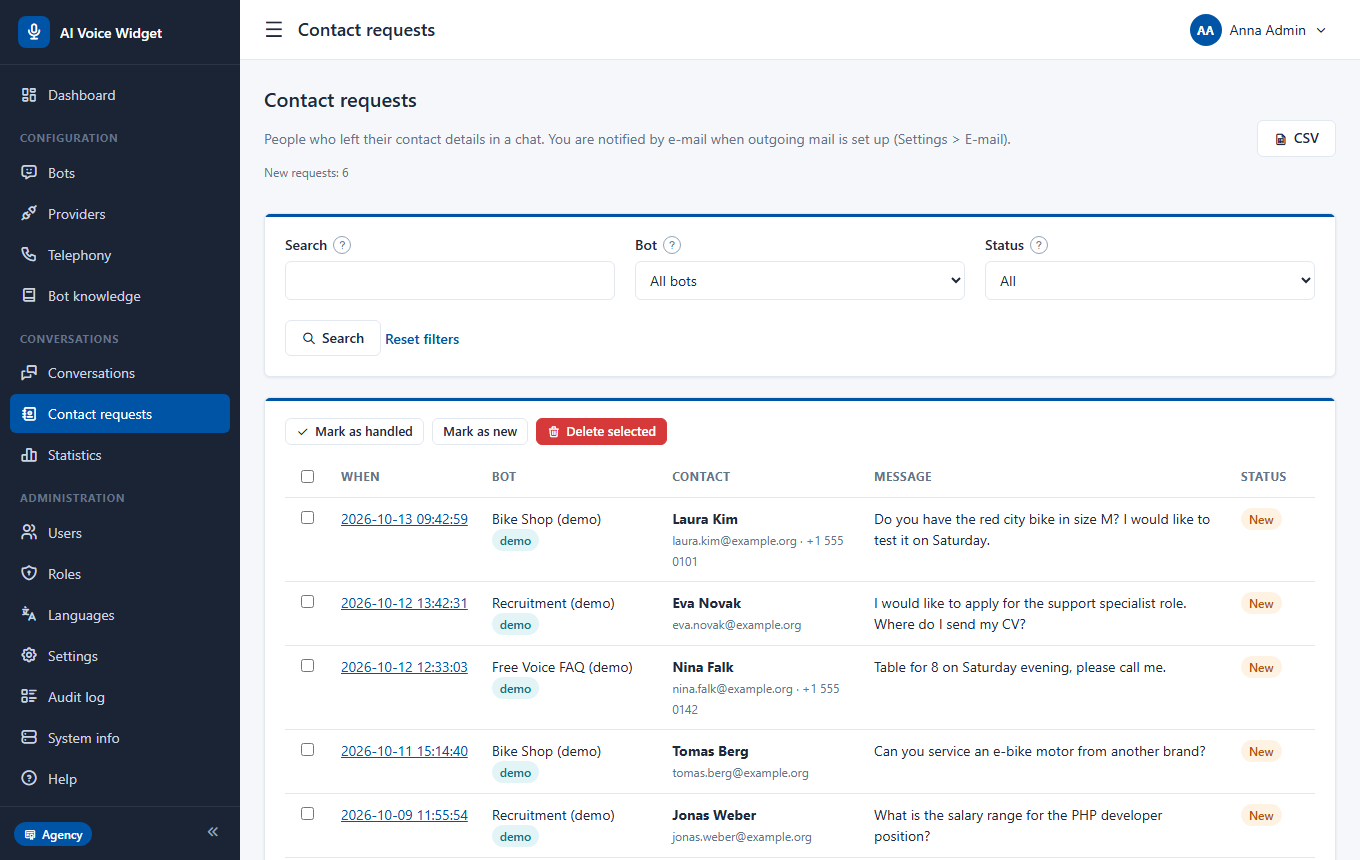
- Requests are listed with the status new or handled.
- An e-mail goes to the addresses set in the bot, or to the administrators. Set up the mail server in Settings, E-mail.
- A request from a call shows its source and links to the call and its summary. A request without an e-mail address offers Call back.
- Export to CSV on paid plans. Clearing rules can remove old requests.
Statistics and the cost estimate
Statistics shows what your bots did in the last 7, 30 or 90 days, for all bots or for one.
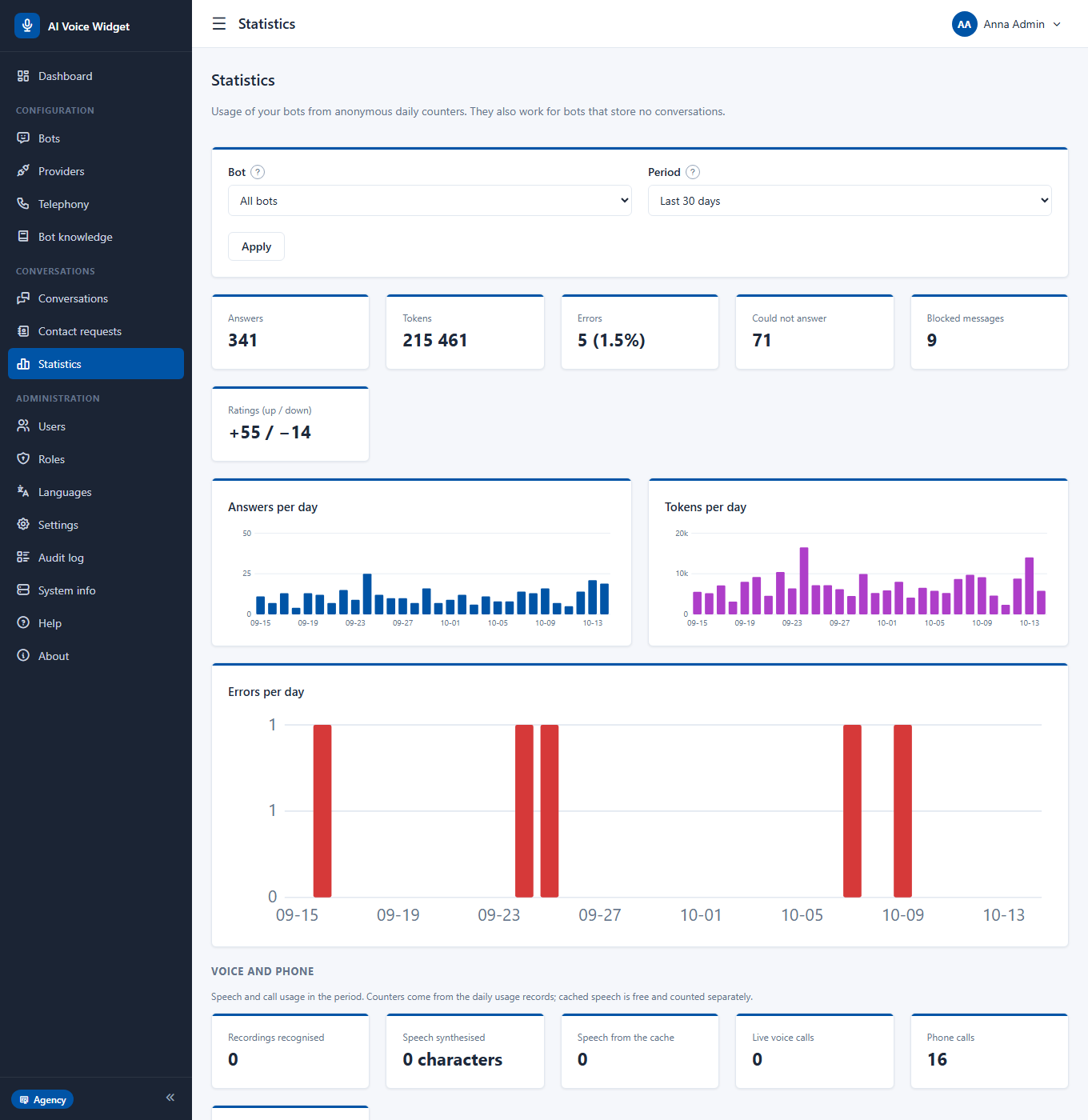
- Answers, tokens, errors, unanswered questions and ratings, with charts per day and a table per bot.
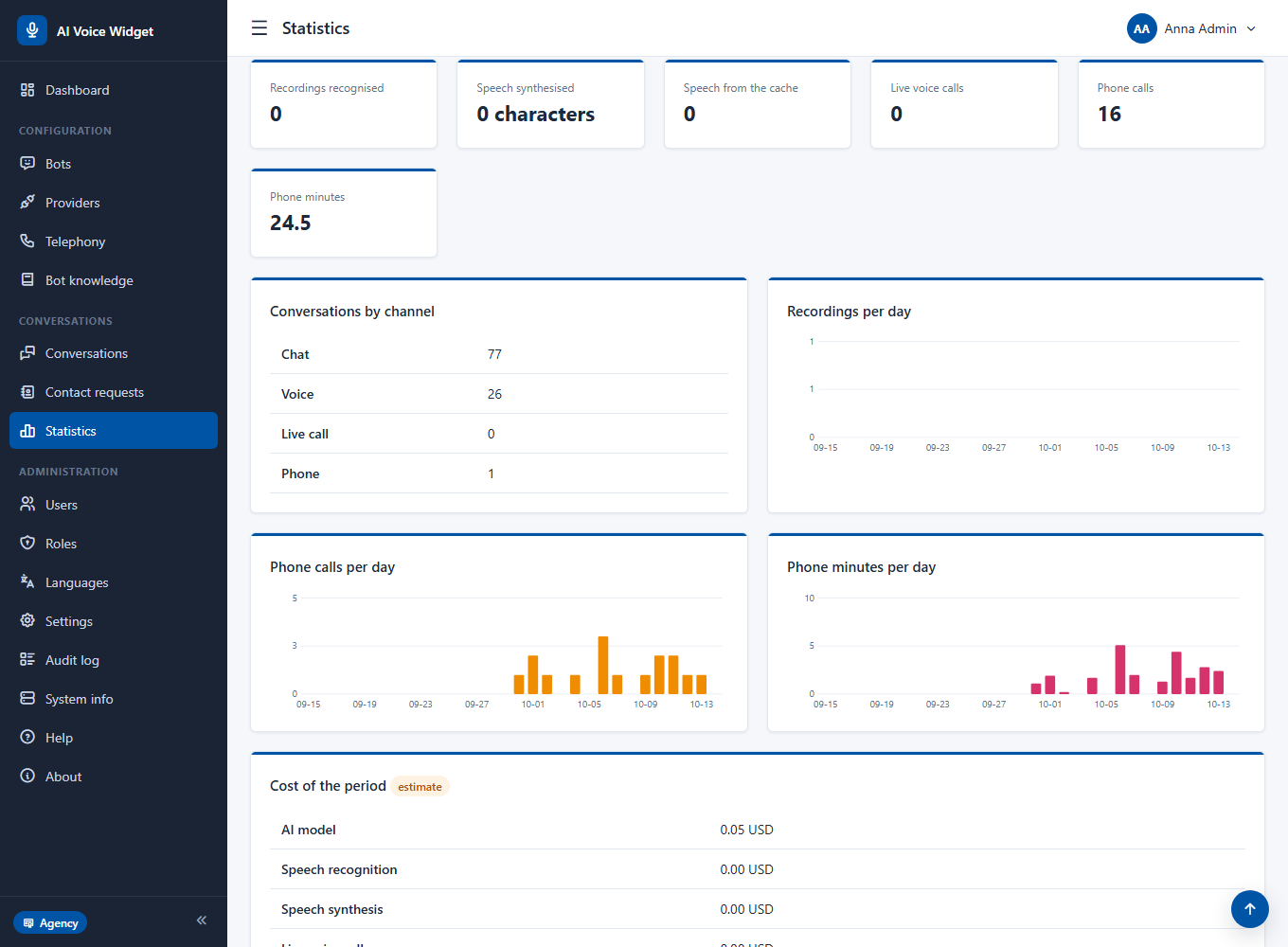
- Voice and phone: recordings recognised, speech synthesised (and how much came free from the cache), live calls, phone calls and minutes, conversations by channel.
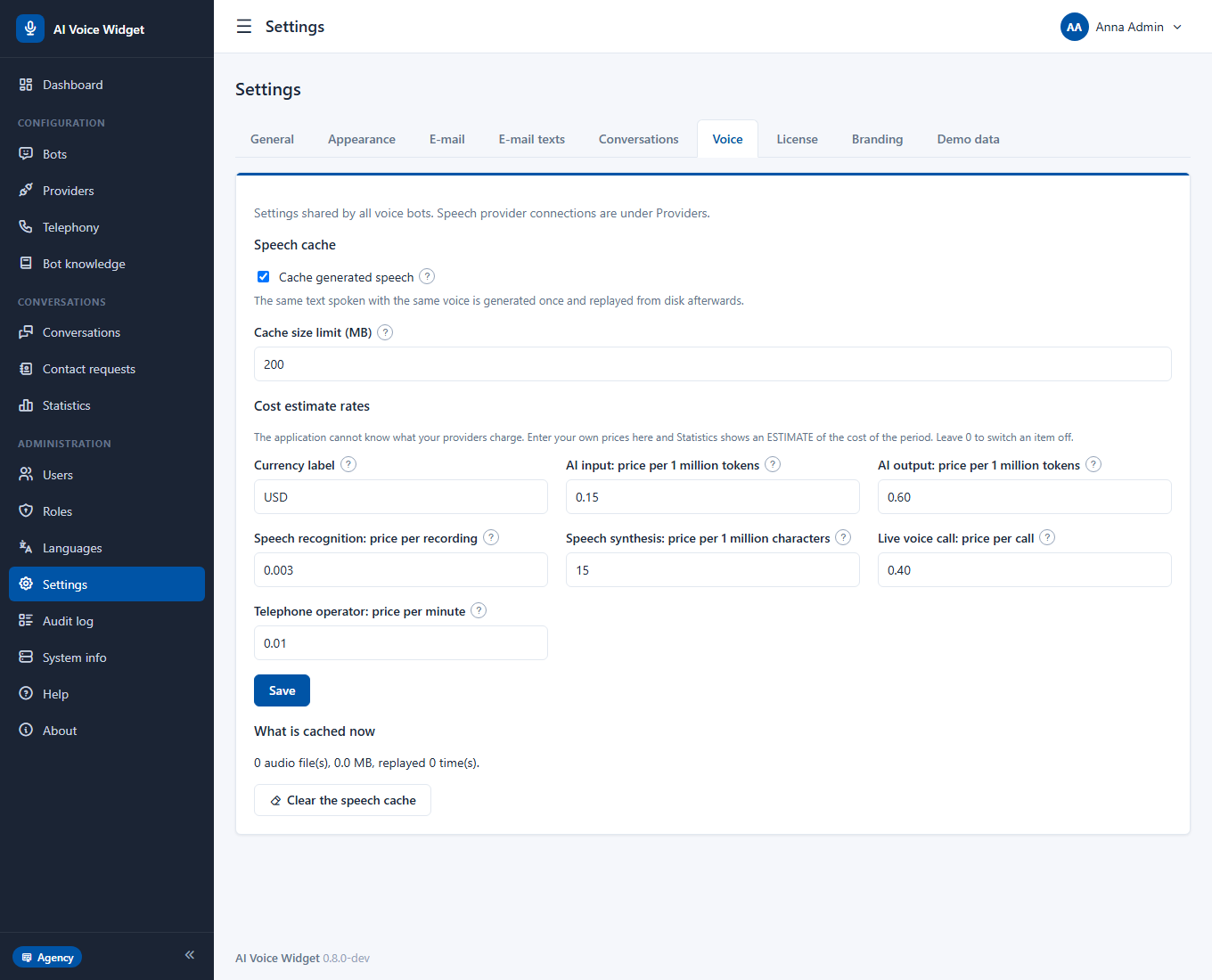
- Cost estimate: the application cannot know what your providers charge. Under Settings, Voice enter your prices (per million tokens, per recording, per million characters of speech, per live call, per telephone minute). Statistics multiplies them by the counters and shows an estimate for the period and for each bot.
The help for your team
Help (in the menu) is written for the people who use the panel. It is not the bots' knowledge.
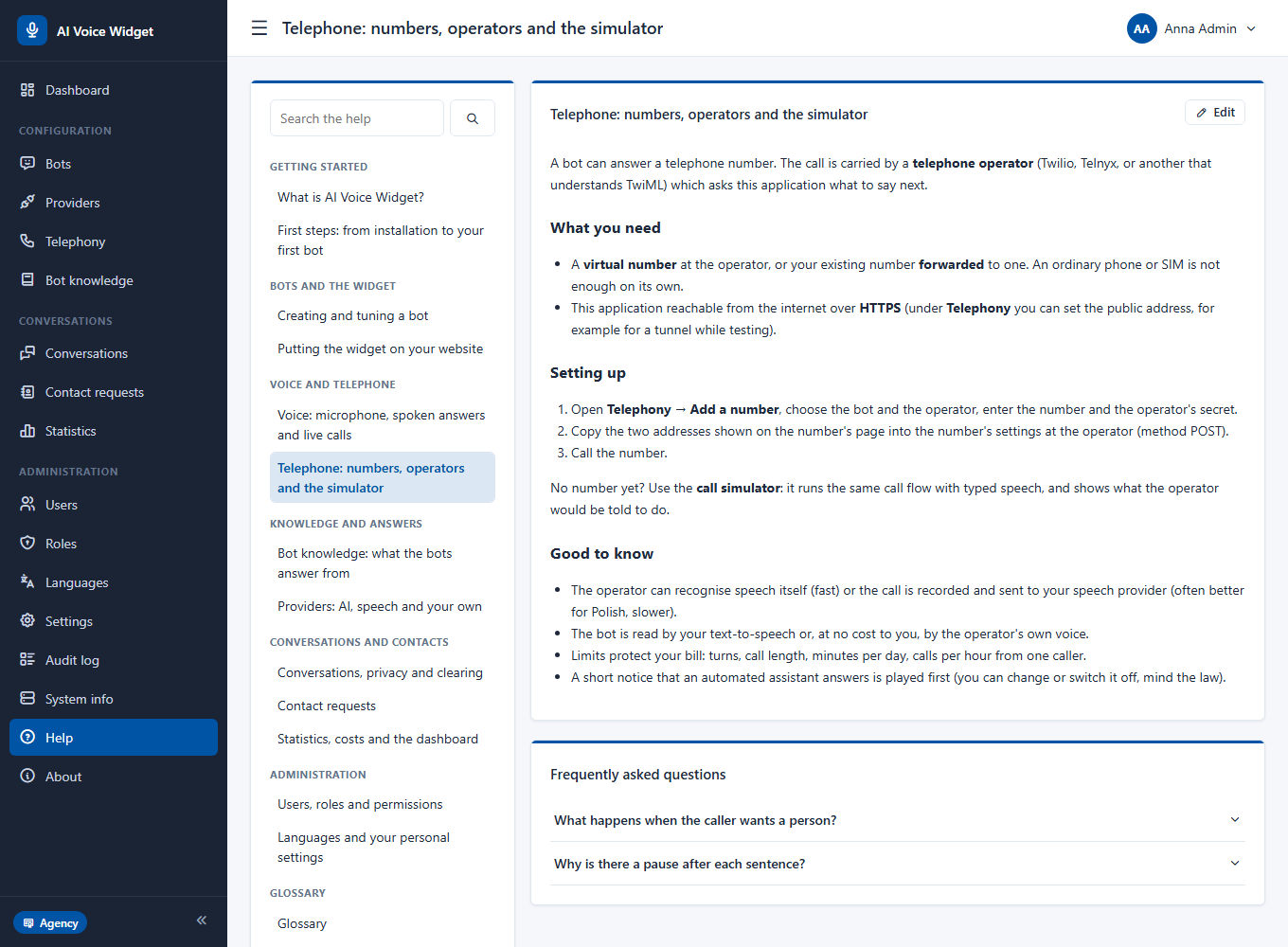
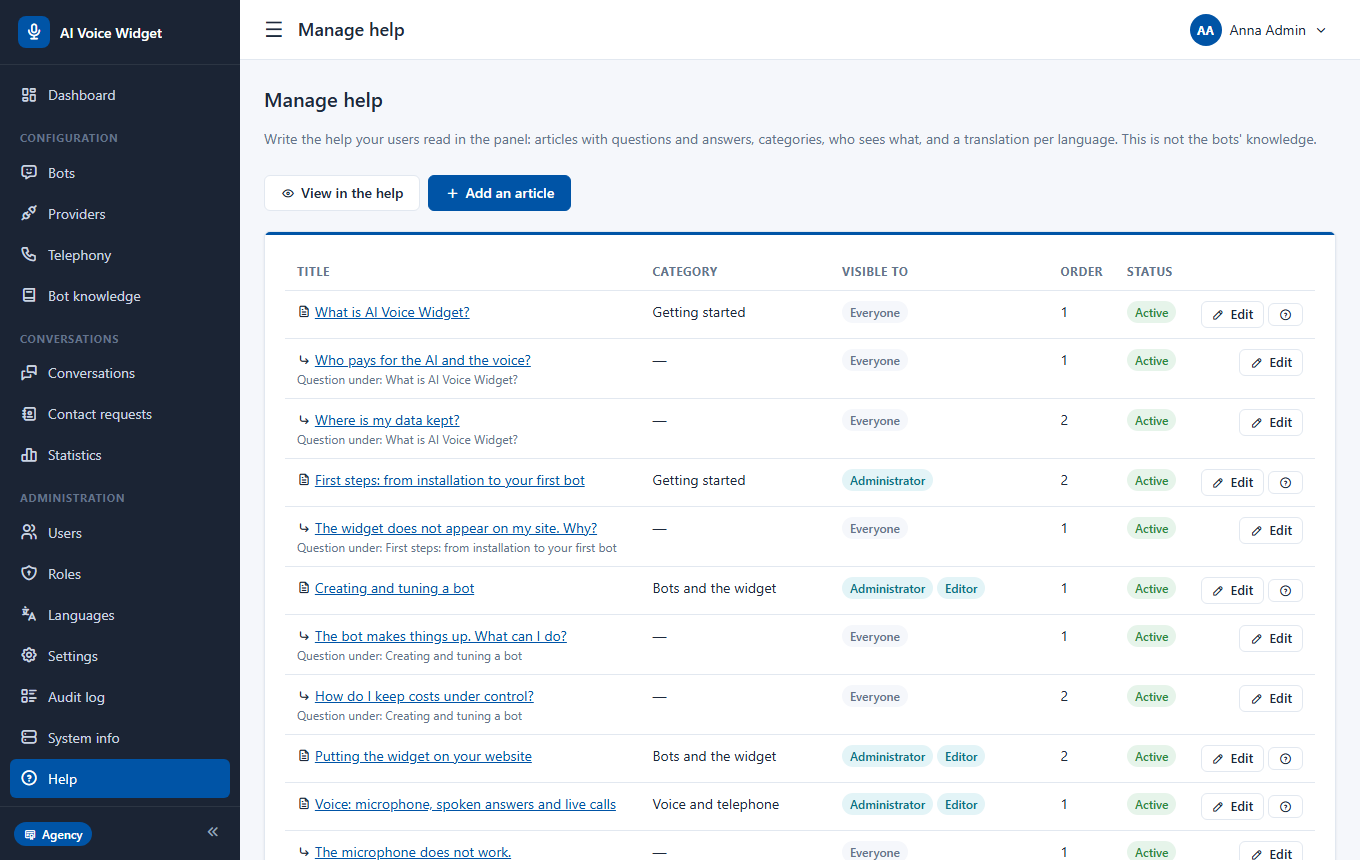
- Articles are grouped in categories and have a list of frequently asked questions. There is a search with "did you mean".
- Every article, question and category has a translation per installed language.
- Each article can be limited to some roles.
- Help, Manage lets you write your own articles with a rich-text editor (Single plan and above), add questions under an article, and load the built-in help once.
Users, roles and permissions
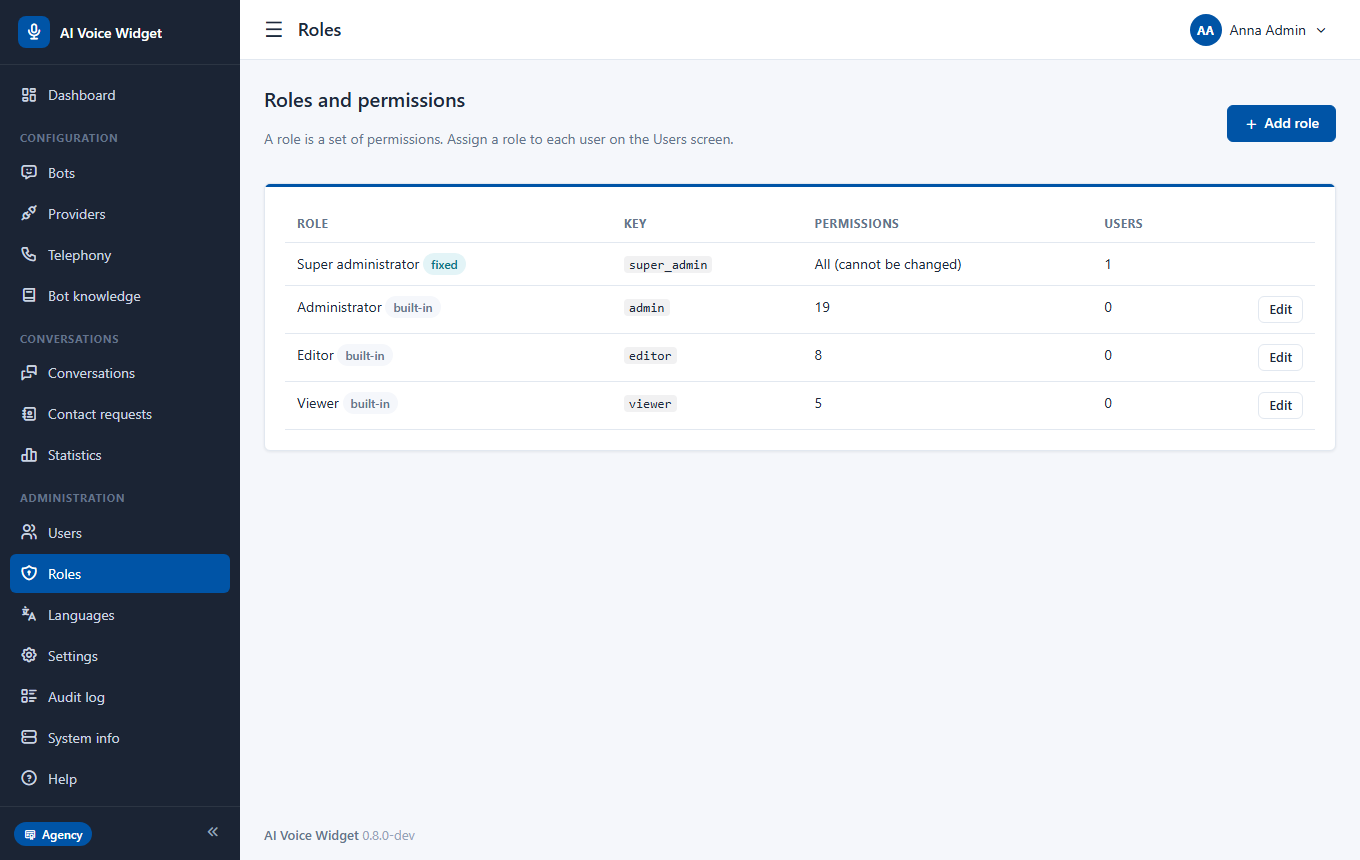
Everyone who signs in has a role; a role is a set of permissions. The built-in roles are Administrator, Editor and Viewer; the Super administrator always can everything.
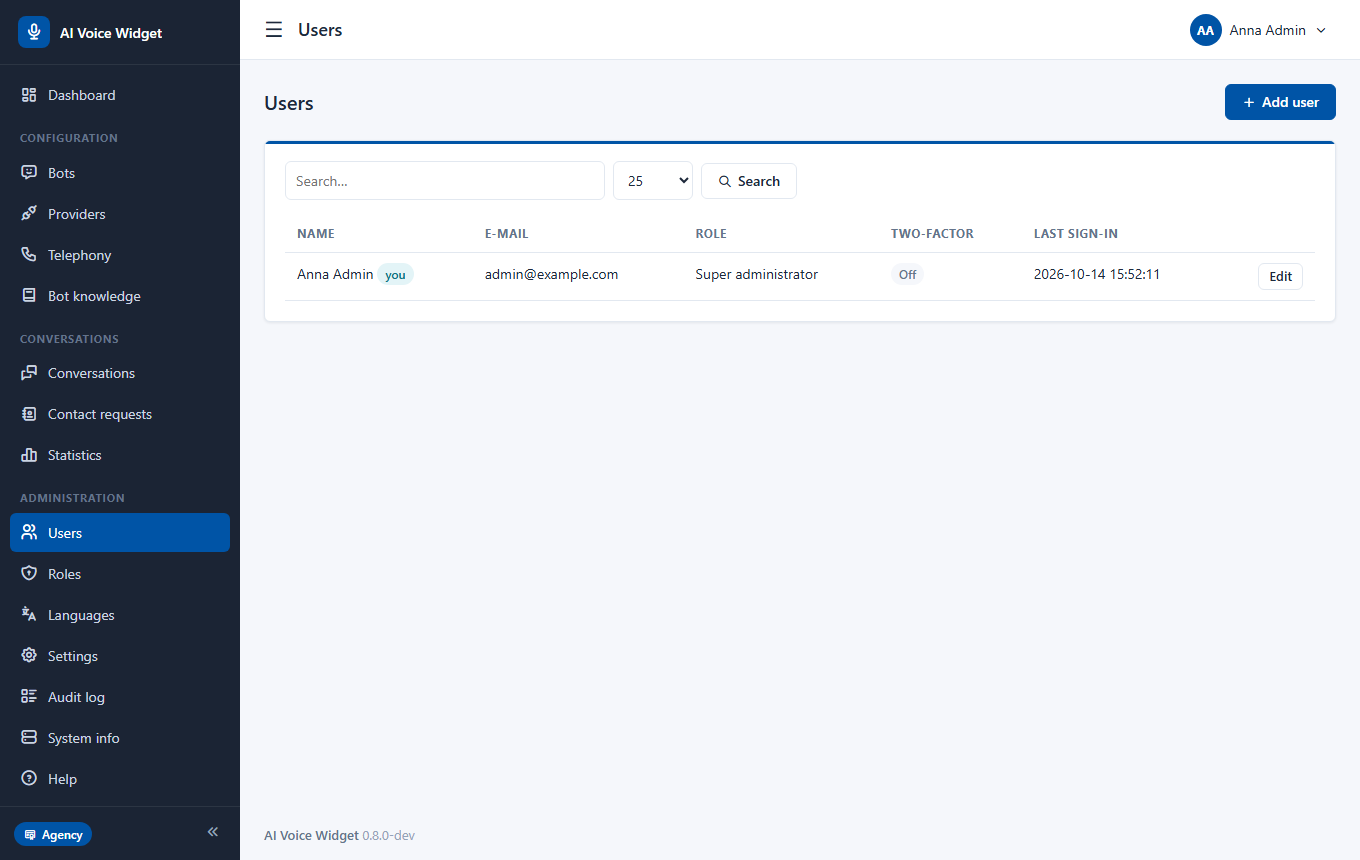
- Users: add people, set the role, require two-factor sign-in, deactivate or delete.
- Roles: tick exactly the permissions a role needs (manage bots, view conversations, manage telephony, read the help and so on). Your own roles are part of the Single plan and above.
- Two-factor sign-in (authenticator app) can be required for everybody in Settings.
- Sign-in attempts are rate-limited, sessions time out, and the audit log records changes.
Settings
Settings has one tab for each area.
Features at a glance
Voice and chat
Typing always works; the microphone, spoken answers and live calls are added per bot.
Telephone
A bot answers a number through Twilio, Telnyx or any TwiML operator, with transfer to a person, hours and a call simulator.
Any provider
AI, speech and realtime voice from the provider you choose, or your own profile.
Bot knowledge
Text, Q&A, files, web pages; categories, translations, unanswered questions, export and import.
No AI needed
A bot can answer straight from your Q&A list at no cost.
Contact requests
From the chat and from calls, with a summary and a notification.
Conversations
By channel, pinned, rated, exported, cleared by your rules.
Statistics
Voice and phone usage and an estimate of the cost from your prices.
Safe by design
Encrypted keys, two-factor sign-in, roles, rate limits, a notice that an AI answers, no audio stored.
A team
Roles, a help center with your own articles, an audit log.
Languages
Polish and English built in; add your own in the panel.
One-time licence
Self-hosted on your server, no per-minute fee.
Reference
Plans: Free, Single and Agency
Without a key the application is fully usable as Free. A licence key unlocks higher limits and a few features. A downgrade never switches off what already exists: only creating new things above the limit is blocked.
| What | Free | Single | Agency |
|---|---|---|---|
| Bots, allowed sites, users | 2 / 2 / 5 | 10 / 10 / 25 | no limit |
| Knowledge documents / size | 5 / 100 KB | 100 / 2 MB | no limit |
| Bots with voice | 1 | 5 | no limit |
| Real phone numbers (the simulator is always open) | 1 | 5 | no limit |
| Chat, "Without AI", browser voice, voice providers, live calls (Realtime), own provider profiles, translations of knowledge, own languages | yes | yes | yes |
| Knowledge from files, PDF, Word and web pages | no (text and Q&A only) | yes | yes |
| Knowledge export and import | no | yes | yes |
| Export of conversations, contact requests and calls | no | yes | yes |
| Own roles | no | yes | yes |
| Writing your own help articles | no (reading and the built-in help yes) | yes | yes |
| Hide the "Powered by" line | no | yes | yes |
| Statistics for voice and phone with a cost estimate | yes | yes | yes |
| White label (own name, logo and colours) | no | no | yes |
| Installation domains | 1 | 1 | up to 25 |
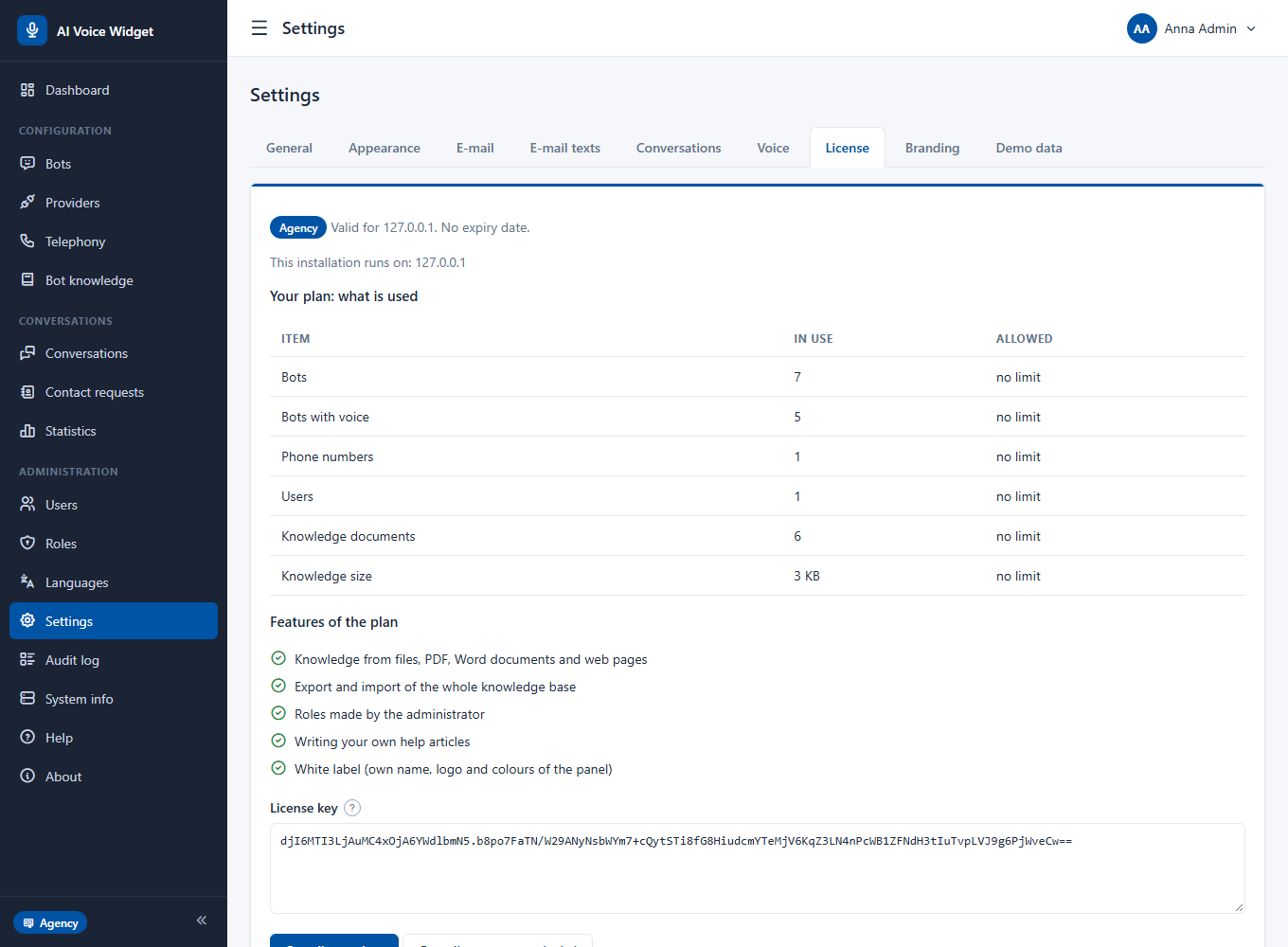
The licence key
A licence key is a text you receive after purchase. It is bound to one domain and checked offline: nothing is sent to us.
- 1Open Settings, License.
- 2Paste the key and press Save.
- 3The page shows the plan, the domain it is valid for and whether it expires.
- The key works only on the domain it was issued for (the leading
www.and the port do not matter). The Agency licence covers up to 25 installations; each needs its own key. - An expired, wrong or foreign key simply leaves you on Free; bots that are running keep running.
- Checking a key needs the PHP
sodiumextension. Without it every key is treated as invalid. - A key is signed with a private key we keep; the public part in the application can only verify, never create, a key.
Security and privacy
Security and legal compliance are never held back by the plan.
- Keys of providers and the secrets of two-factor sign-in are encrypted (AES-256-GCM) with a key that lives in
config/config.php. Keep that file private and back it up. - Passwords are stored hashed. Sign-in attempts are rate-limited; two-factor sign-in with an authenticator app can be required.
- Forms are protected against cross-site requests; all output is escaped; the database is accessed only with prepared statements; public addresses use random identifiers.
- Public widget: only the websites you list (Security tab) may use a bot; requests are rate-limited per visitor and per conversation; there is a daily budget. Provider keys never leave the server.
- Telephone: every request from the operator is verified (Twilio and Telnyx signatures, or a secret in the address); recordings are fetched only from public addresses unless you allow your own network.
- Notice that an AI answers: on by default in the widget and on calls (you may change the wording).
- Personal data: conversations are stored as the bot's privacy mode says and cleared by your retention rules; caller numbers are masked in the log and the full number is kept encrypted only until the call ends; audio is never stored; every conversation and contact request can be deleted.
Telephone operators and test accounts
Telephony needs an account at a telephone operator. The application has built-in profiles for Twilio and Telnyx (TeXML) and a "custom" profile for any operator or exchange that speaks TwiML.
Twilio
- 1Create an account at twilio.com and buy a phone number that can receive voice calls in the country you need (some countries ask for an address or documents).
- 2In the console copy your Account SID and Auth Token.
- 3In the application: Telephony, Add a number, operator Twilio; enter the number, the Auth Token as the secret and the Account SID.
- 4At Twilio open the number's settings. Under A call comes in choose Webhook, method POST, and paste the first address from the number's page. Under Call status changes paste the second address.
- 5Call the number.
Telnyx
- 1Create an account at telnyx.com, buy a number and create a TeXML application.
- 2In the portal copy your public key (the key used to verify webhooks).
- 3In the application: operator Telnyx, the public key as the secret.
- 4In the TeXML application paste the first address as the voice URL (POST) and the second as the status callback.
- 5Assign the number to the TeXML application.
Your own exchange or another operator
Choose custom. The operator must request your two addresses and understand the TwiML verbs Gather, Say, Play, Record, Dial, Redirect and Hangup. Choose how requests are verified (a secret in the address, or Twilio-style or Telnyx-style signatures). If your exchange hosts its recordings on a private network, tick the option that allows private addresses for recordings.
Choosing the speech model
For Twilio the field Operator speech model takes the name of a speech model; for Telnyx it takes the engine. A speech recognition that works for your language is essential: check the operator's current language table. You can also let the call be recorded and recognised by your own speech provider.
What it costs to run
The software is a one-time purchase. Running it costs what your providers charge, which you control.
| Item | Who charges | How to keep it low |
|---|---|---|
| AI model | Your AI provider, per token | A smaller model; "Answer only from the knowledge base"; "Without AI"; a daily token budget |
| Speech recognition | Your speech provider (or the operator on calls) | Browser listening is free; limit recordings per day |
| Speech synthesis | Your speech provider | The cache: repeated sentences are free; browser voice is free; the operator's voice on calls |
| Live voice | Your realtime provider, by time | Limit live calls per day; use the step-by-step mode for most visitors |
| Telephone | Your operator, per number and minute | Limits on length and minutes per day; calls per hour from one number |
| Hosting | Your hosting company | A normal shared hosting is enough |
Help & troubleshooting
Troubleshooting
Most problems are a missing setting. The test page of a bot (Bots, Test) shows a checklist of what is missing.
Frequently asked questions
Do I need an AI provider?
No. A bot set to "Without AI" answers from your question-and-answer list and needs no provider. With a provider the bot can also answer what your list does not cover.
Who pays for the AI and the voice?
You, directly to the providers whose keys you enter. The application charges nothing per minute or per message.
Is the audio recorded?
No. Audio is not stored. The text of a conversation is stored according to the bot's privacy setting (full text, counters only or nothing).
Can one installation serve several websites or clients?
Yes: create a bot for each. The number of bots and sites depends on the plan. The Agency plan has no limit and offers white label.
Does it work on shared hosting?
Yes. It needs no background process and no WebSocket server. That is also why a telephone call is turn-based, with a short pause after each sentence.
Which languages does it speak?
The panel and the widget come in Polish and English; add more in Languages. A caller's language is set per phone number, and speech recognition and voices depend on your providers.
What happens when my licence expires?
The application returns to the Free plan. Nothing that is running is switched off; only creating new things above the Free limits is blocked.
Can I move to another server?
Yes. Copy the files and the database and change the database details in config/config.php. A licence key is bound to a domain, so a new domain needs a new key.
Contact
Questions, suggestions or something not working as described here? Write to the developer.