
Getting Started
What is File Sentinel?
File Sentinel watches the files of your websites. It remembers what every file looks like and, on every scan, shows you what was added, changed or removed, so a planted backdoor or an injected line of code does not stay unnoticed.
It is a self-hosted application: it runs on your own hosting, keeps its data in your own MySQL database and sends nothing to us. It is not tied to any CMS, so it works for WordPress, Joomla, Drupal, shops, hand-written PHP and any other site made of files. No root access and no command line are needed.
What you can do with it
- Detect changes. Scan chosen folders by hand or automatically and see added, modified and removed files and permission changes, with a history, differences and one-click restore of an earlier version.
- Spot malicious code. Built-in and custom webshell patterns run on new and modified PHP files, and an optional antivirus (ClamAV on your own server or Docker, or VirusTotal / MetaDefender hash lookup) checks the files themselves.
- Compare with the factory version. Check a WordPress, Joomla or Drupal site, a plugin or a theme against the official checksums of a chosen version, or against your own approved copy.
- Keep a trustworthy reference off the server. Download snapshots and receive e-mail reports whose digest an attacker on the server cannot rewrite.
- React. Move a suspicious file to quarantine with one click, restore it if it was a false alarm, and follow the "After a breach" guide when it is real.
- Stay informed. E-mail reports and antivirus alerts with sensible limits, and a dashboard that says in one line whether everything is fine.
How it works
There are two layers that work together: change detection (always on) and antivirus (optional, you choose the engine).
- 1Scan targets. You point File Sentinel at a folder, for example the whole WordPress directory. Each such folder is a "scan target".
- 2First scan = reference point. The first scan records every file with its SHA-256 checksum and permissions. This is the baseline: the application assumes the files are fine at that moment.
- 3Later scans = differences. Each following scan compares the disk with the previous state and records events: added, modified, removed and permission changed.
- 4Severity. Every event has a severity. New and modified PHP files are also inspected by built-in heuristics and webshell signatures: a match makes the event critical or a warning; ordinary changes are info.
- 5You decide. A change you made yourself is marked legitimate, and the new state becomes the reference. Anything suspicious can be compared with an official release, checked by the antivirus, or isolated in quarantine.
Two ways to find a problem
| Method | What it tells you | Needs a reference? |
|---|---|---|
| Change scan | Something is different from the last known state | Yes, its own previous scan |
| Webshell heuristics and signatures | This file contains code typical for malware | No |
| Antivirus | This file is known malware | No |
| Official checksums | This file is not in the official release or differs from it | Yes, the official release (or your own set) |
| Snapshot comparison | The server no longer matches a state you saved earlier | Yes, a snapshot kept off the server |
System requirements
| Requirement | Details |
|---|---|
| PHP | 8.2 or newer |
| Required PHP extensions | pdo_mysql, openssl, mbstring, sodium |
| Optional | zip (downloading CMS releases for official checksums), curl (faster downloads) |
| Database | MySQL 5.7+ or MariaDB 10.3+ |
| Web server | Apache (access rules are shipped as .htaccess) or Nginx with equivalent rules (see Maintenance) |
| Browser for the panel | Any current Chrome, Edge, Firefox or Safari |
| For the optional antivirus | A ClamAV clamd daemon reachable over the network, or an API key for VirusTotal / MetaDefender Cloud |
| For e-mail reports | SMTP account or a hosting configured for PHP mail() |
Installation
Installation takes a few minutes and works on ordinary shared hosting. No Composer or command line is needed on the server.
- 1Upload the package. Either upload
file-sentinel-v{VERSION}.zipwith your hosting File Manager and use its "Extract" feature, or, if you only have FTP, uploadfile-sentinel.ziptogether withinstall-bootstrap.phpand openinstall-bootstrap.phponce in your browser. - 2Create an empty MySQL database and a user with full rights to it in your hosting panel. Note the host (often
localhost), name, user and password. - 3Open the installer,
https://your-site/file-sentinel/install/. It checks the requirements first. - 4Fill in the form. Database details, a table prefix (the default
fsn_is fine) and your administrator: name, e-mail and a password of at least 12 characters. - 5Finish. The installer creates the tables, writes
config/config.phpand a lock fileconfig/installed.lock, and sends you to the sign-in page. - 6Set up two-factor sign-in. At the first sign-in you are shown a QR code and a manual key; add them to an authenticator app and enter the six-digit code.
config/config.php.** It holds the key that encrypts stored secrets (SMTP password, API keys). With a database backup but without this file those values cannot be read again. Keep a copy away from the web root.Upgrading
Upload the new files over the old ones and keep config/ and storage/. Database changes are applied automatically the first time you sign in after the upgrade. Afterwards open System: it also reports the state of the application's own files.
First sign-in and the dashboard
Sign in with the e-mail and password from the installation and your authenticator code. The panel works on a phone as well.
The left menu is grouped by task:
| Group | Entries |
|---|---|
| Main | Dashboard |
| Monitoring | Scan targets, Scans, Cron, Network |
| Verification | Snapshots, Official checksums, Webshell signatures |
| Response | Quarantine, After a breach |
| Administration | Settings, System, Audit log, License, Questions and answers, About |
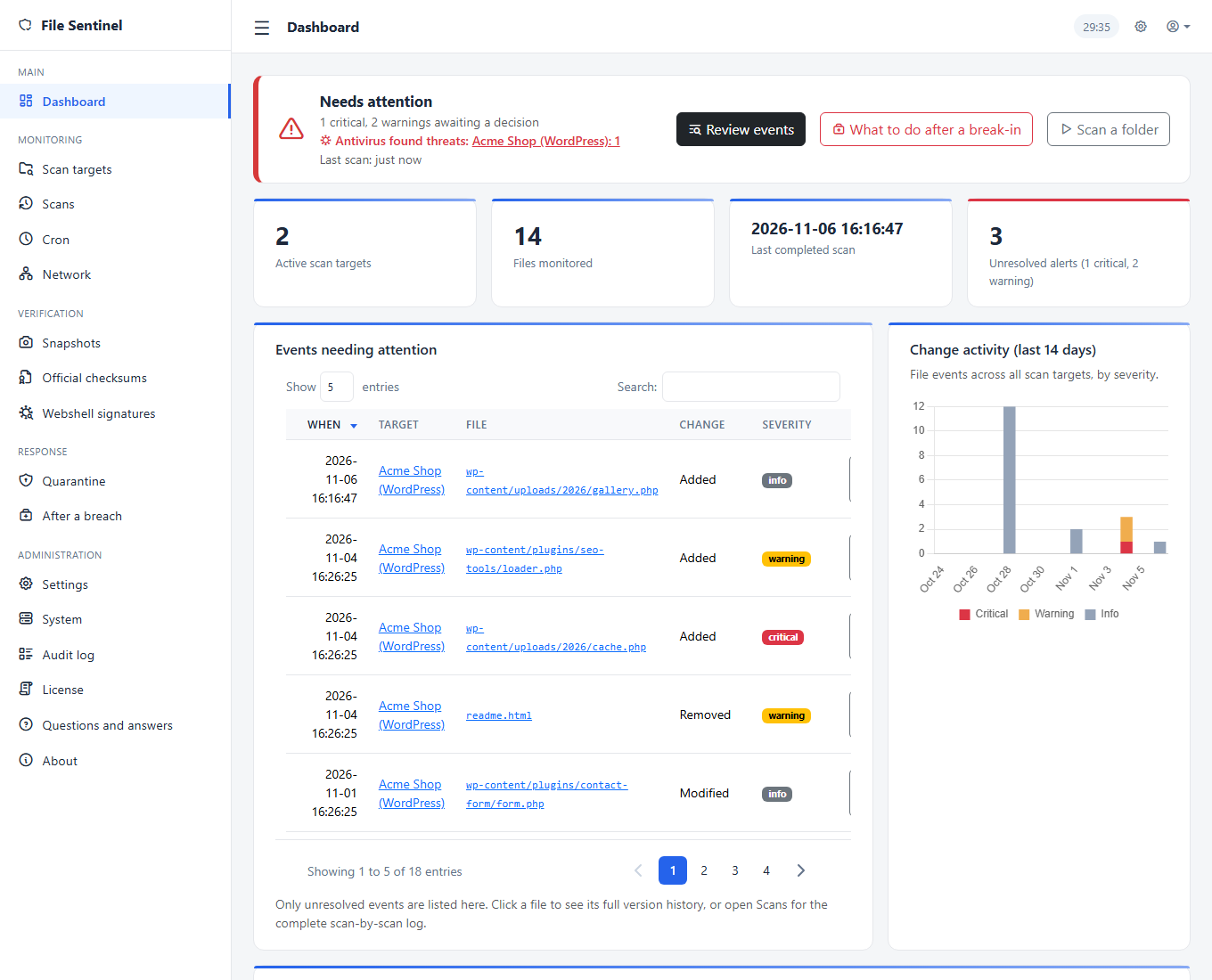
The dashboard
- Status bar at the top: green "everything looks fine", yellow "needs attention" or red when there are critical findings, antivirus detections or the application's own files do not match the shipped version. It shows when the last scan ran and has buttons for the next step.
- Four tiles: active scan targets, monitored files, last completed scan, unresolved alerts.
- Events needing attention: the list of changes you have not yet marked as legitimate, five per page, with the "Mark as legitimate" button.
- Activity chart: events of the last 14 days by severity.
- Scan targets overview: status, files, last scan and unresolved alerts per folder.
- System bar at the bottom: application integrity, cron, webcron and e-mail reports at a glance.
User Guide
Scan targets and scanning
A scan target is a folder File Sentinel keeps an eye on. Add one per website, or per part of a site you want to track separately.
- 1Open Scan targets and click Add folder.
- 2Enter a name and the absolute path of the folder, or use Browse to click through the server's folders.
- 3Open the new folder and click Scan now. A progress bar shows the files processed; large folders are scanned in small steps, so no request runs long.
Ignore rules
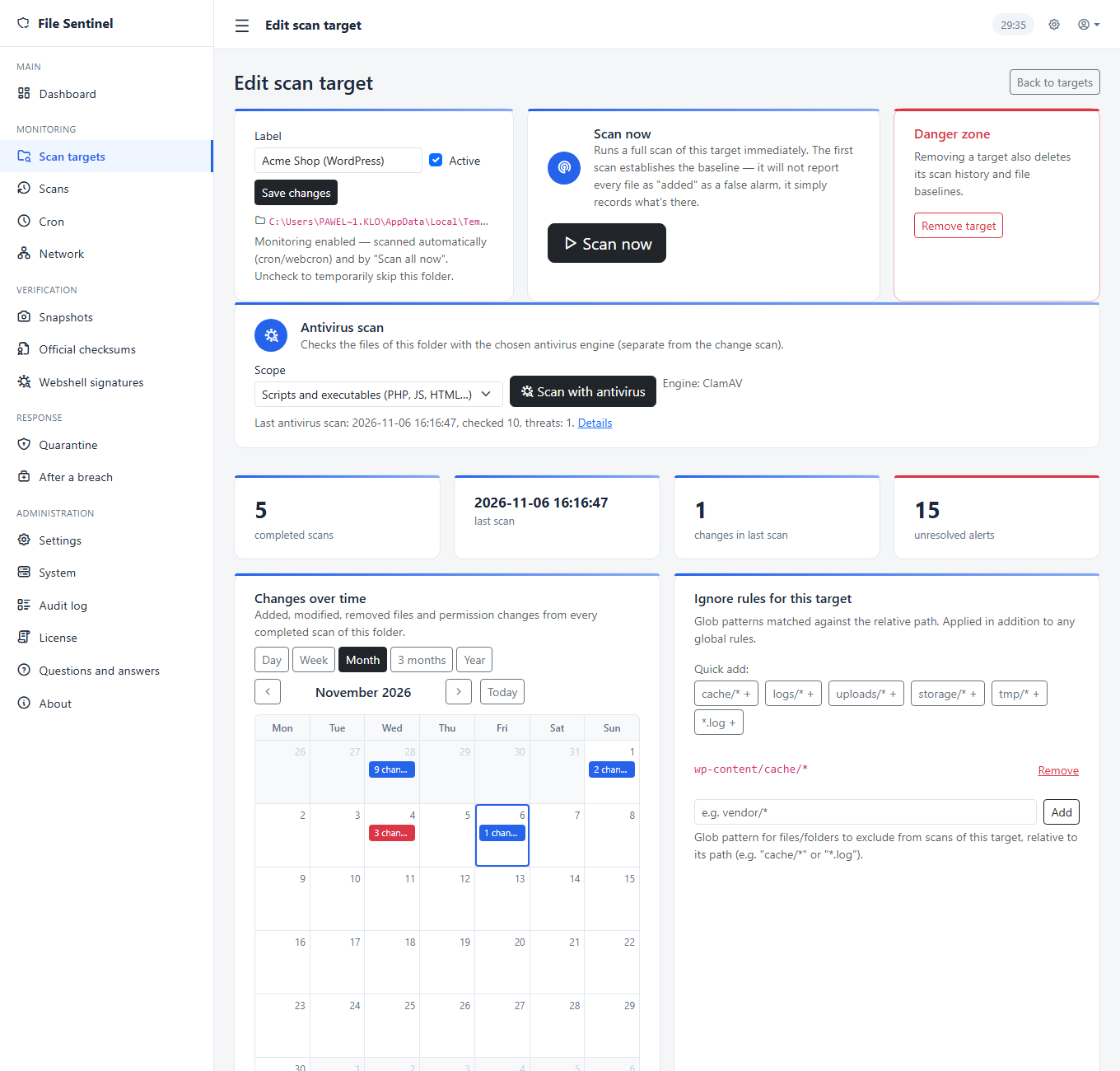
Some files change all the time and mean nothing: caches, logs, uploads. Add ignore rules (glob patterns matched against the path inside the folder), for example cache/*, logs/* or *.log. The folder page offers common patterns as quick buttons. Global rules on the Scan targets page apply to every folder.
uploads/ on a WordPress site, unless you cover them another way (for example with the antivirus). An ignored file is not watched at all.Scan all
The Scan all button on the Scan targets page scans every active folder one after another, with a progress line. It uses the same steps as the single-folder button.
Reading the folder page
- Change calendar: days with changes, switchable between day, week, month, three months and year.
- History: every scan with its counts of added, modified, removed and permission changes.
- Scan history refreshes itself when a scan you started finishes.
Reviewing and resolving changes
A finished scan lists what happened. Your job is to separate your own changes from anything suspicious.
Open Scans, pick a scan and then a file to see its events. For each file you can:
- see the difference between versions (text files are stored with their content, large ones by checksum only);
- restore an earlier version, which writes that content back to the disk;
- quarantine it if it looks malicious;
- see what is on the disk right now compared with the last scan.
On the dashboard, Mark as legitimate removes an event from "needing attention" and makes the new content the reference. Use it for updates and edits you made. If you updated WordPress or a plugin and see hundreds of changes, compare with the official release (see "Comparing with the factory version") instead of marking them one by one.
What the severities mean
| Severity | Meaning |
|---|---|
| Critical | A critical webshell signature matched, or ClamAV found a virus (when checked during scans) |
| Warning | Suspicious constructs such as eval(, base64_decode( or system( in PHP, a warning-level signature, a removed file or changed permissions |
| Info | An ordinary addition or modification |
Automatic scans (cron)
Scans that depend on you remembering are scans that stop happening. Set up automatic scans once.
Open Cron. You will find a ready command for your crontab, for example every 15 minutes or once a day, whichever suits the site. Add it in your hosting panel under "Cron jobs".
If your hosting gives no crontab access, use the webcron address instead: paste it into an external service that opens a URL on a schedule (for example cron-job.org). Some panels cut everything after a ?; for those the page offers a second address with the token in the file name.
The Cron page and the dashboard show when cron last ran, so a silently broken cron is easy to notice. Regenerate token invalidates the old command and address at once, so update your crontab afterwards.
Antivirus
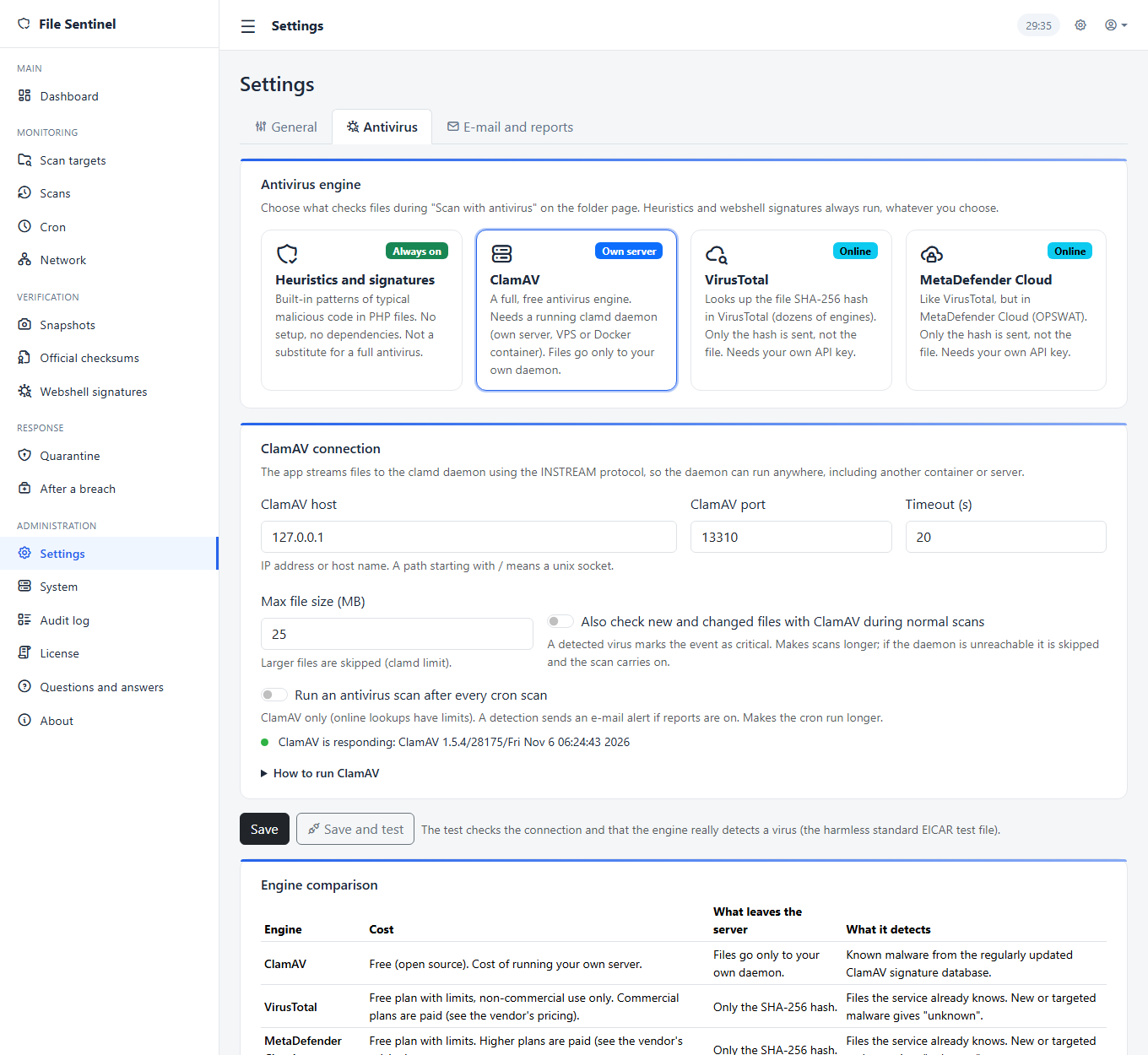
Change detection tells you something is different. The antivirus tells you a file is known malware. You choose the engine; the built-in heuristics and webshell signatures always run in addition.
Choose an engine
| Engine | Cost | What leaves the server | What it detects |
|---|---|---|---|
| Heuristics and signatures | Built in | Nothing | Typical webshell constructs in PHP files; not a full antivirus |
| ClamAV | Free, you run the daemon | Files go only to your own daemon | Known malware from the ClamAV database |
| VirusTotal | Free plan with limits (non-commercial only); paid plans exist | Only the SHA-256 of a file | Files the service already knows |
| MetaDefender Cloud | Free plan with limits; paid plans exist | Only the SHA-256 of a file | Files the service already knows |
Setting up ClamAV
Shared hosting usually cannot run ClamAV, but the application does not need it locally: it talks to a clamd daemon over the network, so the daemon can run on a VPS, a separate server or in Docker.
- 1On a machine with Docker run:
docker run -d --name clamav -p 3310:3310 clamav/clamav:stable. The first start downloads the signature database and takes a few minutes. - 2Open Settings, tab Antivirus, choose ClamAV and enter the machine's address and port 3310. A path starting with
/means a unix socket. - 3Click Save and test. The test checks the connection and that ClamAV really detects the harmless standard EICAR test file (sent from memory, so no antivirus on your PC objects). On success you see the ClamAV version.
clamd has no authentication. Do not expose port 3310 to the internet: restrict it with a firewall to the address of this application, or connect through a VPN or tunnel.Setting up VirusTotal or MetaDefender
Paste your API key, click Save and test. The key is stored encrypted and never shown again. A hash is considered malicious only when at least two engines flag it, to avoid false alarms.
Running an antivirus scan
- 1Open a scan target. In the Antivirus scan block choose the scope: scripts and executables (PHP, JS, HTML and similar; faster) or all files.
- 2Click Scan with antivirus. A progress bar shows the files checked and the threats found.
- 3Open the result: each detection shows the file and the detection name, with a Quarantine button.
An interrupted or failed scan can simply be started again: files already checked and clean are skipped thanks to a result cache.
Optional automation
- Also check new and changed files during normal scans (ClamAV): a detected virus marks the event as critical.
- Run an antivirus scan after every cron scan (ClamAV): a full scan of every active folder after each cron run. It makes the cron run longer.
- A detection sends an antivirus alert e-mail when e-mail reports are on, and the dashboard turns red until a new clean scan of that folder.
Webshell signatures
Signatures are patterns of typical malicious code, searched for in new and modified PHP files on every scan. They work without any setup.
Open Webshell signatures.
- Built-in signatures are a curated list of publicly documented indicators. You can only switch them on and off (the switch saves at once); if one gives false alarms on your site, switch it off.
- Custom signatures are yours. Use Add a custom pattern: a name, a match type (Text or Regex), a severity (Critical or Warning) and the pattern. Text is matched case-insensitively; a regex is a PCRE expression without delimiters. Use Edit to change one later and Delete to remove it.
Comparing with the factory version
The most reliable way to find out whether a CMS has been tampered with is to compare it with the original release. No baseline of your own is needed, so it works even when the first scan was taken on an already infected site.
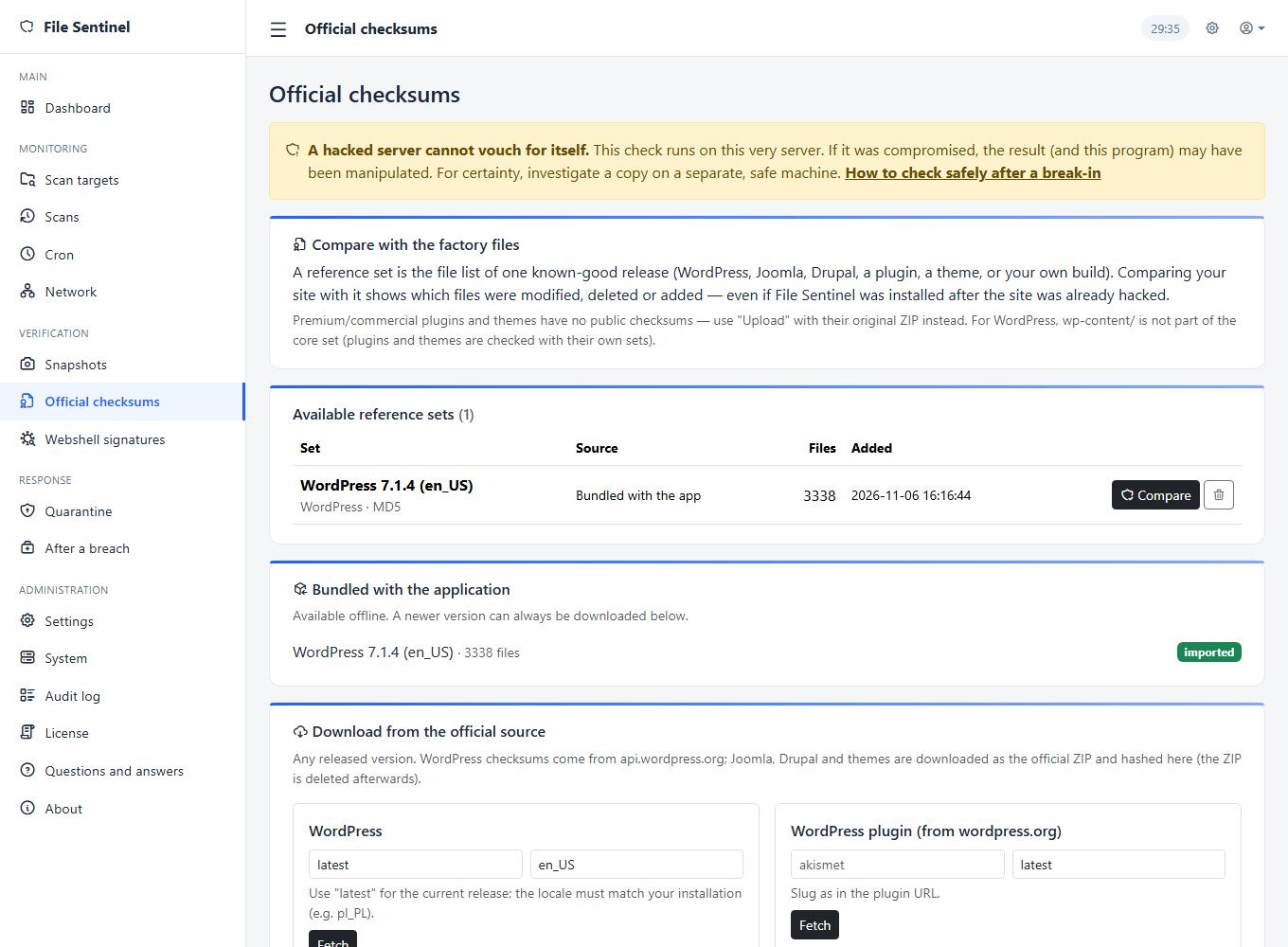
- 1Open Official checksums.
- 2Get a reference set: import a bundled one (works offline) or download a specific version from the official source: WordPress (version and language, for example
pl_PL), Joomla, Drupal, WordPress plugins and themes. - 3In Available sets click Compare next to the set.
- 4Choose the folder to check. If the CMS sits in a subfolder of the folder, enter it in App subfolder.
- 5Read the report and quarantine anything suspicious straight from it.
How to read the result
| Result | Meaning |
|---|---|
| Modified | The file exists but its content differs from the release. Check whether it is your change. |
| Missing | A file of the release is not on the disk (removed, or a failed update). |
| Extra | A file the release does not contain. In core folders this is a common trace of a webshell; in content folders (for example uploads) it can be perfectly normal. |
wp-content is not part of the official checksums, so extra files are by default reported only in the core folders (wp-admin, wp-includes). Check plugins and themes with their own sets.Plugins, themes and customised sites
- Plugins and themes from wordpress.org are downloaded by name (slug) and version.
- Commercial plugins and themes have no public checksums: upload the original ZIP under Upload your own set and set the Path prefix, for example
wp-content/plugins/my-plugin/. - A customised WordPress: create your own set from a clean, approved copy (a ZIP or one of your snapshots). Comparisons then show everything that differs from your version.
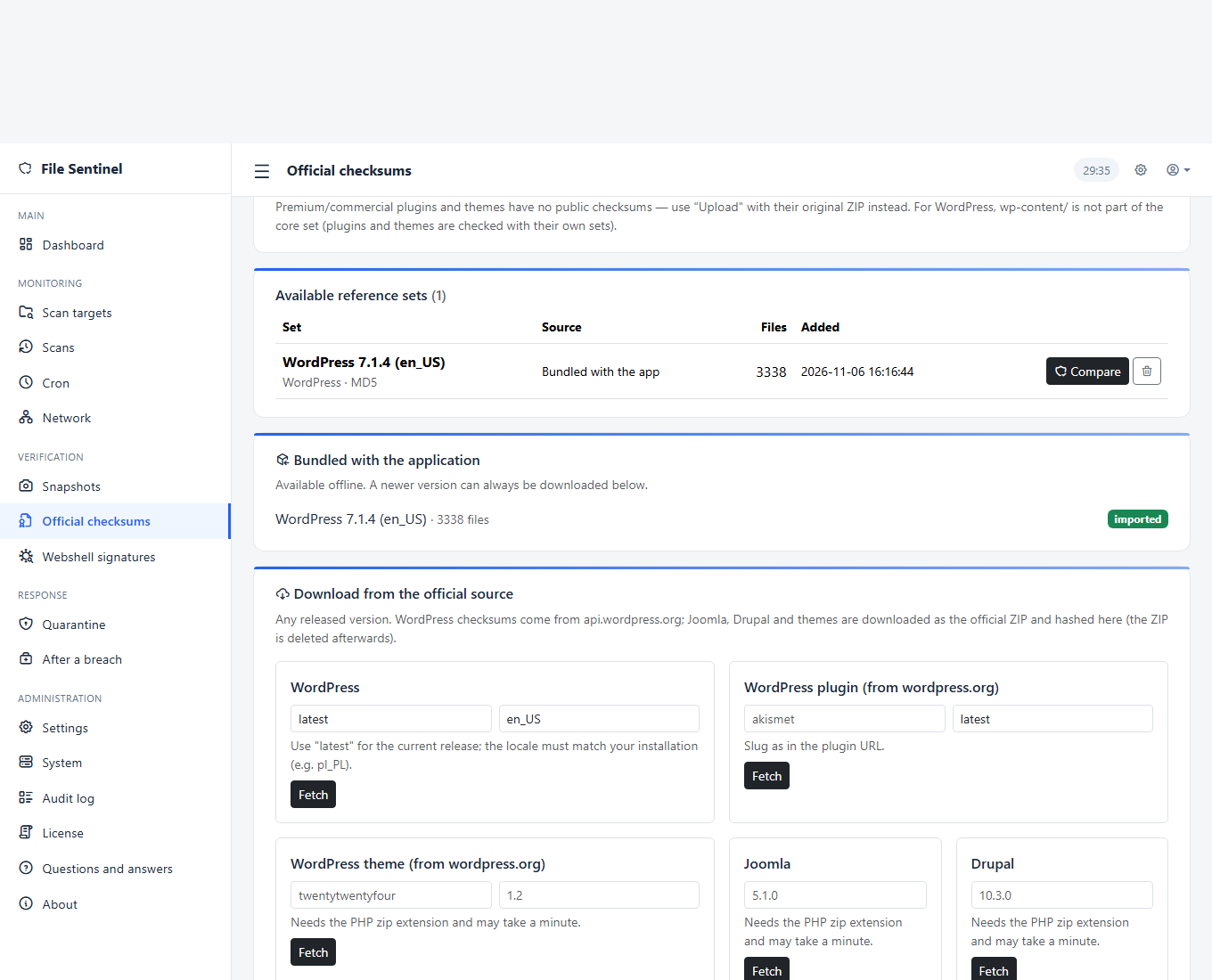
The upload form accepts three kinds of file and shows only the fields that apply: a release ZIP (checksums are computed on the spot; optionally drop the single top-level folder and add a path prefix), a snapshot (.gz or .json) and a checksum list in sha256sum format.
Snapshots
A snapshot is a file listing every file of a scan with its checksum and permissions. Kept away from the server it is a reference nobody on the server can rewrite.
Why it matters
An attacker who controls the server can change a file and also rewrite what the database says about it, so the normal scan sees "no change". A snapshot you downloaded earlier and kept elsewhere still tells the truth.
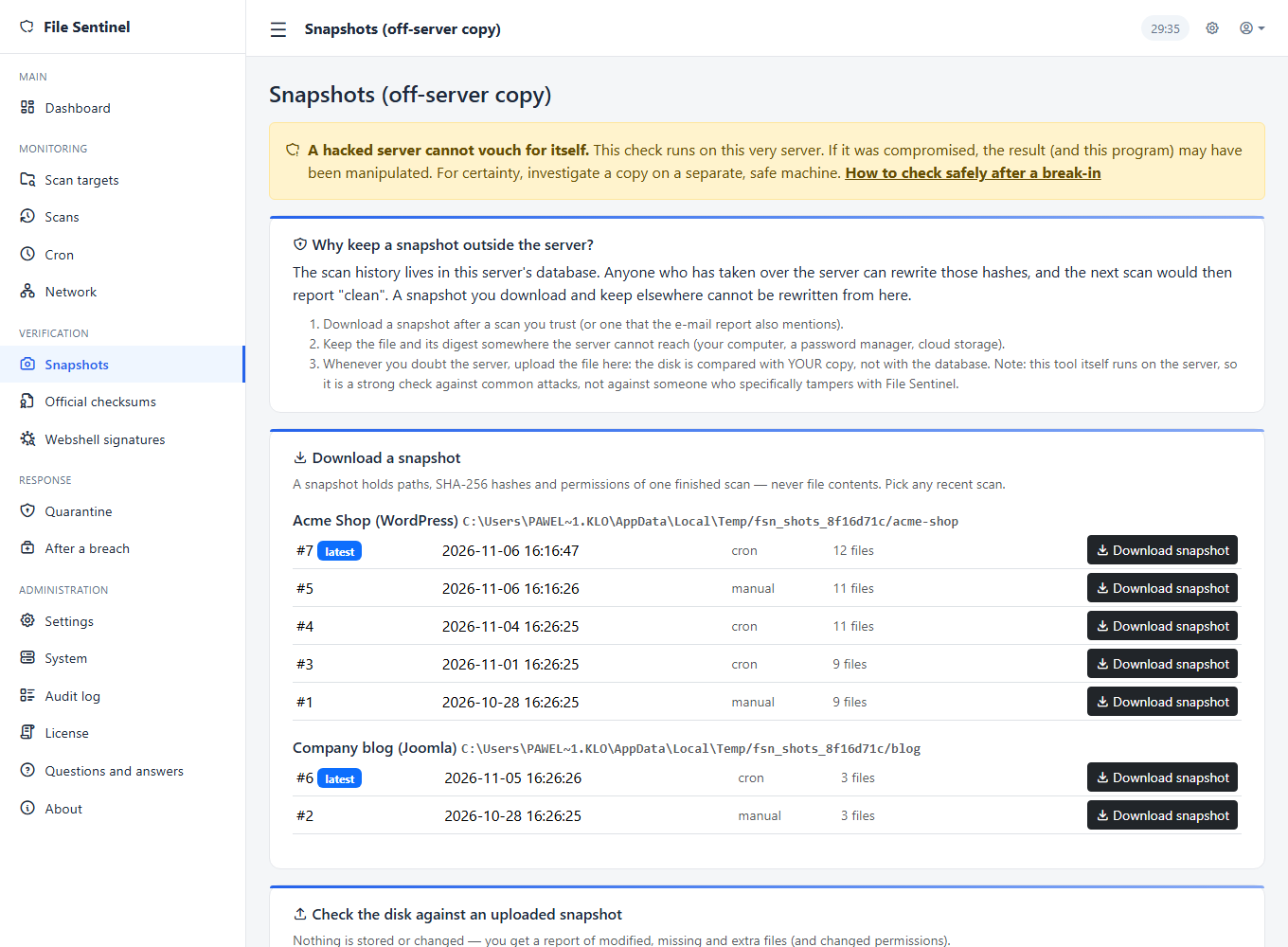
- 1Open Snapshots and click Download snapshot next to a scan (or on the scan's page). Keep the file off the server.
- 2Later, to check the server, choose the folder and upload the file under Check against a snapshot.
- 3Optionally enter the digest (a 64-character fingerprint of the snapshot, also included in e-mail reports). The application then confirms the file was not altered or damaged. The digest is an integrity check, not a digital signature: it protects the file as long as the digest comes from a trusted place.
Snapshots of older scans are reconstructed from the event history, so you can export the state as it was at any past scan.
Quarantine
Quarantine moves a suspicious file to a locked place instead of deleting it. The web server will not run or serve it, and you can bring it back if it was a false alarm.
- Quarantine a file from a scan, a file history, a comparison result or an antivirus result with the Quarantine button.
- Open Quarantine to see the isolated files. Restore puts a file back in its old place, Delete removes the copy for good.
storage/quarantine/, which has its own access rules that deny all web requests.E-mail reports and alerts
Reports let you learn about problems without opening the panel, and they carry the snapshot digest, a reference point that lives outside the server.
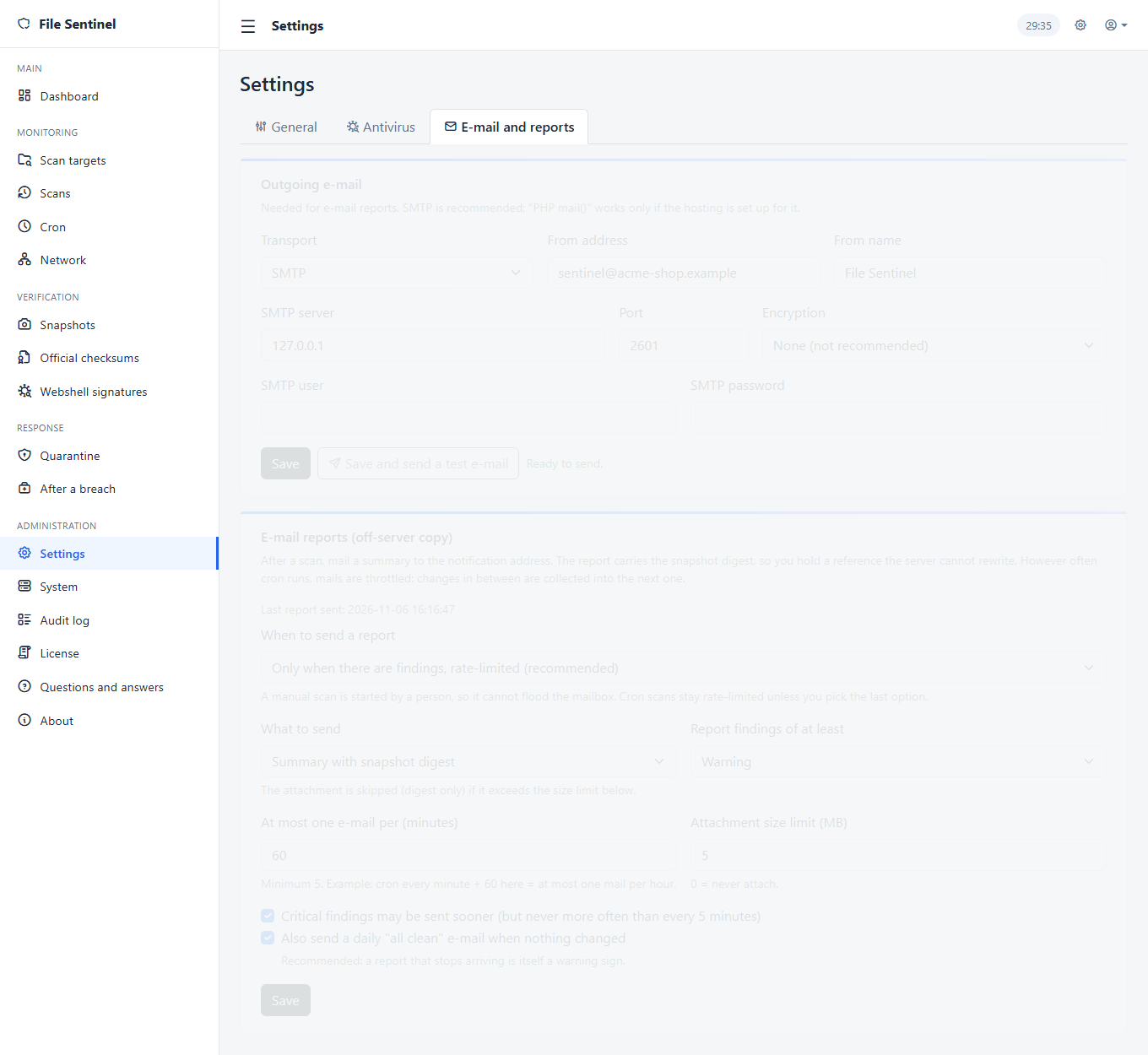
- 1In Settings, tab E-mail and reports, set up outgoing mail: SMTP (recommended) or PHP
mail(), the sender and the SMTP login. Use Save and send a test e-mail. - 2Set the e-mail for notifications on the General tab.
- 3Choose What to send: nothing, a summary with the snapshot digest, or the summary plus the snapshot file attached (when it is small enough).
- 4Choose When to send a report.
| When to send | Behaviour |
|---|---|
| Only when there are findings, rate-limited | The default. Findings of at least the chosen severity are mailed, at most one e-mail per interval (minimum 5 minutes, default 60). Findings in between are included in the next report. Critical findings may leave earlier, but not more often than every 5 minutes. |
| Also after every manual scan | A scan you start yourself always sends a report, even when nothing was found. Cron scans stay rate-limited. |
| After every scan, cron too | Every completed scan sends a report. With cron every minute that means an e-mail every minute: choose it only with a rare cron. |
More options
- Daily "all clear" e-mail when nothing changed. Recommended: a report that stops arriving is itself an alarm.
- Minimum severity to report, and an attachment size limit (0 = never attach).
- Antivirus alerts are separate: a detection sends its own e-mail (at most one per 5 minutes), regardless of the report interval, as long as reports are not set to "nothing".
- If sending fails, the application backs off for a few minutes instead of hammering your mail server, and shows the last error on the settings page.
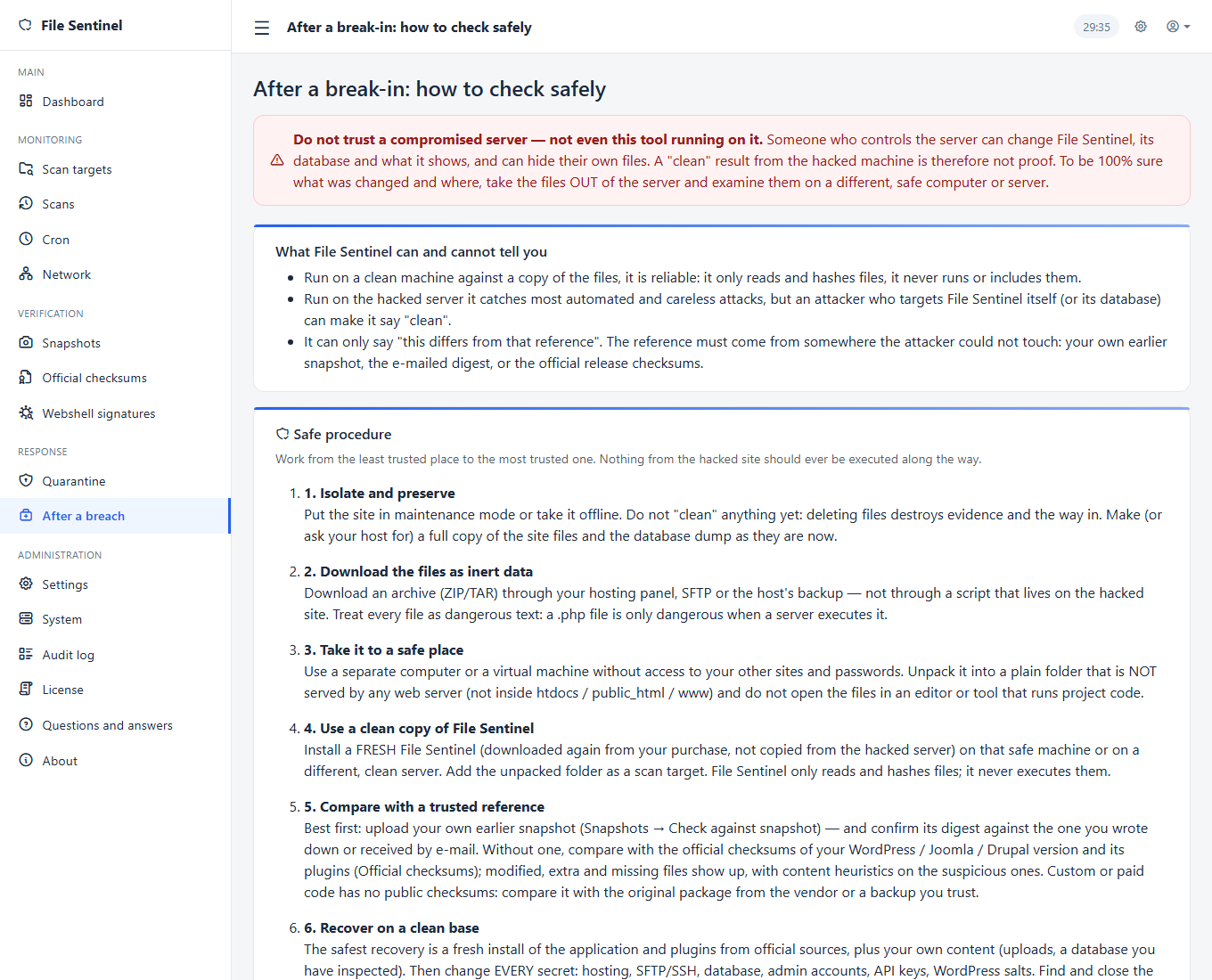
After a break-in
When a site has been compromised, the order of steps matters more than speed. The aim is to find out what happened without running anything the attacker left behind.
The panel contains a full page, After a breach. In short:
- 1Isolate, do not clean. Take the site offline or into maintenance mode. Do not delete files yet: that destroys the trail and the entry point. Make a full copy of the files and a database dump as they are now.
- 2Take the files as inert data. Download an archive through your hosting panel, SFTP or the hosting's backup, not through a script on the compromised site. A
.phpfile is dangerous only when a server executes it. - 3Move them to a safe place: a separate computer or server that does not host your sites and is not connected to them. Never open them in a browser of the compromised site.
- 4Check on a fresh File Sentinel on that machine: compare with official checksums, upload your earlier snapshot, run the antivirus. The result there is reliable because nothing on that machine was touched.
- 5Only then clean up: restore from a known-good backup, update everything, change all passwords and keys (database, FTP, admin accounts, API keys), and close the entry point you found.
Accounts, settings and audit log
The panel is protected by a strong password, two-factor sign-in and a record of what happens in it.
- Two-factor sign-in (authenticator app) is required for the administrator account.
- Profile (the user icon in the header): language of your interface and password change. Passwords need at least 12 characters.
- Session timeout and the batch size of a scan are on the General tab of Settings. The look of the panel (accent colour, light or dark, font size, contrast) is set from the gear icon in the header and saved per administrator.
- Audit log lists sign-ins, setting changes, scans, quarantine actions, antivirus scans and notifications, with the time and details.
- All forms are protected against cross-site request forgery. If a form shows "session expired", use the button to go back and sign in again.
System, self-integrity and licence
File Sentinel also watches itself. A tool that guards files must not be silently changed.
- System compares the server configuration with what the application needs and recommends settings, with the PHP and database details.
- Self-integrity: the application's own PHP files are checked against a signed manifest that ships with it. If they differ, the dashboard status bar turns red and the Integrity page lists the files. After a legitimate upgrade the manifest is part of the new package, so the warning clears.
- License shows the plan and lets you enter a licence key or a purchase code.
- Network connects several installations: a child installation can report its scan results to a parent one, which suits agencies looking after many sites.
Features at a glance
Change detection
Added, modified, removed files and permission changes, with history, differences and restore.
Antivirus
ClamAV on your own server or in Docker, or VirusTotal and MetaDefender hash lookup, with alerts.
Webshell signatures
Built-in and custom patterns for typical malicious code, with Edit and a safe switch for every one.
Official checksums
Compare WordPress, Joomla, Drupal, plugins and themes with the factory version, or with your own set.
Snapshots
Download the state of your files and verify the server against it, even for past scans.
Quarantine
Isolate a suspicious file without deleting it, restore it in one click.
E-mail reports
A report with a snapshot digest, with limits so cron every minute does not flood you, or after every scan if you wish.
Automatic scans
Cron or webcron, a Scan all button and an optional antivirus scan after each run.
After-breach guide
A safe procedure for investigating a compromised site without running its code.
Self-integrity
The application checks its own files against a signed manifest.
Two languages
English and Polish, chosen per administrator.
Secure sign-in
Two-factor authentication, CSRF protection, encrypted secrets and an audit log.
Reference
Security overview
What File Sentinel does to protect itself, and, just as important, what it cannot do.
What is built in
- Two-factor sign-in, passwords of at least 12 characters, an inactivity timeout.
- CSRF protection on every form and prepared statements for every query. Output is escaped.
- Encrypted secrets: SMTP password and API keys are encrypted with the key in
config/config.php. - No file editor, on purpose. An editor on the site would let anyone who takes over the panel run arbitrary code. File Sentinel shows differences and restores or isolates files, but does not write code on the server.
- Quarantine and storage folders are protected from web access; uploads are validated; downloaded CMS releases are fetched only over HTTPS from public addresses.
- Self-integrity check of the application's own files.
What it cannot do
- It cannot vouch for a server that an attacker controls. Use snapshots, e-mail digests and official checksums as references that live elsewhere, and check on a separate machine after a break-in.
- A change scan sees what changed since the last scan. If the site was already infected at the first scan, use official checksums and the antivirus.
- A hash lookup antivirus does not know new malware. Use ClamAV for a real scan.
- The
clamddaemon has no authentication: keep its port off the internet.
Maintenance
Little is needed, but these habits keep the installation trustworthy.
Back up
- The database (all tables with your prefix) and **
config/config.php**. Without the file the encrypted values cannot be read. - Keep a snapshot and an e-mail report of a known-good state somewhere off the server.
Protect the files
Apache reads the shipped .htaccess files. On Nginx add equivalent rules that deny web access to config/, storage/, database/, app/, language/ and _devs/. Delete the install/ folder after installing.
Disk usage
File versions are kept in the database. Pick Diff view instead of Full content in the General settings if size becomes a concern, and add ignore rules for folders that change constantly. Purge old quarantined files you no longer need.
Upgrading
Upload the new files over the old, keep config/ and storage/, sign in, then check System and the dashboard.
Help & troubleshooting
Common issues and solutions
The scan says "never scanned" or shows no changes
Run Scan now once: the first scan only records the baseline. Changes appear from the second scan on. A folder with no changes shows "All clear".
Almost every file shows as changed after an update
That is expected after updating a CMS. Compare with the official release of the new version instead of marking events one by one.
A file keeps appearing as modified
Something rewrites it constantly (a cache, a log, a session). Add an ignore rule for it.
"Session expired" when submitting a form
The session timed out or the page was open too long. Use the button on that page to return to sign-in and try again.
The e-mail test fails
Check the SMTP host, port and encryption (STARTTLS 587 or SSL 465), the login and the sender address. The page shows the server's error. With PHP mail() the hosting must be configured to send mail.
I get no report e-mails
Check that reports are not set to "nothing", that outgoing mail is set up, that the notification address is valid and that the severity threshold is not above what you expect. In the default mode a report is rate-limited: findings between mails go in the next one. Use "Also after every manual scan" to test.
"Cannot connect to ClamAV"
Check the host and port on the Antivirus tab and that the daemon is running (docker ps). From the application server the port must be reachable and not blocked by a firewall. Use Save and test to see the exact error.
ClamAV does not see a file
Files over the size limit are skipped (default 25 MB) and counted as skipped, not as clean. Raise the limit on the Antivirus tab, up to what your clamd allows.
An online service says "unknown" for most files
That is normal for your own code, custom themes and anything the service has never seen. "Unknown" is not clean. For real scanning use ClamAV.
The online service refuses requests
Free plans have request limits. The scan stops with a message; run it again later, files already checked are skipped.
The dashboard shows a red integrity warning
The application's own files do not match the shipped version. After an upgrade or an edit of a file this is expected until the manifest matches; otherwise treat it seriously and follow the After a breach guide.
Frequently asked questions
Do I need ClamAV to use File Sentinel?
No. Change detection, webshell signatures, official checksums, snapshots and e-mail reports work without it. ClamAV adds a real antivirus scan.
Does File Sentinel send my files anywhere?
No. With ClamAV the files go only to your own daemon. With VirusTotal or MetaDefender only a SHA-256 hash is sent, never the file. Nothing is sent to us.
Does it work with sites that are not WordPress?
Yes. The change scan, the antivirus and snapshots work for any files. Official checksums are available for WordPress, Joomla, Drupal, their plugins and themes, or you can create your own set.
Can I watch several websites?
Yes, add one scan target per site. For many sites in different installations, the Network feature lets them report to a parent installation.
Will cron every minute flood my mailbox?
Not by default: reports are rate-limited. Only the optional "After every scan, cron too" setting removes the limit.
Can I edit files in the panel?
No, deliberately: a file editor would let anyone who takes over the panel run code on your server. You can restore earlier versions and quarantine files.
Can it clean the infection for me?
It finds and isolates. Cleaning properly means restoring from a known-good source and closing the entry point; the After a breach guide describes the safe order.
Which languages does it support?
English and Polish, per administrator.
Contact
Questions, suggestions or something not working as described here? Write to the developer.