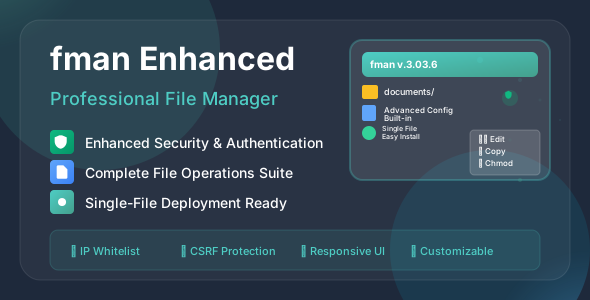
What is fman Enhanced File Manager?
fman is a self-contained PHP file manager that ships as a single .php file. It gives you a full-featured file management interface without any framework dependencies, databases, or complex installation procedures. Just upload, configure credentials, and you're ready.
Single-File Deployment
The entire application — UI, logic, authentication, file operations — is contained in one PHP file. Deploy by uploading a single file. Remove by deleting it (or from within the app itself). Zero configuration files, zero database, zero dependencies.
Feature Overview
Installation & First Run
fman is designed to be up and running in under two minutes. There are no dependencies to install and no database to configure.
Download the file
Obtain fman_enhanced.php from your purchase package. The entire application is this single file.
Generate new credentials
Open the file in a text editor and change the SECURITY_SALT to a random string. Then use the built-in hash generator (add ?generate to the URL after upload) to create SHA-512 hashes for your username and password. Replace LOGIN_HASH and PASS_HASH with the generated values.
Configure IP whitelist
Update the ALLOWED_IPS list with the IP addresses that should have access. You can use exact IPs, subnet wildcards (e.g. 192.168.*.*), or allow all IPs for development environments.
Upload to your server
Upload fman_enhanced.php to your desired directory via FTP, SFTP, or your hosting control panel.
Open and log in
Navigate to the file URL in your browser (e.g. https://yourdomain.com/fman_enhanced.php). Enter your credentials and you're in.
?generate tool to create secure hashes before uploading to any public-facing server.Login & Access Control
fman uses a secure credential system based on SHA-512 hashing with a custom salt. Credentials are stored as hashes directly in the configuration block — no database required.
?generate to the file URL. It walks you through generating a new salt and credential hashes without touching external tools.Working with Files & Folders
fman provides a complete set of file management actions accessible directly from the browser. All operations include CSRF protection and path validation to prevent directory traversal.
Sorting & Navigation
The file browser supports sorting by name, size, last modified, type, and permissions in both ascending and descending order. Breadcrumb navigation makes moving up the directory tree straightforward.
Upload & Download
fman handles file transfers with configurable limits and extension filtering to keep your server safe.
ZIP Compression & Extraction
fman integrates ZIP archive management so you can compress, package, and extract files without needing shell access.
Built-in Code Editor
Edit source files directly in the browser. No need to download, modify, and re-upload. The editor opens any text-based file and saves it back to the server in one click.
Supported File Types
The built-in editor works with any text-based file, with particular support for:
| Category | Extensions | Use Case |
|---|---|---|
| Server-side code | .php, .ini |
Edit application logic, php.ini settings |
| Web frontend | .html, .css, .js |
Modify templates, stylesheets, scripts |
| Data & config | .json, .xml |
Update configs, API responses, data files |
| Documentation | .txt, .md, .log |
Edit readme files, review logs, notes |
Image & Document Preview
fman can render common media formats inline so you can verify assets without downloading them.
Permissions & Timestamps
Manage Unix-style file permissions and timestamps directly from the browser, without requiring SSH access.
644, 755).Shell Command Execution
The optional shell console allows you to run server commands directly from the browser interface, providing a lightweight alternative to SSH for routine administration tasks.
Enable / Disable
Shell execution is controlled by a dedicated configuration flag. When disabled, the shell console tab and all related actions are completely removed from the interface — they are not merely hidden, they are blocked at the server level too.
Security Architecture
fman is built around the principle of defense-in-depth. Multiple independent layers work together so that bypassing one control does not immediately compromise the system.
| Layer | Mechanism | What it prevents |
|---|---|---|
| Network | IP whitelist (IPv4/IPv6 + wildcards) | Unauthorized IPs never reach the login form |
| Authentication | SHA-512 + salt credential hashing | Password leaks cannot be reversed into plain text |
| Brute-force | Configurable failed-attempt lockout | Automated credential attacks are rate-limited |
| Session | Timeout + secure session handling | Idle sessions cannot be hijacked |
| Request forgery | CSRF token on all write actions | Cross-site request forgery on file operations |
| Path traversal | Realpath validation + root mode clamping | Directory traversal outside the configured root |
| Upload | Extension whitelist + server-side size check | Malicious file uploads and oversized payloads |
| Output | Input sanitization + output encoding | Stored and reflected XSS attacks |
Configuration Reference
All configuration is done at the top of the file in a set of PHP define() constants. No external config files are needed. Below is a reference of what can be customized.
Root Directory Mode
Controls which part of the server filesystem is accessible through fman:
| Mode | Accessible Root | Best For |
|---|---|---|
script_dir |
The folder containing fman_enhanced.php |
Recommended Most restrictive, limits access to one directory |
public_html |
The server's public web root | Web hosting management — access all public files |
server_root |
Full server filesystem | Advanced System administration, full disk access |
Upload Limits
Configure the maximum file size for uploads and the list of permitted file extensions. Both are enforced server-side for security.
IP Access Control
Define which IP addresses may access the application. Supports:
- Exact IPs — single IPv4 or IPv6 addresses
- Wildcard patterns — subnet ranges using
*(e.g.192.168.*.*) - IPv6 prefix wildcards — partial prefix matching
- Open access — a single
*entry allows all IPs (not recommended in production)
Session & Security Limits
- Session timeout — idle period (in seconds) before the user is logged out
- Failed login threshold — maximum failed attempts before lockout
Feature Flags
| Flag | What it controls |
|---|---|
ENABLE_SHELL_EXECUTE | Enable or completely disable the shell console |
ENABLE_CHANGE_CREDENTIALS | Allow changing login credentials from within the UI |
ENABLE_SELF_DELETE | Allow the app to delete itself from the UI |
SHOW_SELF_IN_FILE_LIST | Show or hide the fman_enhanced.php file in directory listings |
SHOW_CURRENT_PATH | Show the full server path in the navigation bar (server_root mode only) |
Custom Themes
fman's UI color scheme is driven by a two-stop gradient. Both colors can be changed in the configuration or live from within the app interface.
Frequently Asked Questions
Common questions about deploying and using fman Enhanced File Manager.
Does fman require any PHP extensions?
fman uses only standard PHP built-ins. The ZIP functions require the php-zip extension (included by default on most hosts). The EXIF panel requires php-exif. All other features work on a plain PHP 7.4+ install.
Can I run multiple instances on the same server?
Yes. Each copy of fman_enhanced.php is fully self-contained. Deploy multiple copies in different directories, each with its own credentials and access rules, without any conflict.
How do I change my password after deployment?
Log in and open the Settings panel. The credential change form generates new hashes automatically — you do not need to touch the file manually. If ENABLE_CHANGE_CREDENTIALS is disabled, edit the LOGIN_HASH and PASS_HASH constants directly in the file.
How do I remove fman from my server?
Use the Self-Delete option in the settings panel (if enabled) to delete the file from within the app, or simply delete fman_enhanced.php via FTP/SSH. No other files are created, so there is nothing else to clean up.
Is fman safe to use on a shared hosting environment?
Yes, with caveats. Enable IP whitelist to restrict access to your IP only, disable shell execution, and set the root mode to script_dir or public_html to limit filesystem exposure. Avoid leaving it deployed permanently when it is not actively needed.
Can I style fman to match my brand?
Yes. The theme gradient colors are configurable in the constants block and can also be changed live from the settings panel. More advanced customization can be done by editing the embedded CSS inside the single file.