
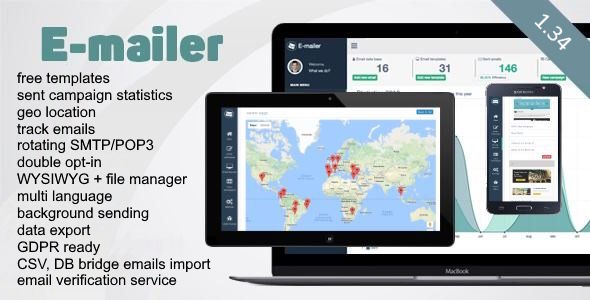
What is E-mailer?
E-mailer is a self-hosted email marketing application built on PHP and MySQL. It gives you full control over your mailing campaigns — from subscriber management and template design to sending via multiple SMTP servers in rotation. No external service fees, unlimited scale.
Full-stack campaign management
From subscriber import to click tracking and unsubscribe handling — everything in one panel, running on your own hosting.
Full Feature List
E-mailer v1.34 includes everything required to run professional email marketing on your own infrastructure.
{F0}–{F3} variables in templates and subjects.Additional Capabilities
- Translation-ready — add any language by copying the English language file
- Extensible component system — add custom modules following the included example
- Per-SMTP sender identity — different From name/email per server
- Emoji support from
getemoji.com - HTML + TXT dual-version email templates
- One-click predefined template import
- Email validity checking via emailable.com API
- SMTP debug levels for troubleshooting delivery issues
System Requirements
E-mailer runs on standard shared or VPS hosting with PHP and MySQL — no special server configuration required.
| Component | Minimum | Recommended |
|---|---|---|
| PHP | 5.6+ (PDO) | 8.0+ |
| MySQL | 5.6+ | 8.0+ / MariaDB 10.5+ |
| Web Server | Apache / Nginx | Latest stable |
| Browser | Any modern browser | Chrome / Firefox latest |
| SMTP | Optional — uses PHP mail() otherwise | Dedicated SMTP server |
Installation
E-mailer is installed in minutes — no composer, no build step. Just upload files and log in.
Upload Files
Create a folder on your server and upload all application files via FTP/SFTP.
Log In with Default Credentials
Navigate to your installation URL. Default credentials: login demo / password demo.
Create Database Structure
After first login, click the Create Database Structure button. The app automatically creates all required tables.
Configure Credentials & Settings
Go to Settings and change the login name, password, and database connection. Edit configuration.php directly if preferred.
Import Sample Data (optional)
Use Settings → Import Sample Data to load demo recipients, templates, and campaigns for a guided tour of all features.
demo/demo credentials immediately after installation. Leave the default credentials active on a public server is a critical security risk.Campaign Workflow
Every campaign follows the same five-step process. Complete each step before proceeding to the next.
Add Tags
Tags allow you to segment your list. Create relevant tags (e.g., newsletter, customers, promo) before adding recipients.
Add Recipients
Add email addresses manually or import them from a CSV file. Assign one or more tags to each recipient. Supports additional custom fields (v1.34).
Add a Sender
Define the From name and email address for this campaign. You can maintain multiple senders and assign one per SMTP server.
Create or Select a Template
Design your email in the TinyMCE WYSIWYG editor. Use template variables (see Variables) for personalisation. Add attachments if needed.
Create & Run Campaign
Create a new campaign, select your template and sender. Filter recipients using tags in the search field above the recipients table. Start sending — you can pause and resume at any time.
Sending Modes
Recipients & Tags
Manage your mailing list with tagging, CSV import/export, email validation, and full blacklist support.
Tags
Tags are labels assigned to recipients for segmentation. When launching a campaign, type tag names separated by spaces in the search field above the recipients table to filter your audience.
CSV Import
Import bulk recipients via CSV. The importer supports auto-creation of tags defined in the file, and since v1.34, custom field values can be imported per-recipient. See example-recipients-import.csv for the expected format.
| CSV Column | Description |
|---|---|
| Recipient email address (required) | |
| name | Recipient display name |
| tags | Space-separated tag list; tags are created automatically if they don't exist |
| f0–f3 | Custom fields (v1.34) usable as {F0}–{F3} in templates |
Blacklist
Unsubscribed addresses are stored in the blacklist. Recipients on the blacklist are never included in future campaigns. One-click bulk-delete of all unsubscribed addresses is available in Settings.
Email Templates
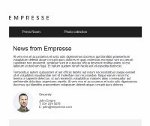
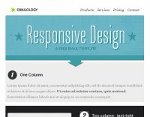
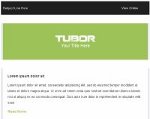
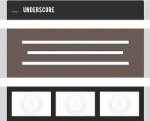
Create and edit email templates with the integrated TinyMCE WYSIWYG editor. Both HTML and plain-text versions are supported.






















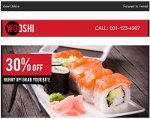
<img src="cid:filename.jpg"> or reference them via an absolute external URL.{BROWSER_VIEW} to your template — it's replaced with a link that lets recipients view the email in their browser if it doesn't render correctly.{RECIPIENT_NAME} in both the subject line and body to personalise each email. Spam filters reward content variety across recipients.SMTP Configuration
E-mailer supports unlimited SMTP server connections. Emails can also be sent via the native PHP mail() function if no SMTP is configured.
| Setting | Description |
|---|---|
| Connection Name | A label for your reference (e.g., "Gmail Workspace", "Mailgun US") |
| SMTP Address | Your SMTP hostname, e.g. smtp.gmail.com |
| Port | Typically 465 (SSL), 587 (TLS), or 25 |
| Encryption | TLS or SSL — match to the port you're using |
| SMTP Username / Password | Credentials for authentication on the SMTP server |
| Force SMTP Usage | Forces isSMTP() — disable if your server (e.g. smtp.gmail.com) rejects it |
| SSL/TLS Verification | Verify server certificate. Disable only for self-signed certs on internal servers |
| Reply-To | Optional: override the reply-to address and name |
| Limit Per Hour | Throttle send rate to stay within hosting or SMTP provider limits |
| DKIM | Enable and configure DKIM signing for improved deliverability |
Subscription Widget
Embed a subscription form anywhere on your website. E-mailer generates the HTML/JS snippet — paste it into any page.
{CONFIRM_LINK} in the email template). Fully compliant with GDPR and CAN-SPAM.{SUBSCRIBER_*} variables.Embed Example
See example-ajax-subscription-widget.html in the installation package for a ready-to-use embed snippet.
Template Variables
Use these placeholder variables in your email templates and subject lines. They are replaced with live data during sending.
In Subject & Email Body
| Variable | Replaced With |
|---|---|
| {RECIPIENT_NAME} | Full recipient name |
| {RECIPIENT_NAME_1} | First word of recipient name |
| {RECIPIENT_NAME_2} | Second word of recipient name |
| {RECIPIENT_NAME_3} | Third word of recipient name |
| {RECIPIENT_EMAIL} | Recipient email address |
| {RECIPIENT_DESCRIPTION} | Recipient description/notes field |
| {UNSUBSCRIBE} | Unique unsubscribe URL for this recipient |
| {BROWSER_VIEW} | Link to view email in browser (full absolute URL) |
| {CAMPAIGN_NAME} | Name of current campaign |
| {SENDER_NAME} | Sender display name |
| {SENDER_EMAIL} | Sender email address |
| {CURRENT_YEAR} | Current year (YYYY) |
| {CURRENT_MONTH} | Current month (MM) |
| {CURRENT_DAY} | Current day (DD) |
Custom Fields (v1.34)
Assign custom field values to recipients (manually or via CSV import) and reference them in templates:
| Variable | Description |
|---|---|
| {F0} | Custom field 0 value for this recipient |
| {F1} | Custom field 1 value for this recipient |
| {F2} | Custom field 2 value for this recipient |
| {F3} | Custom field 3 value for this recipient |
Subscription Widget Variables
| Variable | Used In |
|---|---|
| {SUBSCRIBER_EMAIL} | Confirmation & admin notification emails |
| {SUBSCRIBER_NAME} | Confirmation & admin notification emails |
| {SUBSCRIBER_COMMENT} | Admin notification email |
| {SUBSCRIBER_TAGS} | Admin notification email |
| {CONFIRM_LINK} | Confirmation email — required for double opt-in |
Unsubscribe Example
Add a compliant unsubscribe link to every email:
<a href="{UNSUBSCRIBE}">Unsubscribe from this newsletter</a>
Frequently Asked Questions
Answers to the most common questions about E-mailer.
Why use a dedicated SMTP server?
Shared hosting mail() is limited to a few hundred emails per day and is heavily spam-filtered. A dedicated server or transactional email service (Mailgun, SendGrid, Amazon SES) removes rate limits and improves inbox placement.
What are tags for?
Tags let you segment your recipient list. When creating a campaign, type tag names in the search field above the recipients table to include only matching subscribers. Multiple tags can be combined.
What if my connection drops mid-send?
Resume the campaign normally. Each sent email is marked in the database with a unique key — the same recipient will never receive the email twice from the same campaign.
How does email tracking work?
When tracking is enabled, a 1×1 transparent image tag is embedded in each email. When the recipient's email client loads images, the system records the open. Tracking only fires if the recipient allows image loading.
How do I add a new language?
Copy languages/english.php, rename it (e.g. french.php), translate all strings, and save in UTF-8 without BOM. Select the new language in Settings → System Language.
How to avoid spam filters?
- Always collect explicit consent before adding addresses
- Personalise content using
{RECIPIENT_NAME}to differentiate checksums - Avoid spam trigger words (free, buy now, special offer)
- Keep image-to-text ratio balanced — not too many images
- Keep attachments minimal
- Always send from a real, validated email address
- Configure SPF and DKIM records for your sending domain
How do I add images to emails?
Two options: embed as an attachment with a cid: reference —
<img src="cid:logo.jpg">
— or link to an externally hosted image:
<img src="https://yourdomain.com/images/logo.jpg">
Support & License
E-mailer is distributed via CodeCanyon under the Regular License.
license.txt for full terms.