
Getting Started
What is AI Chat Widget?
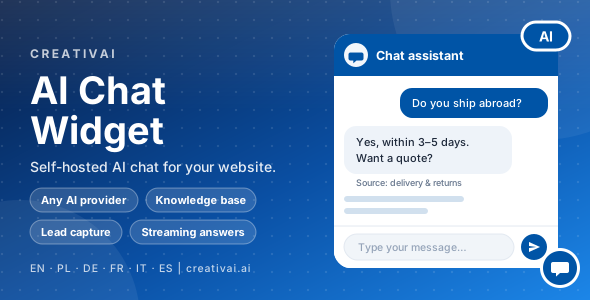
AI Chat Widget is a chat assistant you run on your own server and place on any website with one line of code. It answers visitors' questions using the AI provider of your choice, from facts you give it, and it can collect contact requests when it cannot help.
Everything lives on your hosting: the admin panel, the conversations, the knowledge base and your AI keys. Nothing is sent to us. The only outside traffic is between your server and the AI service you choose, and between the visitor's browser and your server.
What you can do with it
- Connect any AI provider: OpenAI, Anthropic, Google Gemini, Mistral, Groq, Perplexity, OpenRouter, xAI, Together AI, Azure OpenAI, Cohere, LM Studio, Ollama, or any service you describe yourself in a few fields.
- Create several bots, each with its own topic, look, texts, rules and website list.
- Teach a bot from a knowledge base: pasted text, question-and-answer lists, TXT, Markdown, CSV, HTML, PDF and Word files, web pages and whole sitemaps.
- Let visitors leave their contact details when the bot cannot answer, and get an e-mail about each request.
- Read and export conversations, rate answers, and watch statistics to see what visitors really ask.
- Protect everything with two-factor sign-in, a full audit log, per-website access lists, rate limits and daily token budgets.
- Work in six languages: English, Polish, German, French, Italian and Spanish, in the panel and in the widget.
How it works
Four building blocks, set up in this order: a provider, a bot, the embed code, and then what visitors actually say.
- 1AI provider. A saved connection to an AI service: its address, how to sign in (your API key) and how to read its answer. Built-in profiles cover the popular services; you can add your own.
- 2Bot. One chat assistant. It has a provider and a model, a job description (topic, scope, tone), a look, texts and rules. You can run as many bots as your licence allows, for different websites or purposes.
- 3Embed code. A single
<script>line that puts the chat on a page (or a small WordPress plugin that does it for you). - 4Conversations. Every visitor message goes to your server first. Your server checks the rules, builds the instructions for the AI, asks the provider and sends the answer back. The AI key never reaches the visitor's browser.
What happens when a visitor sends a message
- 1The widget sends the message to
api.phpon your server. - 2The server checks that the website is on the bot's allowed list, applies the rate limit, blocked words and daily token budget.
- 3It looks up matching excerpts in the knowledge base (if the bot uses it) and builds the instructions: topic, scope, tone, business information, excerpts and the always-on safety rules.
- 4It asks the AI provider (and a fallback provider if the first one fails).
- 5It stores the exchange according to the bot's logging mode and returns the answer, with source links when the model provides them.
System requirements
| Requirement | Details |
|---|---|
| PHP | 8.1 or newer |
| Required PHP extensions | pdo_mysql, openssl, mbstring |
| Strongly recommended | curl (calls to AI providers and web page import), sodium (licence verification), dom and libxml (reading web pages and Word files), zlib and iconv (PDF files) |
| Optional | zip (WordPress plugin as a .zip file; Word files use a built-in reader without it) |
| Database | MySQL 5.7+ or MariaDB 10.3+ (InnoDB full-text index is used by the knowledge base) |
| Web server | Apache 2.4 (access rules are shipped as .htaccess) or Nginx (see Maintenance for the equivalent rules) |
| Browser for the panel | Any current Chrome, Edge, Firefox or Safari |
| Outgoing connections | HTTPS to your AI provider(s); SMTP to your mail server if you use e-mail features |
Installation
Installation takes a few minutes and works on ordinary shared hosting, a VPS or a dedicated server. No Composer or command line is needed on the server.
- 1Copy the files. Upload the whole
ai-chat-widgetfolder to your web root, or to any sub-folder. The address is detected automatically, so the folder name does not matter. - 2Create an empty MySQL database in your hosting control panel (for example cPanel or DirectAdmin: "MySQL Databases"), together with a database user that has full rights to it. Note the host (often
localhost), database name, user and password; you will enter them in the installer. - 3Open the installer. Go to
https://your-site/ai-chat-widget/install/and choose the installer language (English, Polish, German, French, Italian or Spanish). - 4Fill in the form. Database host, name, user and password, a table prefix (the default
acw_is fine) and your first administrator: name, e-mail and a password of at least 12 characters. - 5Finish. The installer creates the tables, writes
config/config.phpand a lock file, and shows a link to the sign-in page. - 6**Delete the
install/folder** from the server when it asks you to.
config/config.php.** It contains the application key that encrypts your AI keys, the SMTP password and two-factor secrets. With a database backup but without this file those values cannot be read again. Keep a copy somewhere safe, away from the web root.Upgrading
Upload the new files over the old ones (keep config/ and storage/), sign in and open System info. If the database needs changes, the page lists them; press Apply once. See "Maintenance" for the full routine.
First sign-in and the dashboard
Sign in with the e-mail and password you set during installation. The panel remembers your language and works the same on a phone.
The left menu is grouped by task:
| Group | Entries |
|---|---|
| Dashboard | Overview and quick checks |
| Configuration | Bots, AI providers, Knowledge base |
| Conversations | Conversations, Contact requests, Statistics |
| Administration | Users, Settings, Audit log, System info, About |
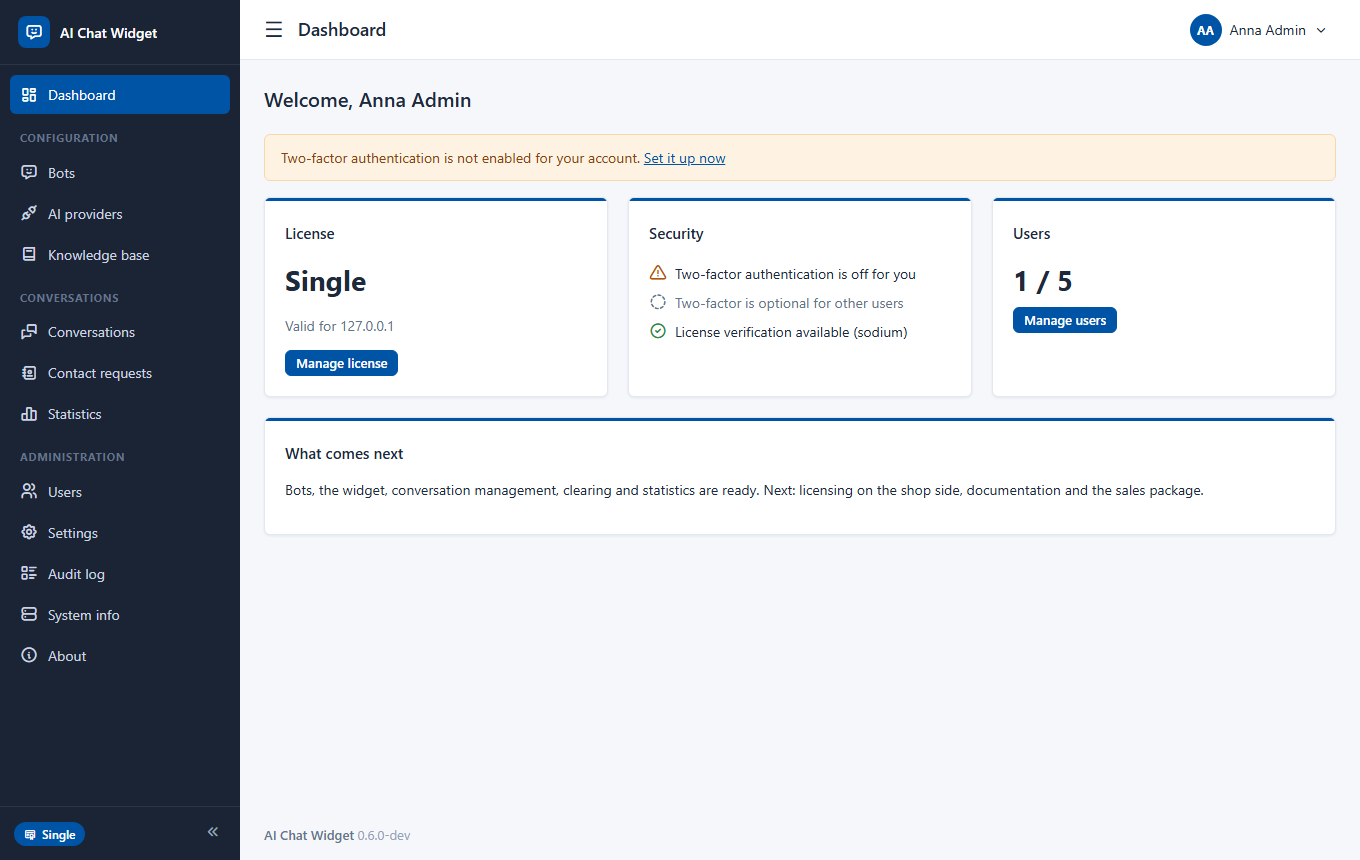
The dashboard shows your licence plan, whether two-factor sign-in is on, how many users and bots you have, and warnings: pending database updates, a missing PHP extension or "2FA required" notices. The top bar has your profile menu (profile, two-factor sign-in, sign out); the arrow at the bottom of the menu collapses it to icons.
The small "?" icons
Every form field has a "?" icon that opens a short explanation. They can be switched off for everyone in Settings > General or for yourself in My profile.
Quick start: your first bot in 8 steps
From an empty installation to a chat on your page, step by step.
- 1Add an AI provider. Go to AI providers, open a ready profile (for example OpenAI) and paste your API key. The "Get an API key" link under the field opens the provider's page where the key is created.
- 2Test the connection. In the same editor press Fetch models, then use the test console: pick a model, send a message and check that an answer arrives. Fix the key here before building a bot.
- 3Create a bot. Go to Bots > Add bot. Name it, choose the provider and model, and on the Topic and prompt tab describe what it should talk about: your business, the tone, what it must not answer.
- 4Set the look and texts. Tabs Appearance, Behaviour, Texts and Branding: colours, position, greeting and suggested questions. The Test chat tab and "Preview the final prompt" let you talk to the bot right in the panel.
- 5Allow your website. On the Security tab add your site to Allowed websites (for example
example.comor*.example.com). The chat loads only on listed sites. - 6Embed it. Open the Embed tab, copy the one-line script and paste it before
</body>on your pages. On WordPress, download the small plugin from the same tab instead. - 7Optional: add knowledge and contact requests. Add documents under Knowledge base, or switch on Contact requests on the bot (set up Settings > E-mail first).
- 8Watch and tune. Chat with the bot on your page. Later review Conversations and Statistics, decide what is stored (Privacy tab) and improve the prompt where answers were not helpful.
User Guide
AI providers
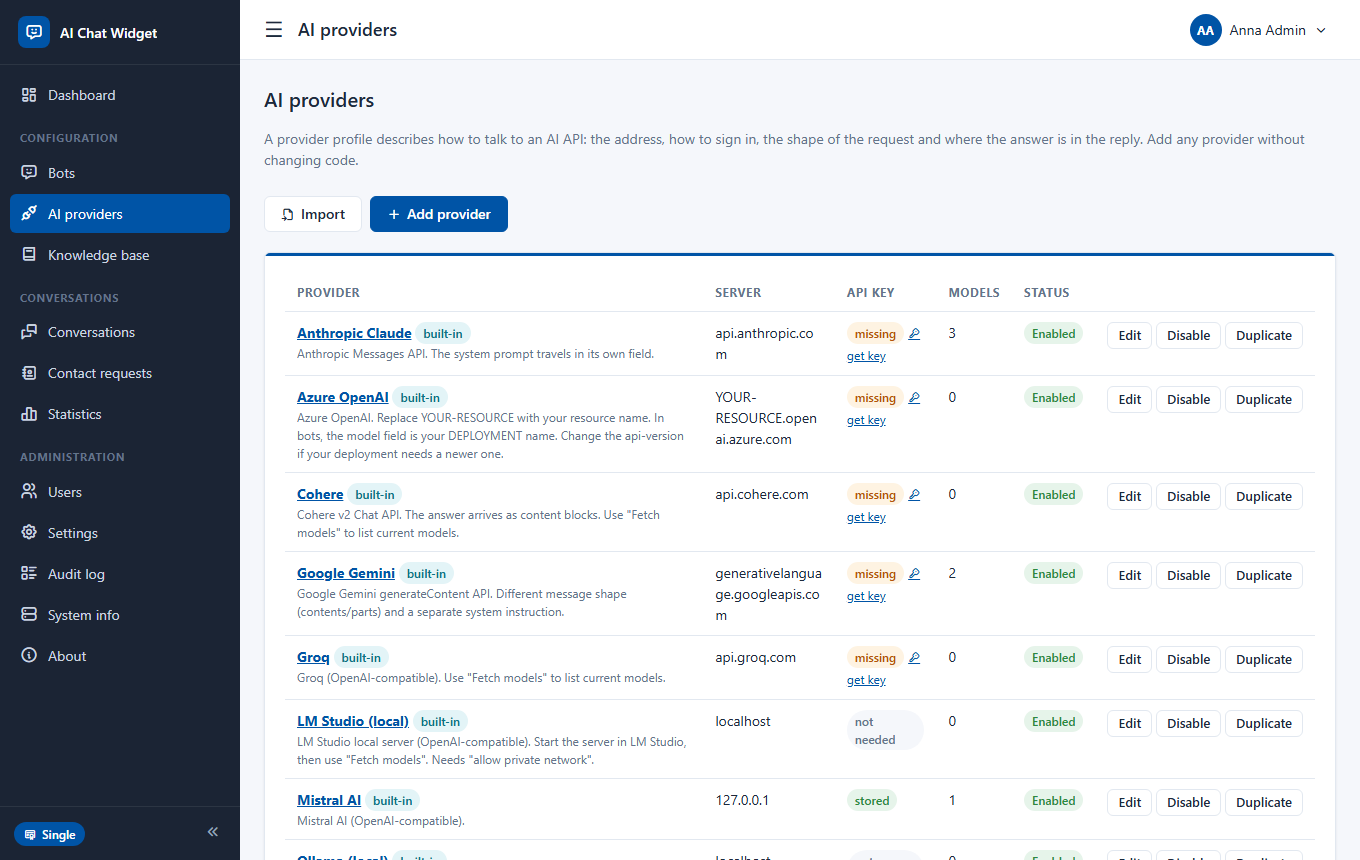
A provider profile tells the application how to talk to one AI service. Profiles are data, not code, so a new or unusual service can be added without waiting for an update.
Built-in profiles
OpenAI, Anthropic (Claude), Google Gemini, Mistral, Groq, Perplexity, OpenRouter, xAI (Grok), Together AI, Azure OpenAI, Cohere, LM Studio and Ollama (both local), and a generic OpenAI-compatible profile you can point at any compatible server. Each one is ready to use: open it, paste the key, save.
Adding your key
Open a provider and fill in API key. The key is stored encrypted and never shown again (only the last four characters). A green message confirms a key is saved; leave the field empty on later edits to keep it. The Get an API key link next to the field leads to the page where the provider issues keys.
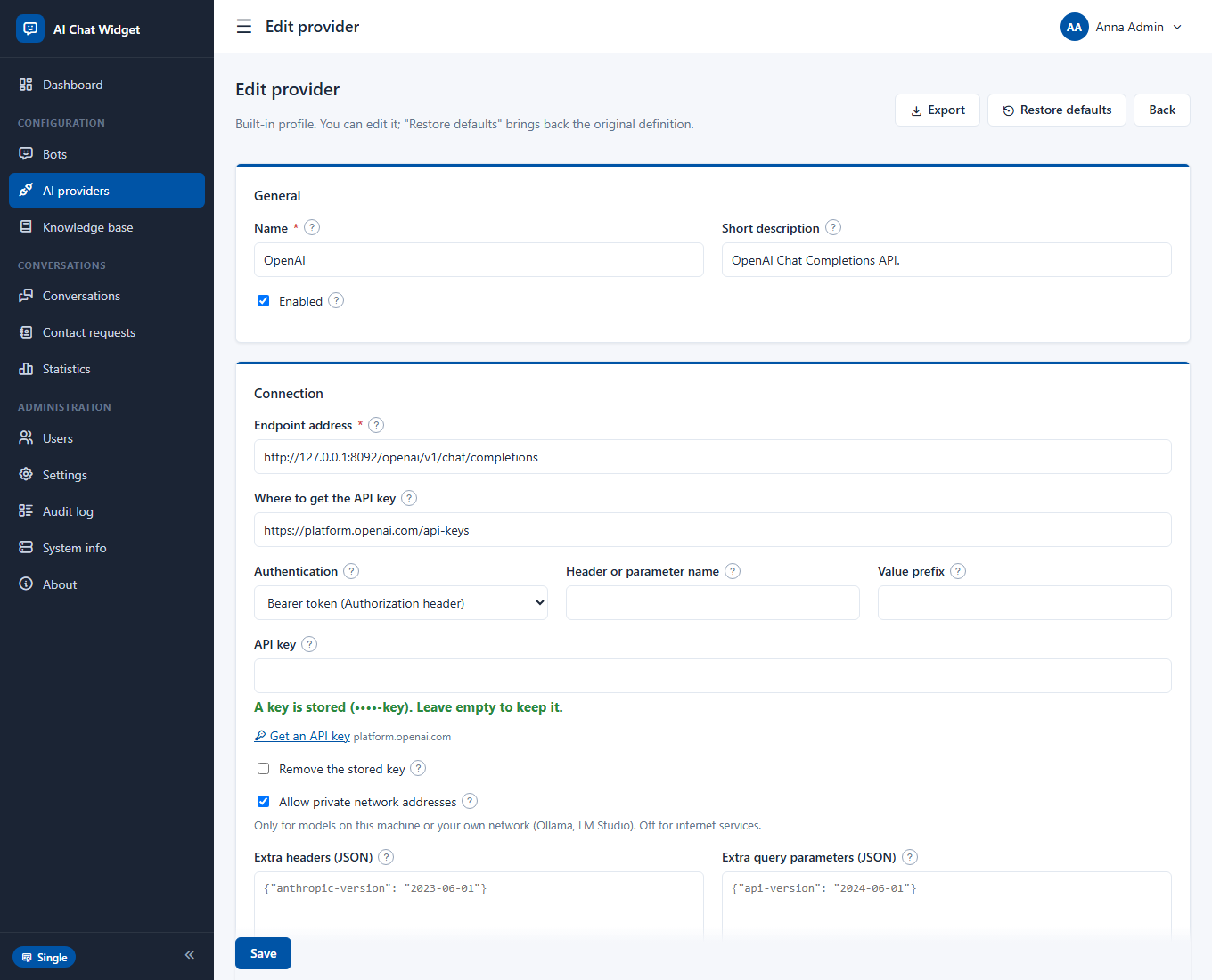
The test console
Under the form, the console sends a real message with the profile as currently edited, saved or not. It shows the answer, the time, the token counts and, if something fails, the exact request and response (with your key masked). Use it whenever you change a profile.
Editing a profile
{{model}} may be used in it (Google Gemini puts the model in the address).{{model}}, {{messages}}, {{system}}, {{prompt}}, {{max_tokens}}, {{temperature}} and {{top_p}} are filled in for every call. Empty optional values can be omitted automatically.choices.0.message.content. * collects every element of a list.id | label). Fetch models reads it live from the provider.Adding a service that is not on the list
Duplicate the OpenAI-compatible profile (many services speak that protocol), or start from a similar profile and change the address, headers and paths. The test console tells you what to fix. Profiles can be exported and imported as JSON files, so you can share a working one.
Safety built in
Every call goes through an address check that blocks private networks, link-local and cloud-metadata addresses (unless you allow private networks for that profile), refuses redirects, caps response size and time, and never writes your key into logs or error messages.
Bots
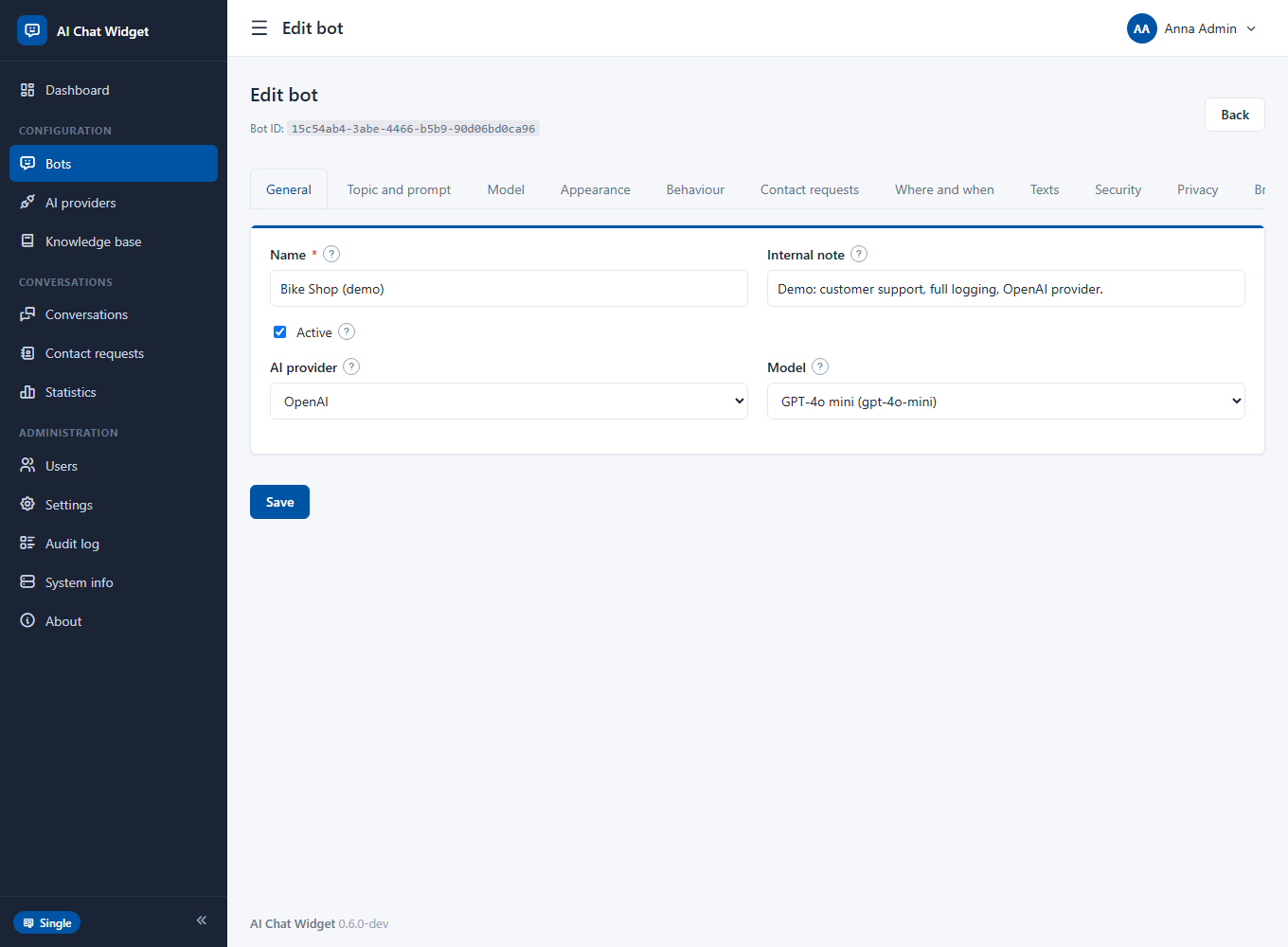
A bot is one chat assistant. Its editor has tabs, and every field has a "?" help icon. Save once at the end; unsaved changes are flagged if you leave the page.
General
Topic and prompt
You fill in a form instead of writing a prompt. The application assembles a tested set of instructions around your texts and always appends non-removable safety rules.
{{site_name}}, {{current_date}} and {{page_title}} are available.Preview the final prompt shows exactly what the model will receive, including the safety rules.
Model
Appearance
Main colour (text colour adapts automatically), light, dark or automatic theme, position (left or right), distances from the edge, window size, corner rounding, button icon and label, avatar picture and, for advanced users, custom CSS applied inside the chat window only (paid licences).
Behaviour
Contact requests
See the chapter "Contact requests".
Where and when
Show the chat on every page, only on pages matching patterns, or everywhere except them (patterns use *); on all devices, desktop only or mobile only; only during opening hours, with a message or nothing outside them. Paid licences.
Texts
Per language: window title, greeting, input placeholder, suggested questions (up to five buttons), AI notice, error and offline messages, send button label, and the contact form introduction and thank-you. Empty fields use built-in translations, so the widget speaks the visitor's language even if you write nothing.
Security
example.com or *.example.com). Requests from any other site are refused, which stops others from using your bot and your AI credit.Privacy
Branding
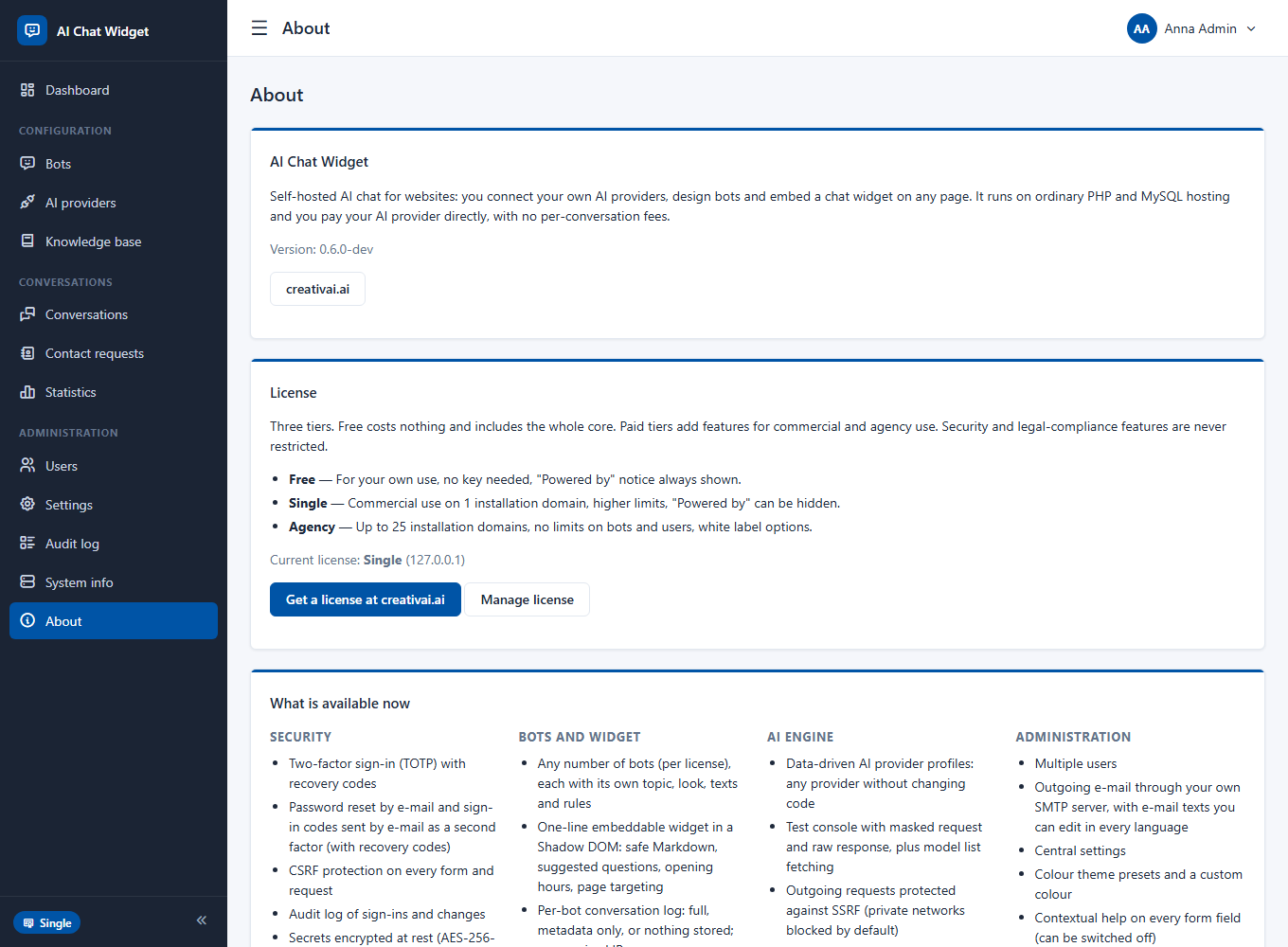
The small "Powered by" line at the bottom of the chat. It is always on with the Free licence; Single and Agency can hide it; Agency can replace its text and link (white label).
Embed and Test chat
The Embed tab holds the script, the WordPress plugin and a ready test page. Test chat talks to the bot inside the panel without storing anything.
Putting the chat on your website
One line of code, or one small plugin. The widget draws itself inside a Shadow DOM, so your site's styles cannot break it and it cannot break your site.
Any website
Open your bot, the Embed tab, copy the script and paste it just before the closing </body> tag on every page where the chat should appear:
<script src="https://your-site/ai-chat-widget/assets/widget/loader.js"
        data-bot="YOUR-BOT-ID" async></script>
Then add your website under Security > Allowed websites, otherwise the chat will not load there.
WordPress
The Embed tab offers a small plugin (a .zip, or a single .php file if the server has no zip extension). Upload it under Plugins > Add New > Upload, activate it and the chat appears on every page. The plugin only adds the script line with your bot's ID; the chat, the AI keys and the conversations stay on your installation.
Optional script attributes
| Attribute | Meaning |
|---|---|
data-context-title | The page title sent to the bot (otherwise the document title). |
data-context-url | The page address sent to the bot (otherwise the current address). |
data-lang | Force the widget language (otherwise the page language or the visitor's browser). |
data-api | Address of api.php, if your installation is behind a different path. |
Controlling the chat from your page
AIChatWidget.open();    // open the window
AIChatWidget.close();   // close it
AIChatWidget.toggle();  // open or close
AIChatWidget.setContext({ title: 'Red city bike', url: location.href });
Use these to open the chat from your own button or to tell the bot which product the visitor is looking at.
What visitors see
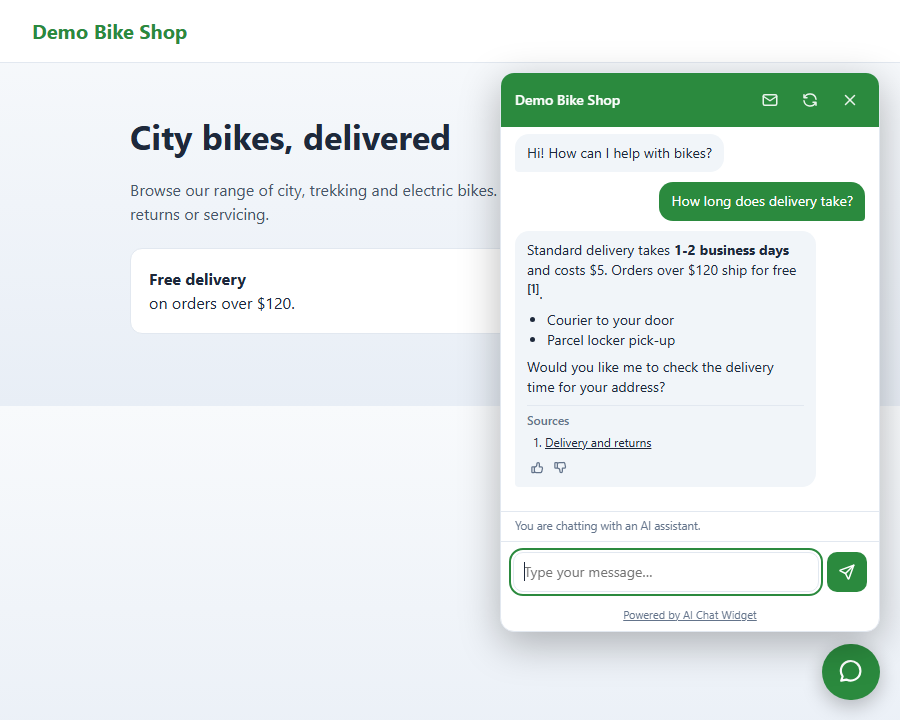
A round button in the corner; a window with a header (title, contact button when enabled, restart, close), the conversation with Markdown formatting, suggested question buttons, thumbs, source links, the AI notice and an input box. On phones the window fills the screen. The conversation survives page reloads within the browser session.
Knowledge base
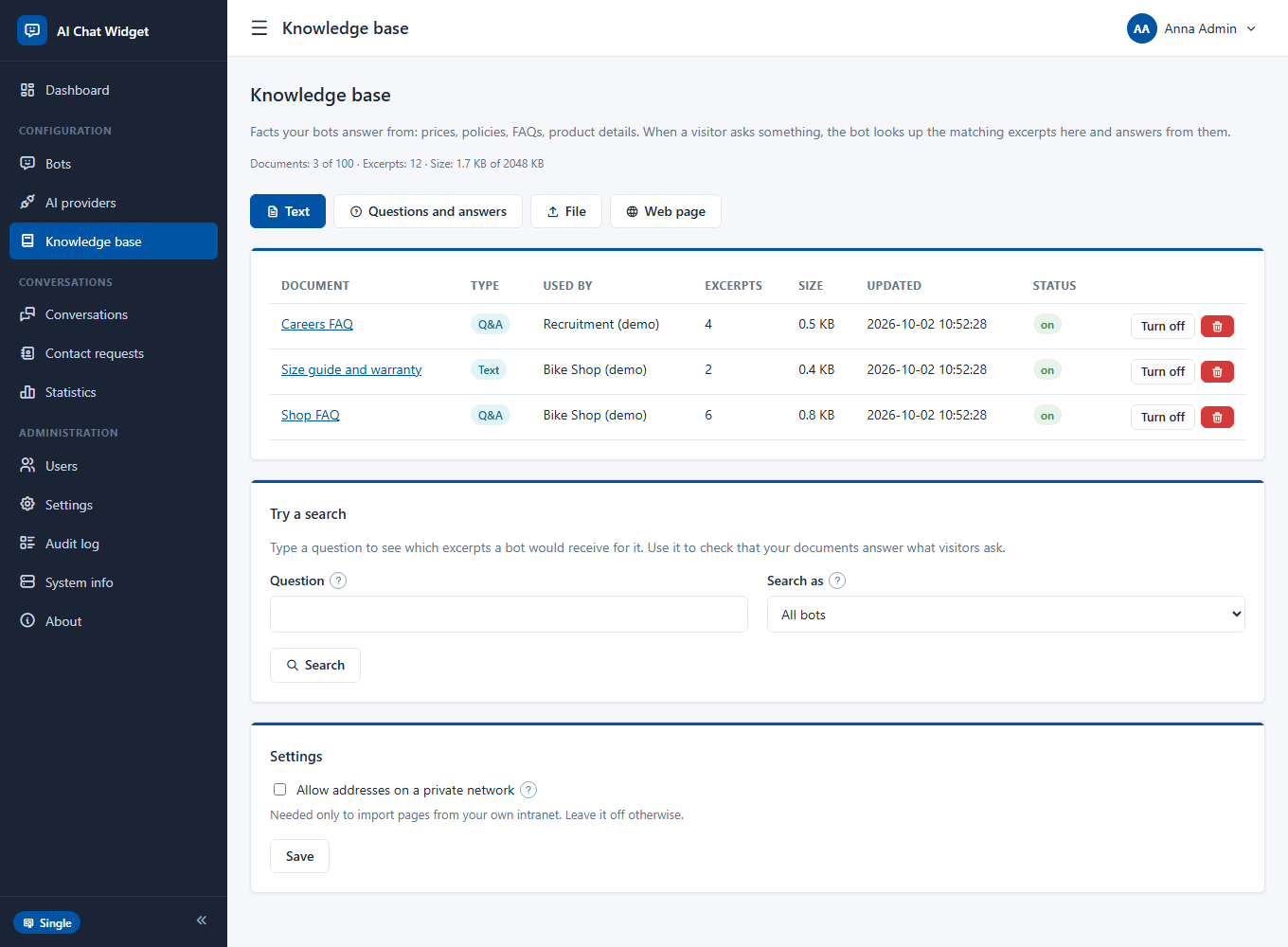
The knowledge base holds the facts your bots answer from: prices, policies, FAQs, product details. When a visitor asks something, the bot looks up the best-matching excerpts and answers from them instead of guessing.
Ways to add content
# or written in capitals is treated as a heading that stays with the text below it.Q: ... and A: ... (also Pytanie/Odpowiedź, Frage/Antwort, Question/Réponse, Domanda/Risposta, Pregunta/Respuesta). Every pair stays together, which gives the best results.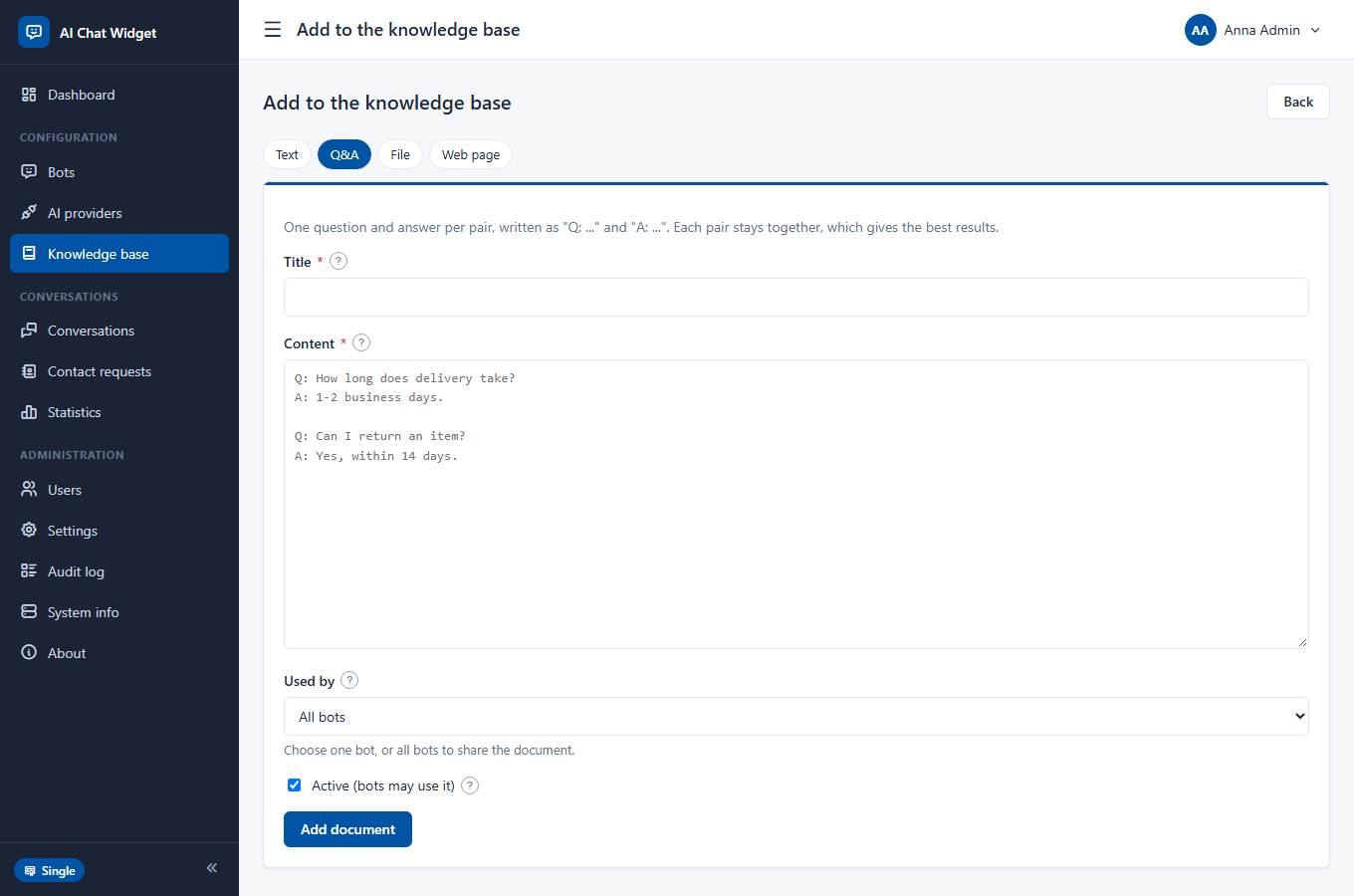
Which bot uses a document
Each document belongs to one bot or to all bots. Use "all bots" for company-wide facts such as shipping and returns. A document can be switched off without deleting it. Imported pages can be read again with one click to refresh them.
How a bot uses it
On the bot's Topic and prompt tab choose the mode:
- Use it, and fall back on general knowledge (default). Matching excerpts are added to the instructions. The bot may still use its general knowledge where the excerpts say nothing.
- Answer only from the knowledge base. When nothing matches, the AI is not asked at all: the bot replies with its "when it cannot answer" text, which costs no tokens, prevents invented answers and marks the question as unanswered.
- Do not use it.
A very short follow-up such as "and the warranty?" is searched together with the previous question. Documents that come from a web address add a source link under the answer.
Searching
Search needs no external service. Text is split into excerpts; words are reduced to their stems (accents and word endings do not matter), the database's full-text index picks candidates and a relevance ranking (BM25) chooses the best. It works in all six panel languages. A question in a different language from the document will not match: write your documents in the language your visitors use.
Try a search
The Try a search box on the Knowledge base page shows which excerpts a bot would receive for a question, with a relevance score. Use it after adding documents.
Closing the loop
On Statistics, each unanswered question has an Add an answer to the knowledge base link. It opens a question-and-answer form with the question and the bot already filled in. Write the answer and save: next time the bot knows it.
Limits
| Plan | Documents | Total size |
|---|---|---|
| Free | 5 | 100 KB |
| Single | 100 | 2 MB |
| Agency | Unlimited | Unlimited |
Contact requests
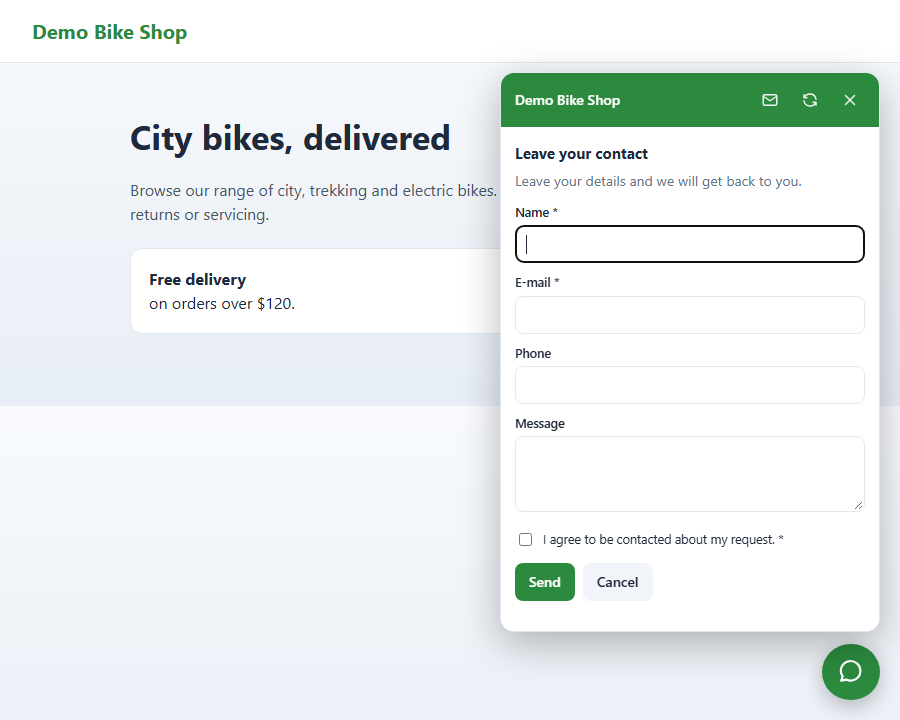
When the bot cannot help, the visitor can leave their details instead of leaving the site. You get an e-mail for each request and a list in the panel.
Switching it on
- 1Set up outgoing e-mail under Settings > E-mail and send the test message.
- 2Open the bot, tab Contact requests, tick Collect contact requests.
- 3Choose when the form is offered: a button in the chat header, and/or right after an answer the bot could not give.
- 4Choose which fields appear (name, phone, message: hidden, optional or required; the e-mail address is always required), whether to ask for consent, and who is notified.
Handling requests
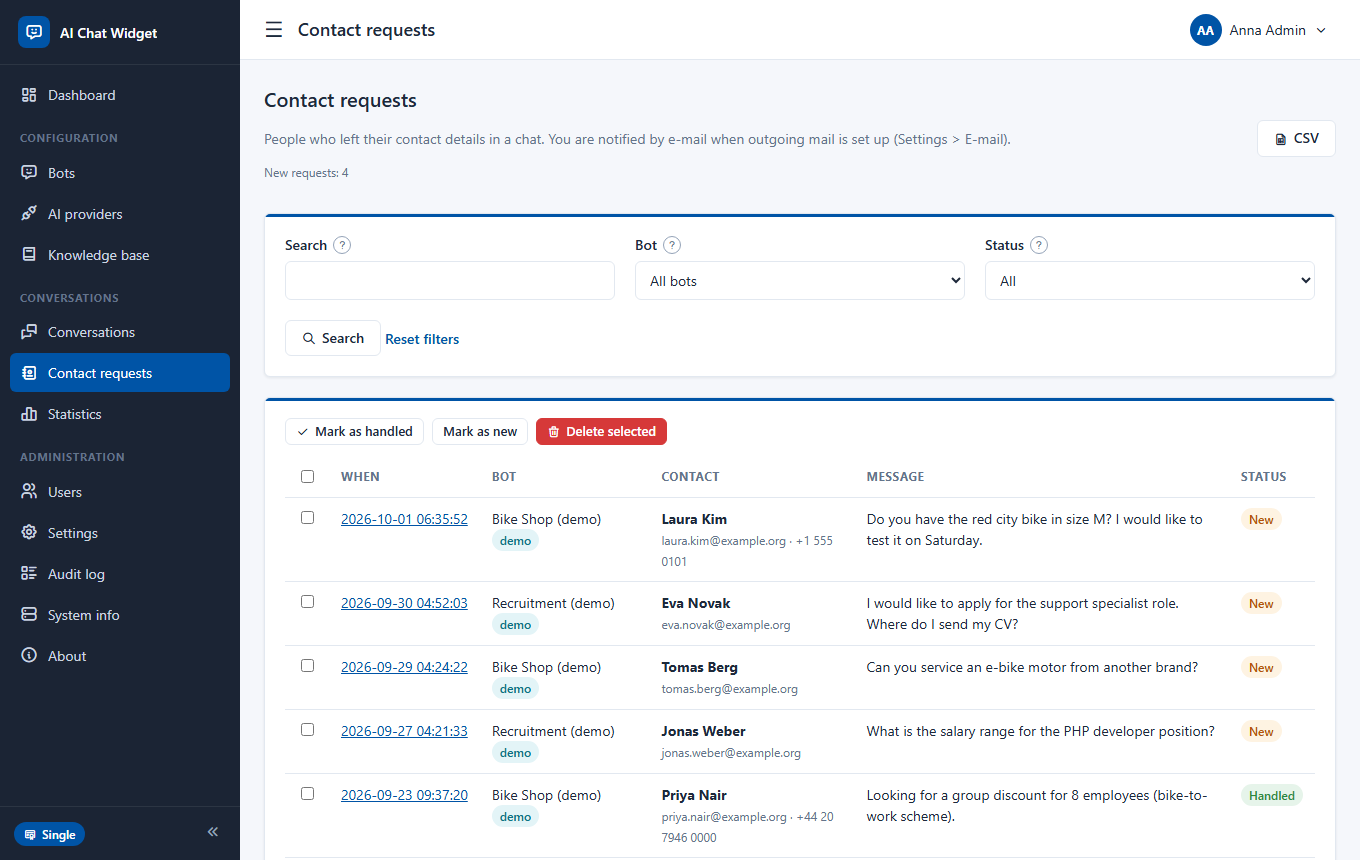
The Contact requests page lists every request with filters (search, bot, status). Open one to see the message, the page the visitor was on and the conversation it came from. Mark requests as handled, delete them one by one or in bulk, and export to CSV (paid licences). Active filters are highlighted and counted next to "Reset filters".
Protection
The form works even outside opening hours. It has a hidden trap field for bots, a limit of six requests per visitor and three per e-mail address per hour, and checks every field on the server.
Conversations
Read what visitors asked, mark what matters, and keep the database tidy without any scheduled job.
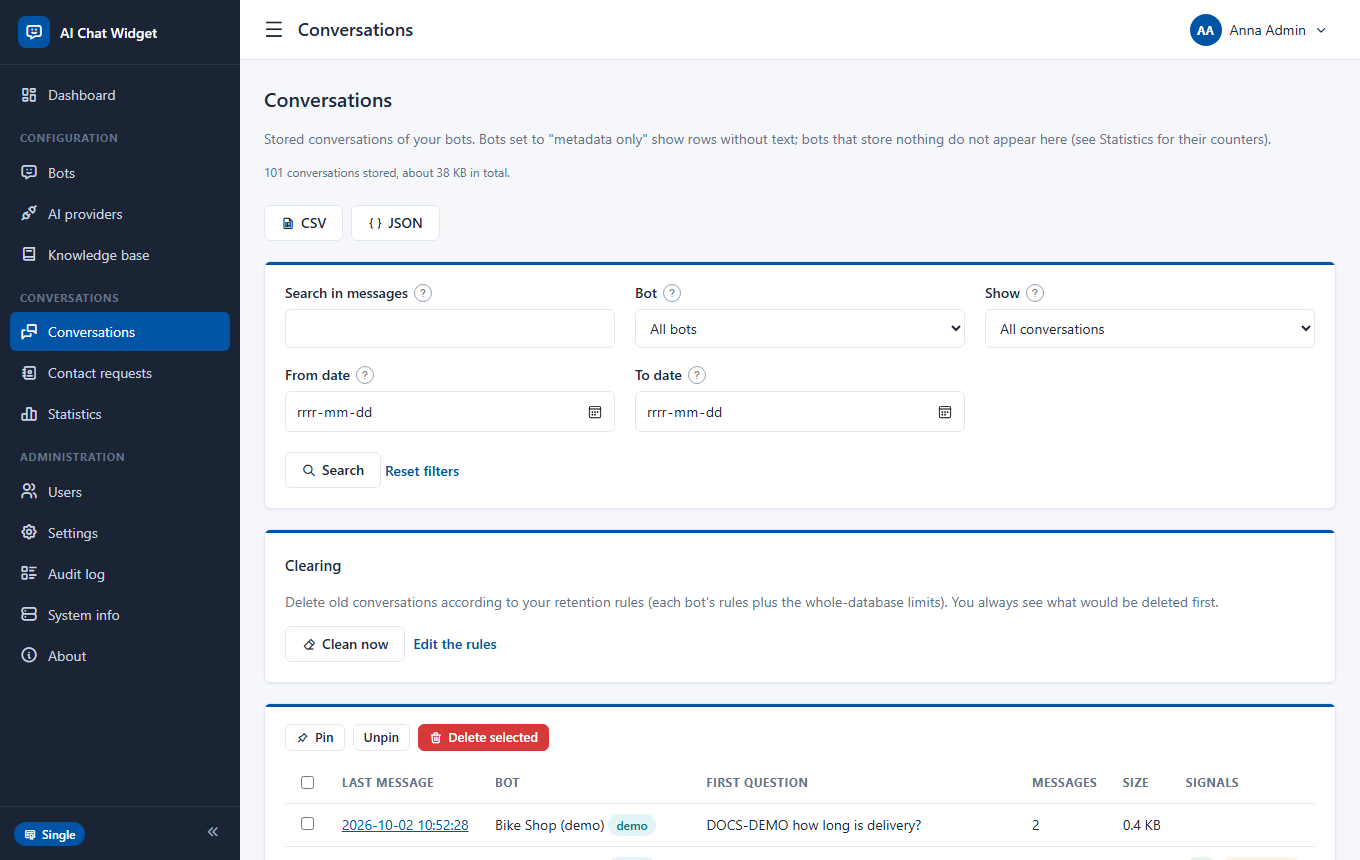
The list
Filter by bot, date range, search text and view: all, pinned, unanswered, rated down or with errors. Each row shows signals: thumbs, "unanswered" and provider errors. Open one to read the whole exchange with tokens, response time and flags.
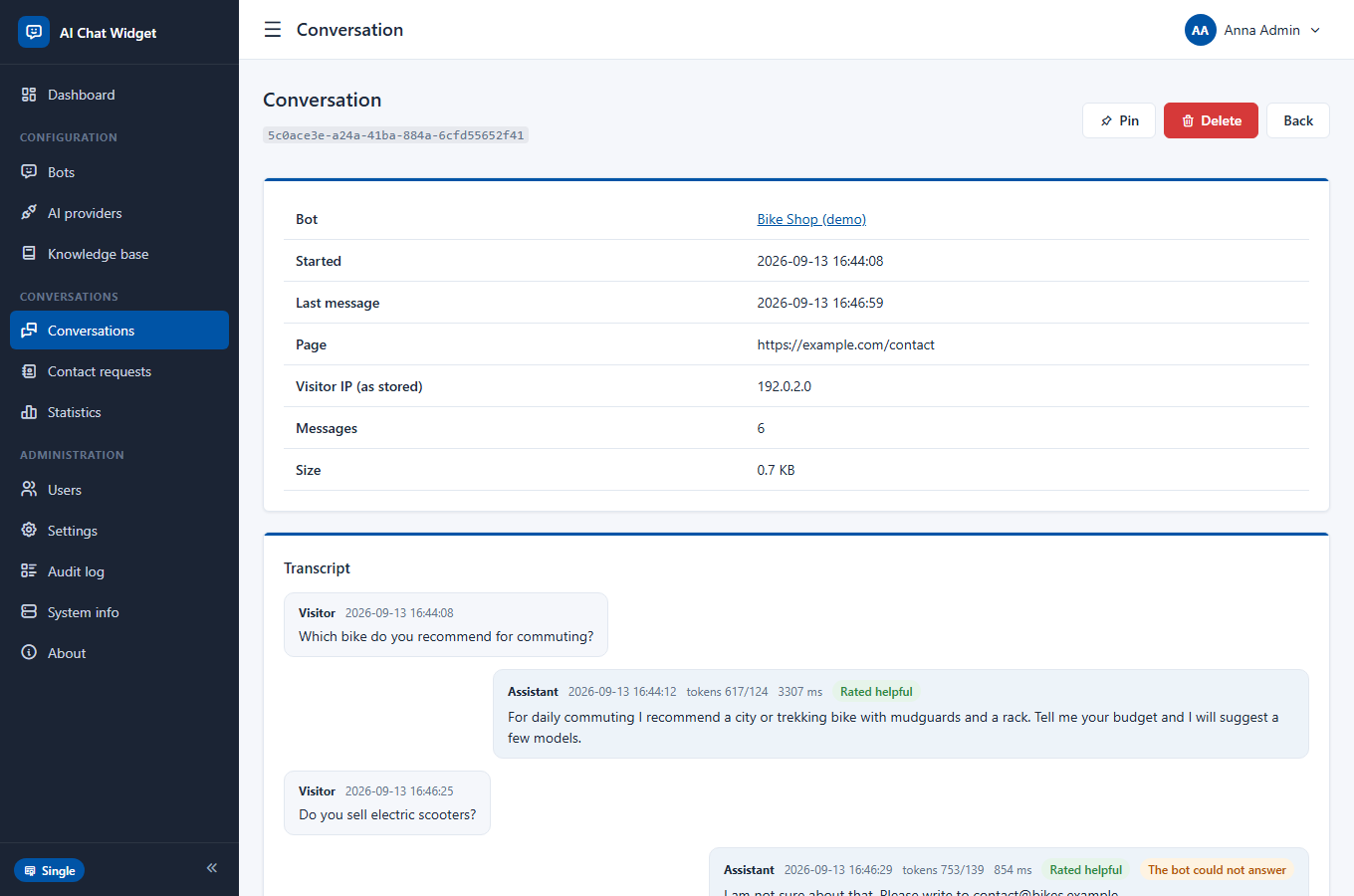
Actions
Pin conversations you want to keep, delete one or many, or delete everything of one bot. Export (CSV or JSON, paid licences) keeps your filters; CSV cells that could be run as spreadsheet formulas are neutralised.
Logging modes
What is stored depends on each bot's Conversation log setting: full texts, metadata only (counts, timing, ratings) or nothing. With "metadata" or "off" the visitor's browser keeps the history for the session.
Automatic clearing
Old conversations are removed by rules: by age, by number and by size, for each bot (own rules or the defaults) and for the whole database (total number and total size). Pinned conversations are never removed automatically. There is no cron job: clearing runs by itself when the application is used, at most once a minute. Clear now first shows a preview (how many conversations, how many kilobytes and why) and asks for confirmation.
Statistics
Counters are kept as anonymous daily totals, so statistics work even for bots that store no conversations.
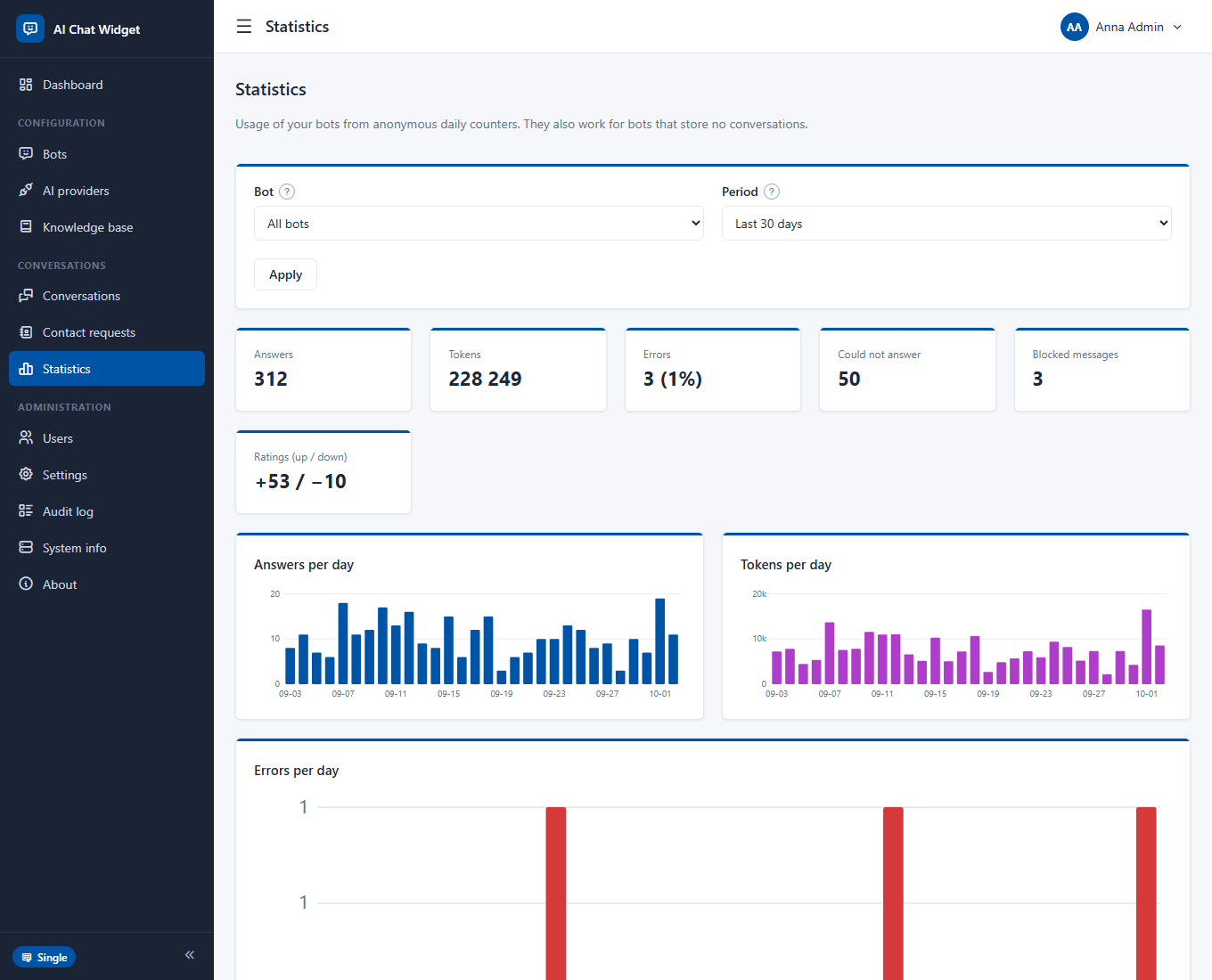
Tiles show answers, tokens, errors, unanswered questions, blocked messages and ratings. Three charts show answers, tokens and problems per day. A table compares your bots. With a paid licence two lists show the latest unanswered questions (each with a link to add an answer to the knowledge base) and the answers rated not helpful: the quickest way to improve a bot.
Settings
Application-wide options, in tabs.
Answer streaming
With streaming on, visitors see the answer appear word by word. It needs a server that does not hold back responses, so press Test streaming first: it sends six pieces half a second apart and tells you whether they arrive one by one. If the test says everything arrived at once, keep streaming off. Providers that cannot stream simply deliver the whole answer at once.
E-mail and notifications
Outgoing e-mail is used for password reset, sign-in codes and notifications about new contact requests. It is optional; everything else works without it.
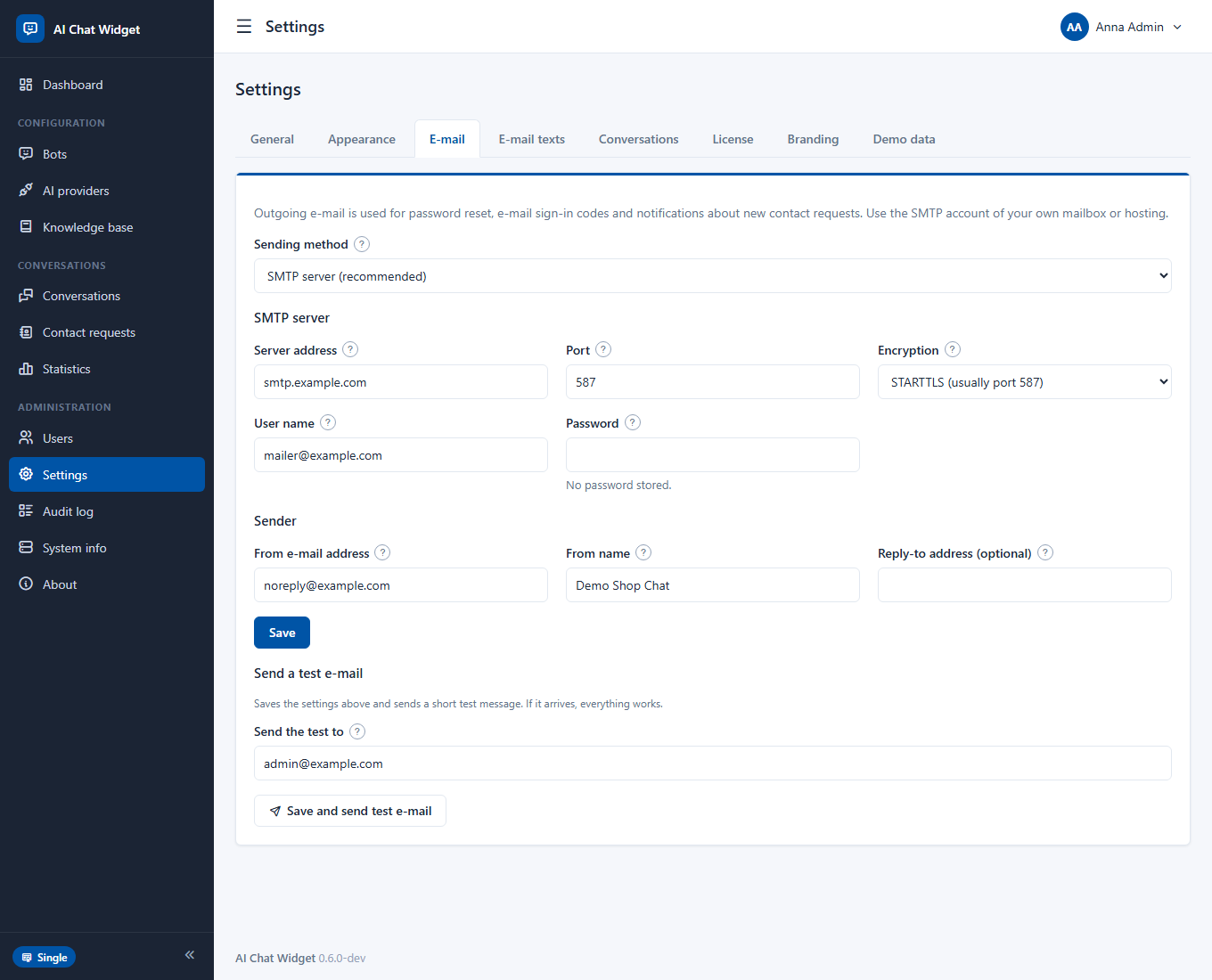
Setting it up
smtp.example.com, 587 with STARTTLS or 465 with SSL/TLS.Press Save and send test e-mail. If the message arrives, everything works.
E-mail texts
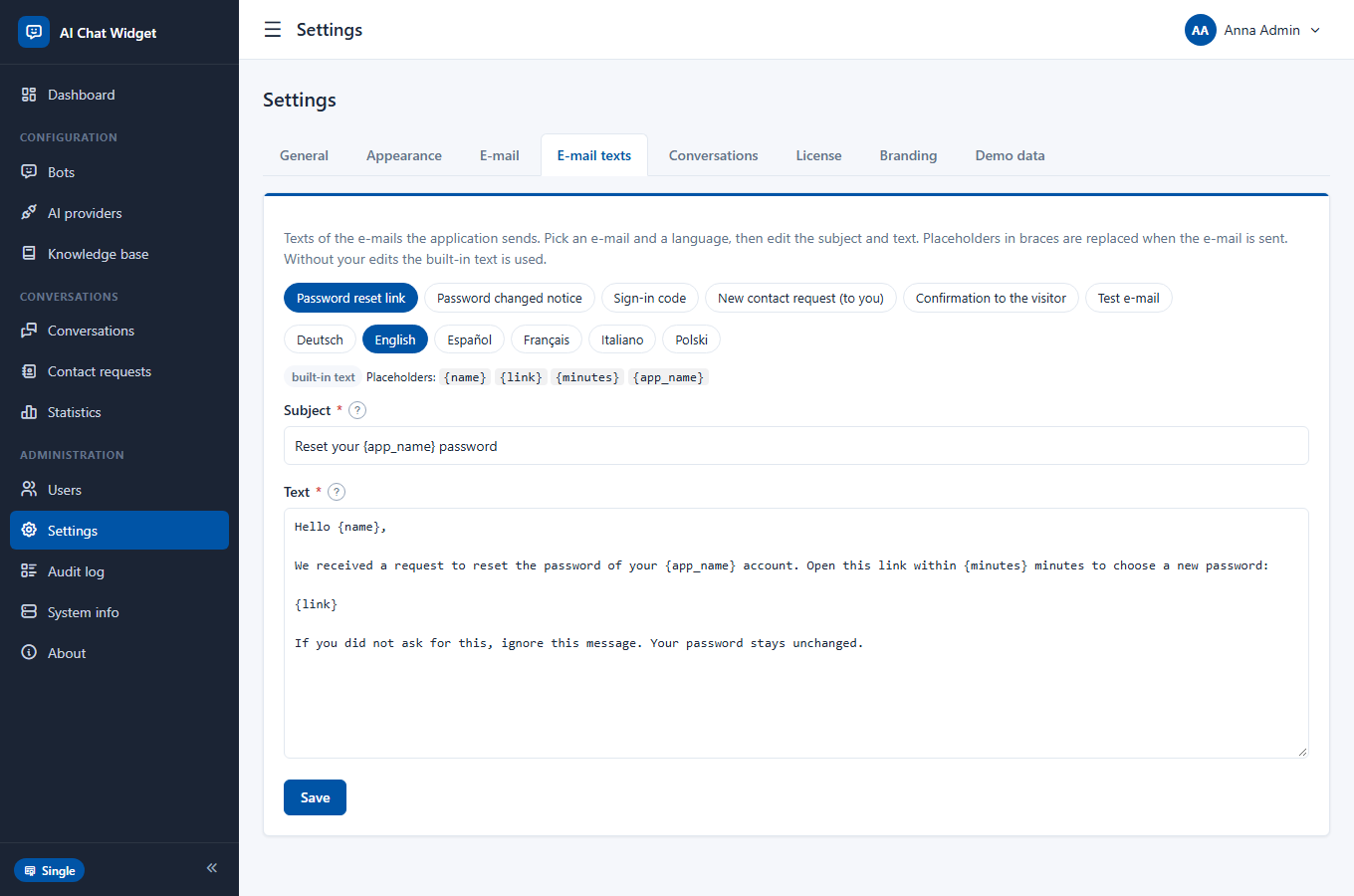
Under Settings > E-mail texts choose an e-mail (password reset, password changed, sign-in code, new contact request, confirmation to the visitor, test) and a language, then edit the subject and text. {placeholders} such as {name}, {link} or {code} are filled in when the e-mail is sent. Restore the built-in text goes back to the default. E-mails to people are written in the language they chose in their profile.
Accounts, two-factor sign-in and audit log
Every user is an administrator; there are no roles to configure. Access is protected by passwords, optional two-factor sign-in and a complete audit trail.
Users
Under Users add or remove administrators (the number depends on your licence), reset a colleague's two-factor setting if they lost their device, and see who signed in when.
Two-factor sign-in
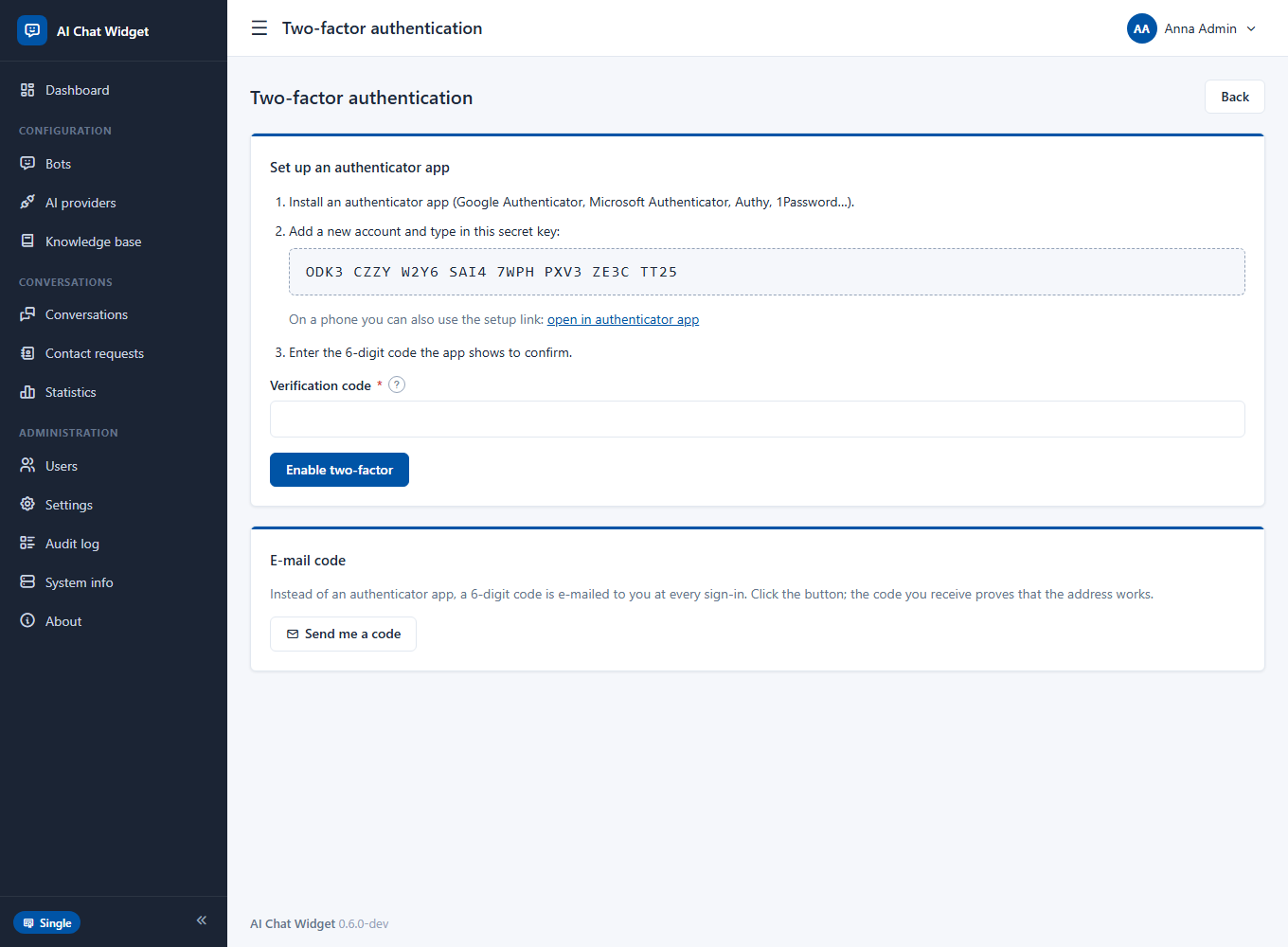
Open My profile > Two-factor sign-in and choose one:
- Authenticator app. Scan or type the key into an app such as Google Authenticator, Microsoft Authenticator or Aegis, then enter the 6-digit code to confirm.
- E-mail code. A 6-digit code is e-mailed at every sign-in (valid ten minutes, five tries). Requires working outgoing e-mail. You confirm by entering a code sent to your address.
Either way you receive recovery codes once. Store them safely: each works one time if you cannot use the normal second step. Settings > General > Require two-factor sign-in makes it compulsory for all.
Forgotten password
When outgoing e-mail is set up, the sign-in page shows Forgot your password?. A one-time link valid for 60 minutes is e-mailed; the same answer is shown whether or not the address exists. Setting a new password removes an account lock and sends a notice. Without e-mail, another administrator sets a new password for you under Users.
Lock-outs and limits
Five wrong passwords lock an account for 15 minutes; too many failures from one address are throttled. Sessions expire after the time set in Settings.
Audit log
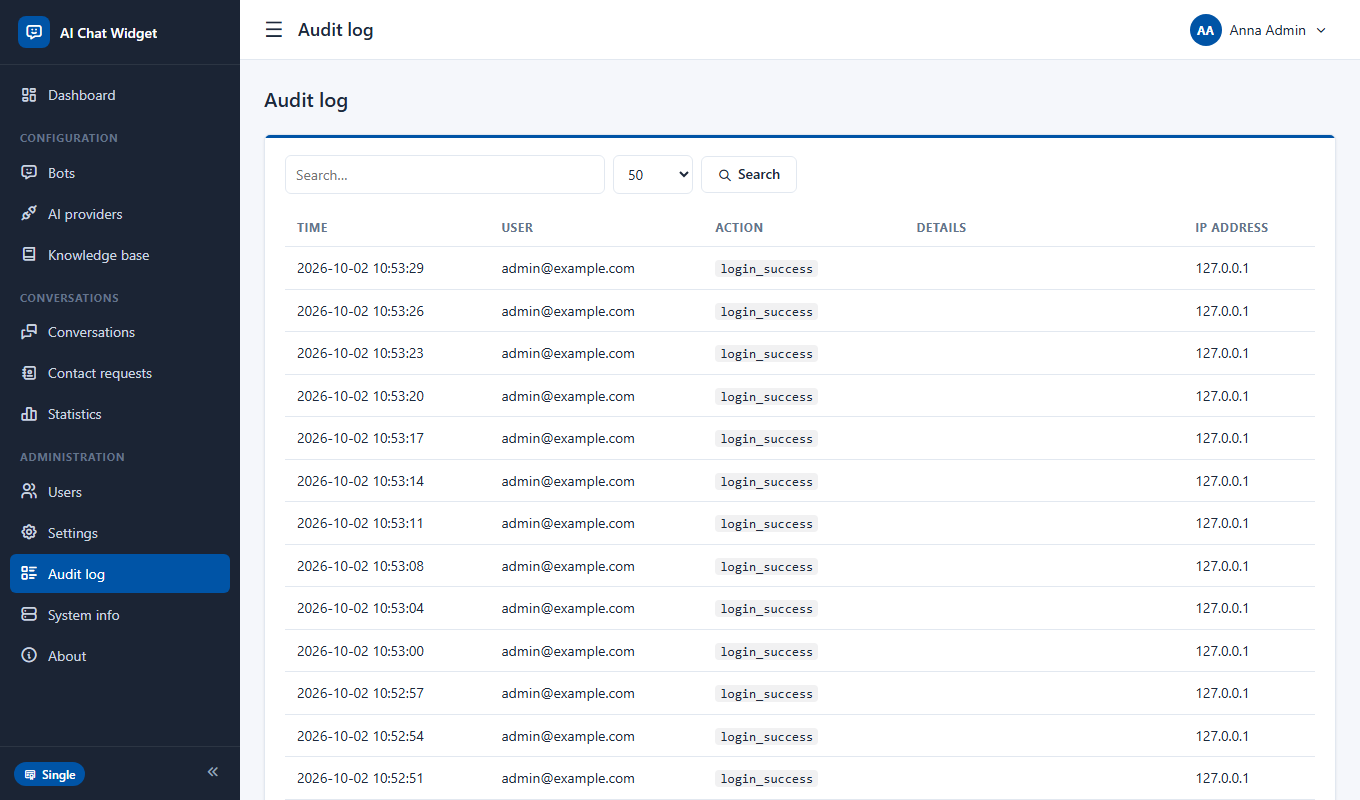
Every important action is recorded: sign-ins and failures, setting changes, key and licence changes, user changes, exports, deletions. The log never stores passwords, keys or message texts. Old entries are removed after the number of days set in Settings.
System info, updates and demo data
Technical details and the one-click tools.
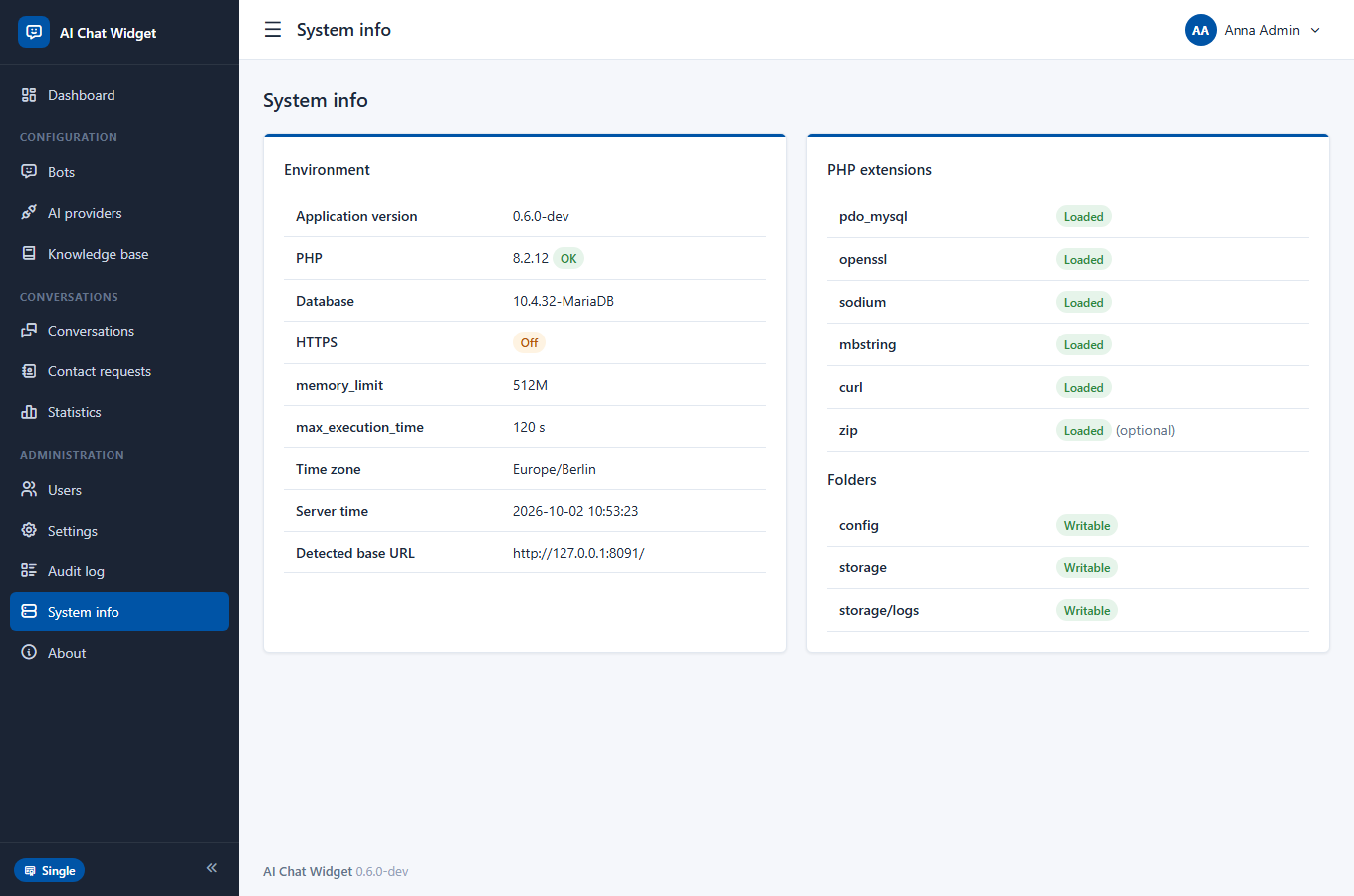
System info shows the application and PHP versions, the database, which PHP extensions are loaded, file permissions and the list of database updates (migrations). When a new version brings database changes, the dashboard shows a notice; open System info and press Apply. Updates are numbered, run once and are safe to repeat.
Demo data
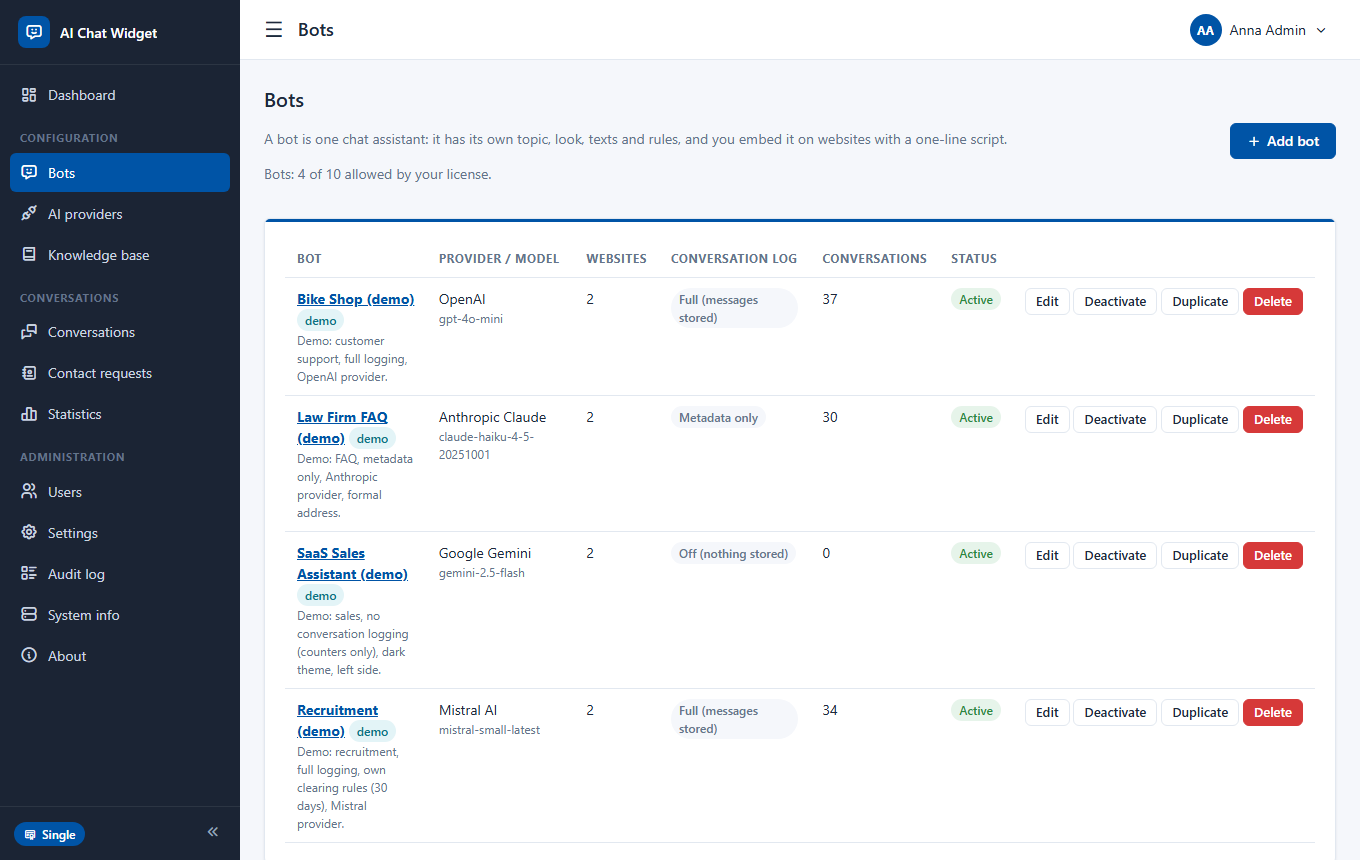
Settings > Demo data loads four example bots (bike shop, law firm FAQ, SaaS sales assistant, recruitment) with about a hundred conversations spread over six months, pinned and rated ones, unanswered questions, contact requests and knowledge documents. Automatic clearing is paused while it is loaded (otherwise the deliberately old conversations would vanish). Remove deletes exactly the demo bots and their data and restores your previous clearing setting.
Licences
The application is free for your own use. Paid licences are for commercial use and lift the limits.
| Free | Single | Agency | |
|---|---|---|---|
| Use | Your own use | Commercial, one installation domain | Commercial, many domains |
| Bots | 2 | 10 | Unlimited |
| Allowed websites (all bots) | 2 | 10 | Unlimited |
| Administrators | 1 | 5 | Unlimited |
| Knowledge base | 5 documents, 100 KB | 100 documents, 2 MB | Unlimited |
| "Powered by" line | Always shown | Can be hidden | Can be hidden and replaced (white label) |
| Fallback provider | - | Yes | Yes |
| Targeting, opening hours, auto-open, custom CSS | - | Yes | Yes |
| Statistics lists (unanswered, not helpful) | Counts only | Yes | Yes |
| Export of conversations and contact requests | - | Yes | Yes |
| Confirmation e-mail to the visitor | - | Yes | Yes |
Activating a key
Go to Settings > License, paste the key and save. The key is verified on your server against a built-in public key and is tied to your domain: no data is sent anywhere. If the key does not match the domain or has expired, the application stays on Free; live widgets are never switched off, only creating new items is limited.
Features at a glance
Many bots
Different topics, looks, texts, rules and website lists, each with its own provider and model.
Any AI provider
Fourteen ready profiles plus your own, set up from data, tested live, with a fallback provider.
Knowledge base
Text, Q&A, TXT, MD, CSV, HTML, PDF, DOCX, web pages and sitemaps, searched without extra services.
Contact requests
A form in the chat, e-mail notifications, a list with export and automatic deletion.
Conversations
Search, filters, pinning, ratings, export and clearing by age, number and size.
Statistics
Daily totals, charts, unanswered questions and not-helpful answers, with one-click fixes.
Streaming
Optional word-by-word answers with a built-in test of your server.
Six languages
English, Polish, German, French, Italian and Spanish, in the panel and in the widget.
Secure by design
Two-factor sign-in, CSRF protection, encrypted keys, audit log, website access lists, limits and budgets.
Password reset, e-mail sign-in codes and notifications with editable texts in every language.
WordPress and any site
One script line, or a small plugin, with a Shadow DOM widget that never clashes with your styles.
Privacy options
Full, metadata-only or no logging, shortened IPs, AI notice, consent checkbox, retention rules.
Reference
For developers: the widget API
The widget talks to api.php on your server. There are no cookies and no sessions: a visitor is a random token kept in the browser.
| Request | Purpose |
|---|---|
GET api.php?a=config&bot=ID&lang=xx | Widget configuration and texts for the visitor's language. |
POST api.php?a=message&bot=ID | One visitor message (JSON body). Add &stream=1 for server-sent events when streaming is on. |
POST api.php?a=rate&bot=ID | Thumbs up or down for an answer (signed reference). |
POST api.php?a=lead&bot=ID | A contact request (JSON body). |
GET api.php?a=test&bot=ID | A small test page with the widget. |
Every request must come from an allowed website (the Origin header is checked against the bot's list). Answers are JSON with ok, and on errors an error code and a translated message. Streaming answers use the events delta (a piece of text), done (final answer, conversation, signature, sources) and error.
AIChatWidget functions instead.Privacy and GDPR notes
You decide what is stored. These switches help you meet your obligations; they are not legal advice.
- Logging mode per bot. Full, metadata only or off. Choose what you really need.
- IP addresses. Stored shortened (the last part removed) or not at all.
- Retention. Delete conversations by age, number or size, and contact requests after a number of days. Both run automatically.
- Deleting on request. Delete a person's conversations from the list (search the text) and their contact request from Contact requests.
- AI notice. A short sentence in the chat that the visitor talks to an AI; links to your privacy policy.
- Consent. A required checkbox on the contact form.
- Data in transit. Messages are sent to the AI provider you chose. Check its terms and data-processing agreement, and mention it in your privacy policy. Pick a provider or model that fits your obligations, or a local model (Ollama, LM Studio) if data must not leave your server.
- Your data stays with you. The application itself sends nothing to CreativAI.
Security overview
Defence in depth, without extra services.
- Sign-in. Hashed passwords, lock after repeated failures, optional two-factor sign-in with recovery codes, sessions that expire.
- Forms. CSRF protection on every change; all output escaped; a content security policy with nonces.
- Secrets. AI keys, the SMTP password and two-factor secrets are encrypted with AES-256-GCM using your application key.
- Public identifiers. Bots, conversations and contact requests use random UUIDs in addresses, never sequential numbers.
- Widget. Built with DOM calls only (no raw HTML from the model), inside a Shadow DOM; links from answers open with
rel="noopener noreferrer nofollow". - Abuse limits. Allowed-website list, rate limit, message and conversation length limits, blocked words, daily token budget, a hidden trap field and per-address limits on the contact form.
- Outgoing requests. AI calls and web page imports are checked against private and cloud-metadata addresses, redirects are verified at every step, size and time are capped.
- Prompt injection. Visitor text, page context and knowledge excerpts are labelled as untrusted data and fixed safety rules are always appended. A prompt reduces this risk but cannot remove it: keep the bot's scope narrow and never put secrets in a bot's instructions or knowledge base.
- Files. Uploads are checked by type and size and read as text; Word documents are parsed with external entities disabled.
Maintenance
A short routine that keeps the installation healthy.
Backups
Back up two things: the database and the file **config/config.php** (it holds the key that decrypts your stored AI keys). Uploaded documents are stored in the database, so a database dump covers the knowledge base too.
Updating
- 1Make a database backup.
- 2Upload the new files over the old ones; keep
config/andstorage/. - 3Sign in, open System info and press Apply if updates are listed.
- 4Press Ctrl+F5 once to refresh the stylesheet.
Logs
Errors that cannot be shown to visitors are written to the PHP error log. The audit log in the panel records administrative actions.
Nginx rules
.htaccess files protect the internal folders on Apache. On Nginx add equivalent rules, for example:
location ~ ^/ai-chat-widget/(app|config|database|language|storage|_devs|_idea)/ { deny all; }
location ~* \.(sql|md|lock|log|json)$ { deny all; }
For streaming behind Nginx, make sure proxy_buffering is off for api.php (the application already sends X-Accel-Buffering: no).
Hosting limits that matter
PHP upload_max_filesize and post_max_size limit file uploads to the knowledge base. A big PDF may need memory_limit of 256 MB or more. Outgoing HTTPS must be allowed for AI calls and web page imports.
Help & troubleshooting
Common issues and solutions
Start with the symptom.
| Symptom | What to check |
|---|---|
| The widget does not appear | The bot is Active; your website is in Allowed websites; the "Where and when" rules (patterns, devices, opening hours) allow this page; your site's content security policy allows the script; open the bot's test page from the Embed tab to compare. |
| The chat says "origin not allowed" or nothing loads | Add the exact domain (without https:// or www.) to Allowed websites. *.example.com covers subdomains. |
| "Sorry, something went wrong" | The provider failed. Open AI providers, run the test console and read the error: wrong key (401), no credit or billing (402/429), wrong model name, or a timeout. Switch on a fallback provider for resilience. |
| Answers ignore my documents | Test with Try a search. The question and the document should be in the same language; use the words visitors use; check the document is active and assigned to this bot or all bots; check the bot's mode is not "Do not use it". |
| A PDF is refused | It is probably a scan (no selectable text) or password-protected. Export a PDF with text or paste the text. |
| A web page cannot be imported | Use an https address that is public; pages behind a login cannot be read; for an intranet page switch on "Allow addresses on a private network" on the Knowledge base page. |
| E-mails do not arrive | Send the test message under Settings > E-mail and read the error. Check port and encryption, that the From address belongs to your domain, and the spam folder. Add SPF and DKIM records for your domain. |
| No "Forgot your password?" link | Outgoing e-mail is not set up. Configure Settings > E-mail. |
| I lost my second factor | Use a recovery code. Otherwise another administrator resets your two-factor setting under Users. |
| I locked myself out | Wait 15 minutes. With database access an administrator can clear the lock in the users table. |
| Streaming looks broken | Run Test streaming in Settings. If everything arrives at once, the server or a proxy buffers responses: keep streaming off or fix the buffering (see Maintenance). |
| Uploads fail | Raise upload_max_filesize and post_max_size in PHP; the limits are 600 KB for text files and 8 MB for PDF and Word. |
| A banner says database updates are pending | Open System info and press Apply. |
| Screens look unstyled after an update | Press Ctrl+F5. |
| White page or error 500 | Check the PHP error log and that PHP is 8.1 or newer with the required extensions (System info). |
Reading provider errors
| Message | Usually means |
|---|---|
| 401 / unauthorized | The API key is missing, wrong or for another service. |
| 402 / insufficient credit | The account has no credit or billing is not set up. |
| 404 / model not found | The model name is wrong or not available to your account. |
| 429 / rate limit | Too many requests or a quota is used up; wait or raise the limit with the provider. |
| timeout | The provider was too slow; try again or raise the timeout in the profile. |
| private network | The profile points at a local address: enable "Allow private network addresses" for that profile only if it is a local model. |
Frequently asked questions
Do I need a developer to use it?
No. Everything is configured in the panel, and each field has a help icon. A developer is only needed for unusual integrations.
Where are my AI keys kept?
Encrypted in your database. They are never sent to the visitor's browser and never written to logs.
How much will the AI cost me?
The provider charges you directly for tokens. Use the daily token budget, a short answer length and the knowledge base's "answer only from the knowledge base" mode to keep costs predictable, and watch tokens on the Statistics page.
Can I use a model that runs on my own computer or server?
Yes. Use the Ollama or LM Studio profile and enable "Allow private network addresses" for it.
Can one installation serve several websites?
Yes. Add each website to the bot's allowed list, or create one bot per site. The number of bots and websites depends on your licence.
What happens if my licence expires?
The application returns to Free limits. Existing widgets keep working; only creating new bots, websites and documents beyond the Free limits is blocked.
Can I change the wording of the widget?
Yes: the Texts tab, per language. Empty fields fall back to built-in translations.
Does it work with page builders and online shops?
Yes. It is a single script line, so it works wherever you can edit the page footer or add a script. A WordPress plugin is included.
Contact
Questions, suggestions or something not working as described here? Write to the developer.